Appearance & Branding
Default Slide Appearance
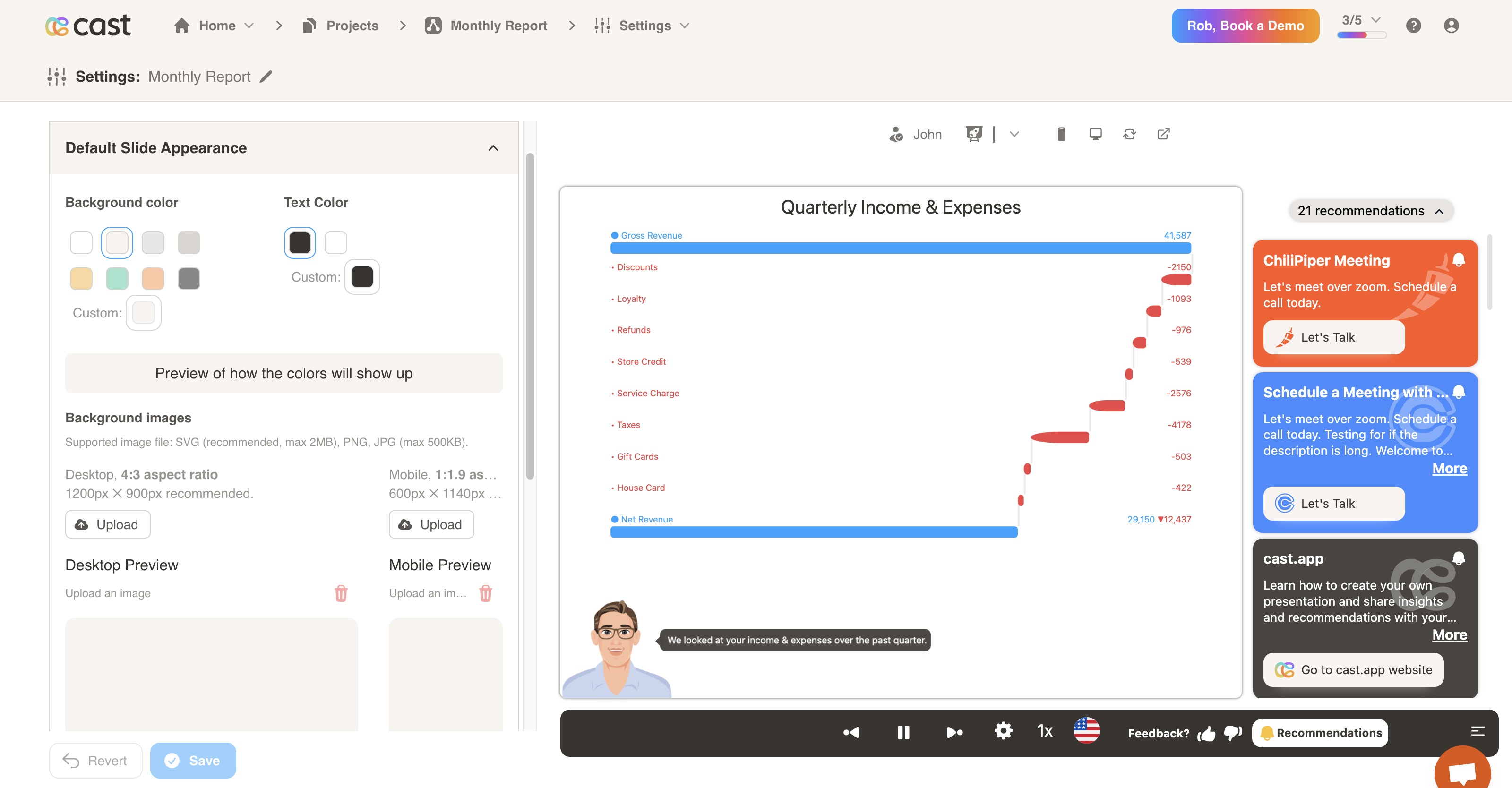
- You may choose a default background color, text color and background images for your slides.
- Supported image files include: SVG (recommended), PNG and JPG. A maximum size of 500KB is allowed.
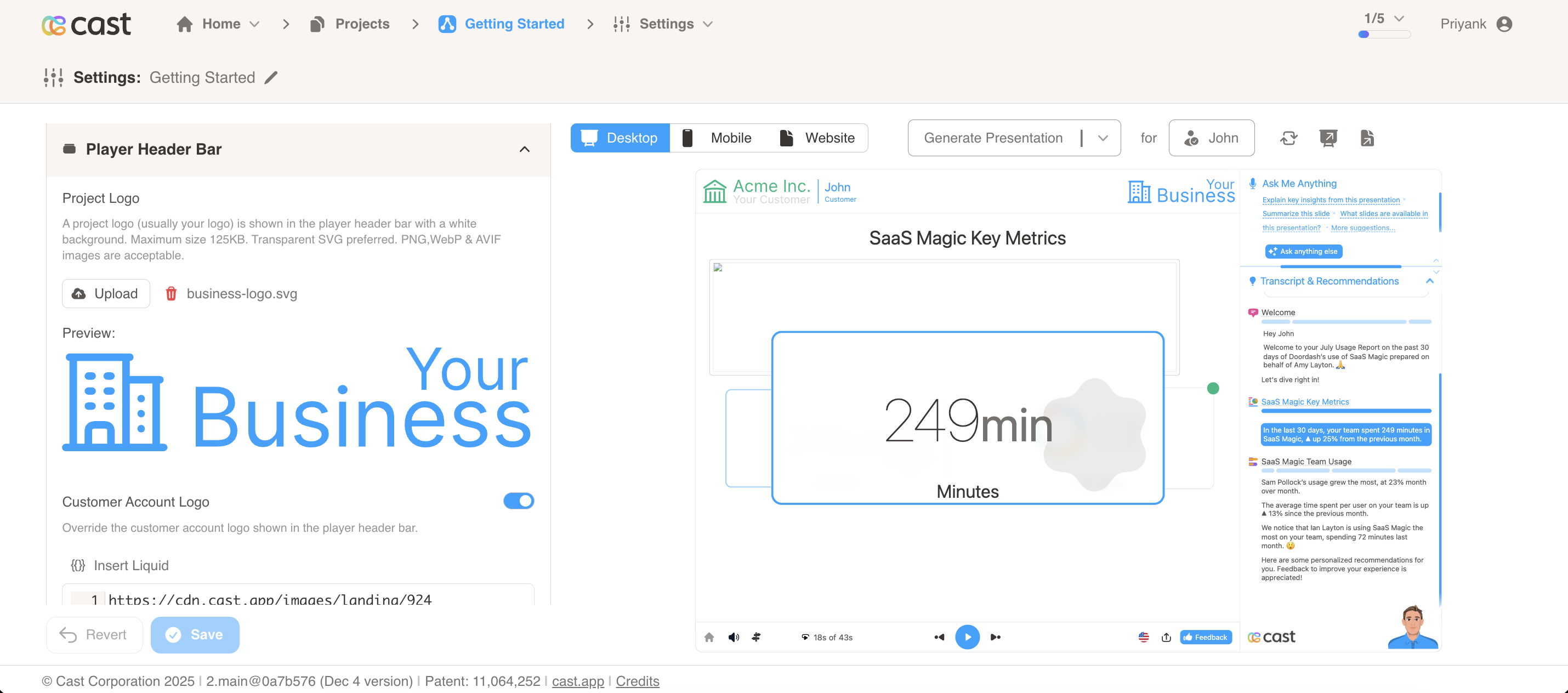
Player Header Bar
- Configure the header bar displayed in the player interface.
- Project Logo: Upload a project logo (usually your logo) that is shown in the player header bar with a white background. Maximum size 125KB. Transparent SVG preferred. PNG, WebP & AVIF images are acceptable.
- Customer Account Logo: Optionally override the customer account logo shown in the player header bar using contact-specific data.
- Customer Account Name: Optionally override the customer account name shown in the player header bar using contact-specific data.
- Contact Name: Optionally override the contact name shown in the player header bar using contact-specific data.
Customer Center Icon
Configure the in-app icon that appears when you embed Cast into your application. This icon is displayed wherever you embed Cast, and when users click on it, it will launch the Cast presentation. You can customize this icon’s appearance and behavior from this settings page.
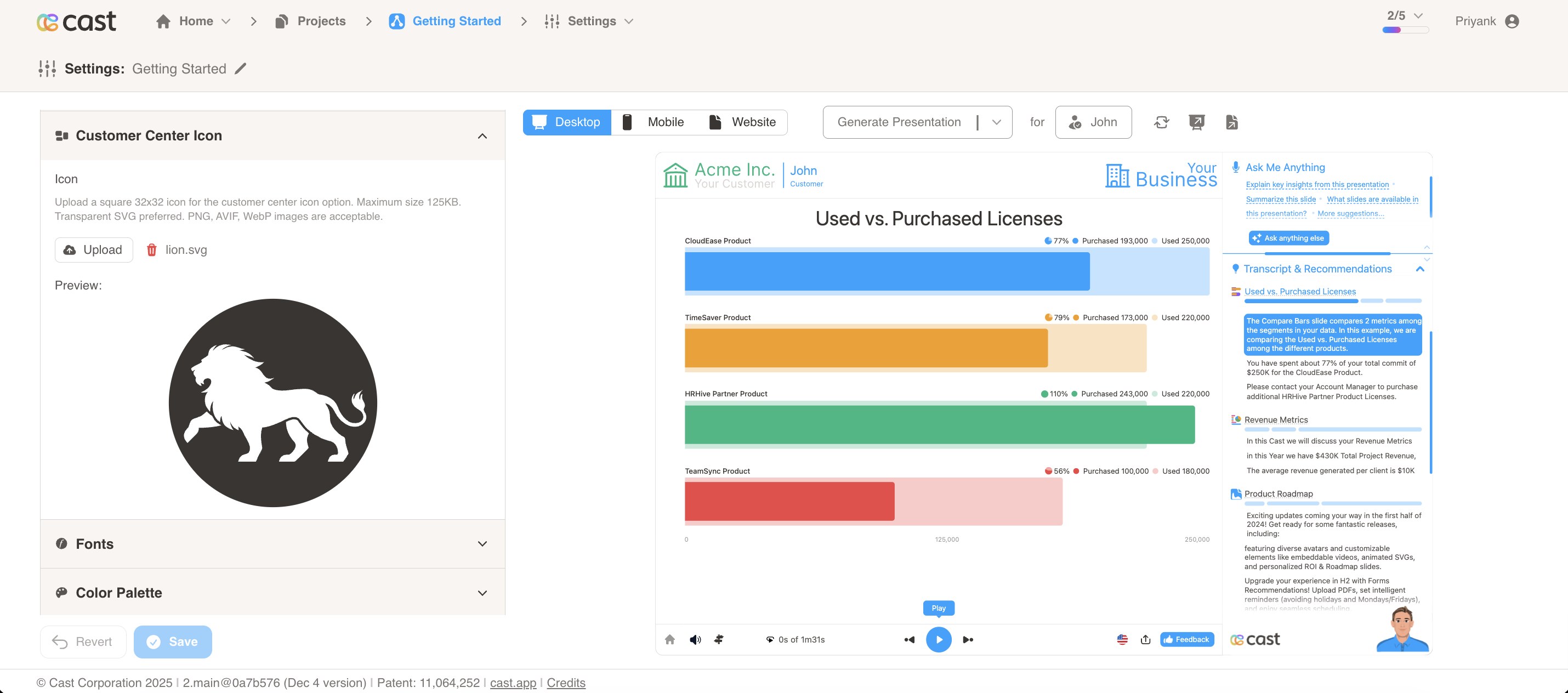
- Upload a square 32x32 icon for the customer center icon option.
- Maximum size 125KB. Transparent SVG preferred. PNG, AVIF, WebP images are acceptable.
- This icon is used in the customer center interface.
Example: See the in-app icon in action at https://cast.app/inapp
Fonts
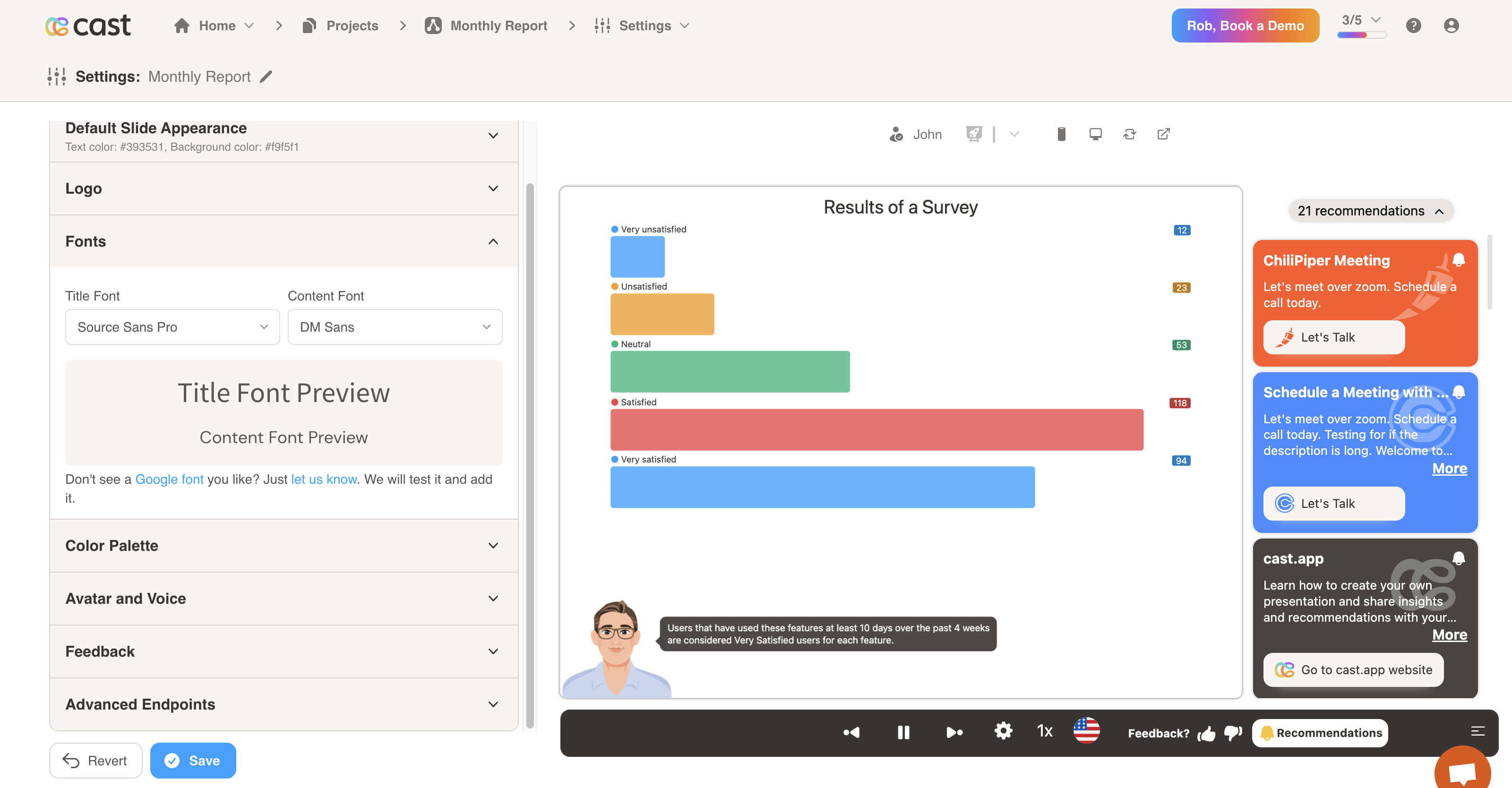
- Choose personalized fonts for your titles and content.
- Let us know if there is a font you’d like to add.
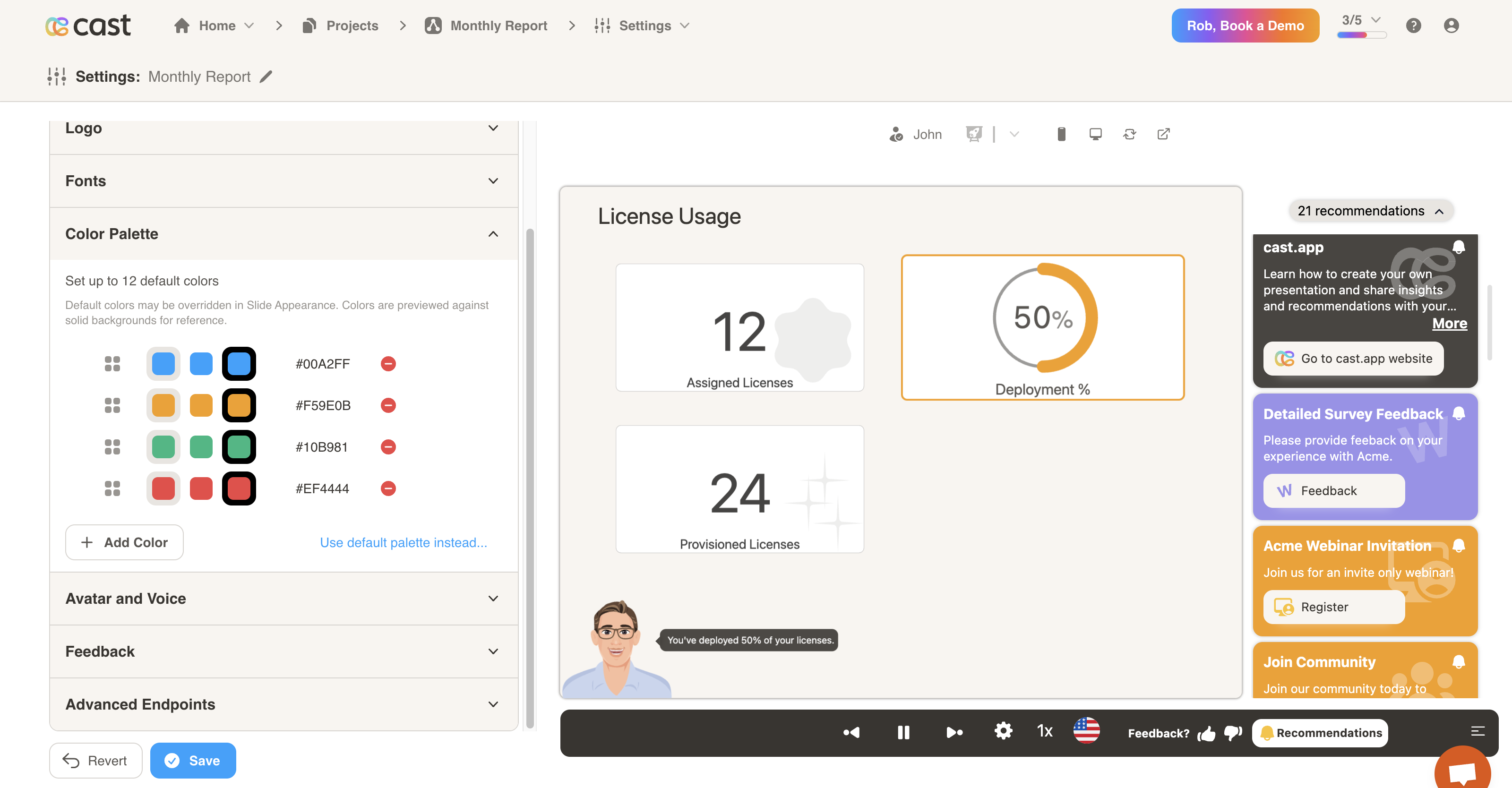
Color Palette
- Choose the default colors for your presentations.
- Click on the Add Color button to select a new color from the color picker.
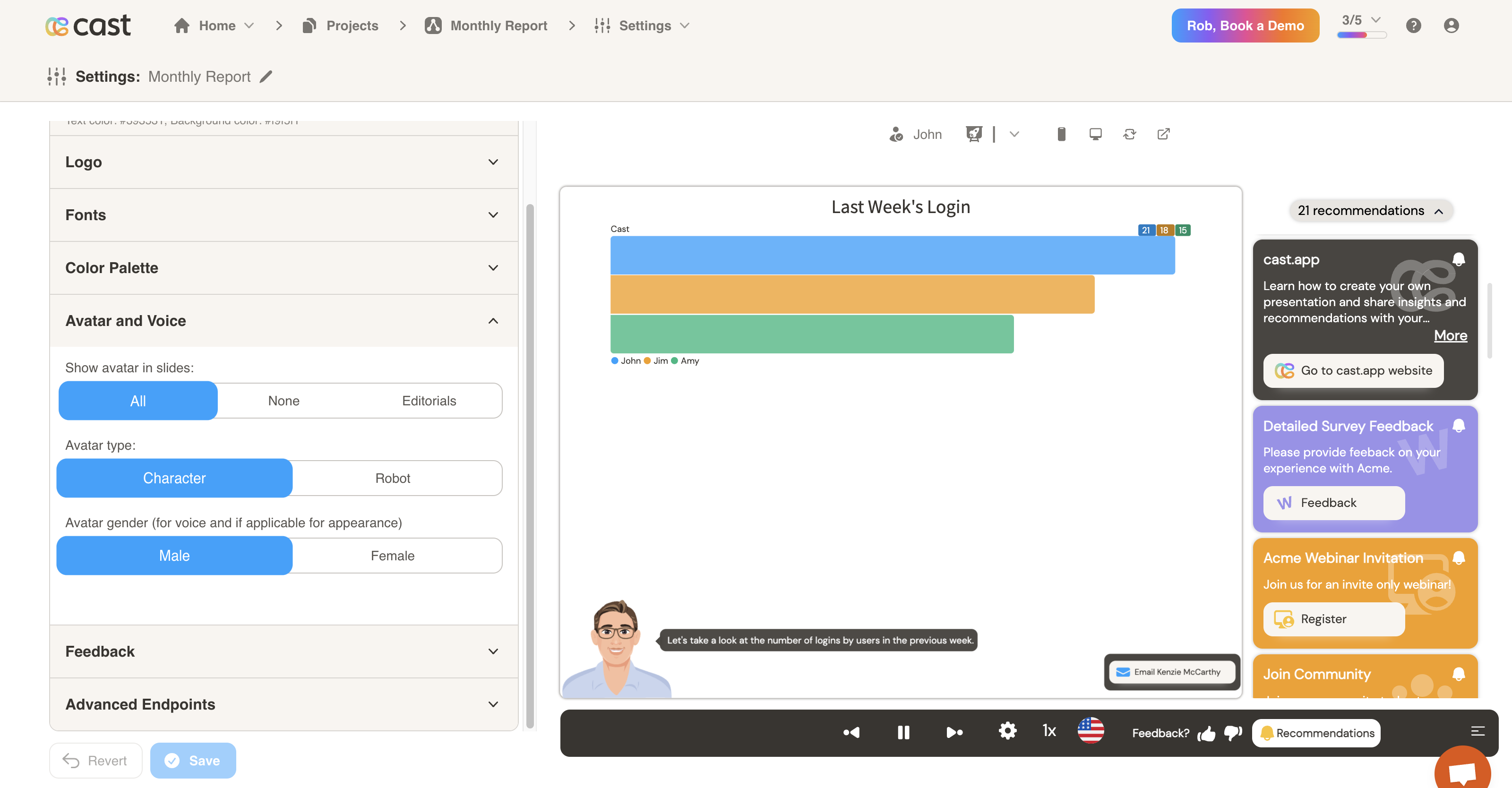
Avatar
- Assign avatar visibility, type and gender for narrating slides.
- You may choose between no avatar, a male avatar, female avatar, or robot. Customizations are possible.
Premium Voices
- Configure premium voice settings for different languages and genders.
- Provide male and female voice identifiers for premium voices.
- Voice settings are available to enterprise accounts. Please contact support at support@cast.app for more information.
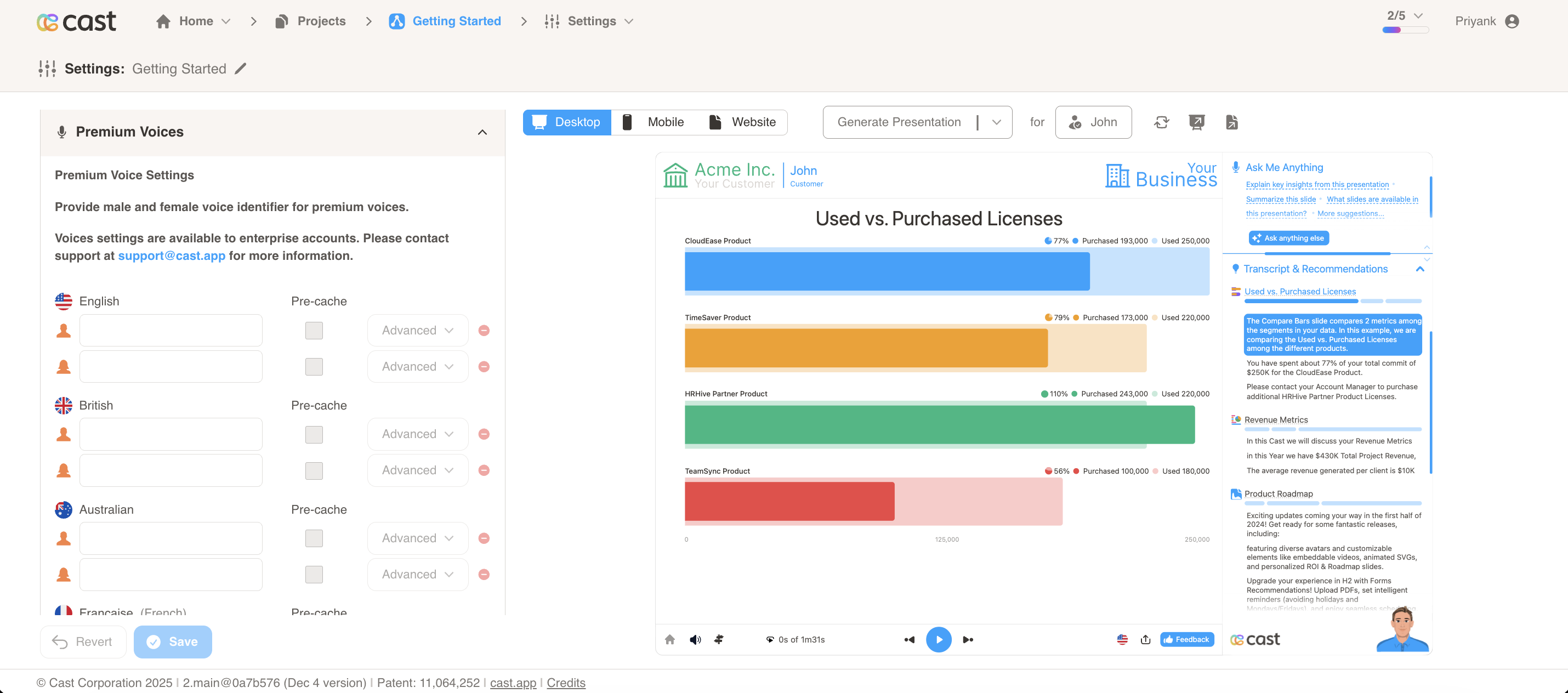
Voice Settings Configuration:
For each supported language, you can configure:
- Voice ID: The identifier for the premium voice (alphanumeric characters only)
- Vendor: The voice provider (e.g., “eleven”, “polly”)
- Language: The language for the voice (e.g., “english”, “spanish”, “french”)
- Gender: Male or female voice option
- Play Rate: Playback speed percentage (1-100%)
- Similarity: Voice similarity setting (0-1)
- Stability: Voice stability setting (0-1)
- Cache: Enable or disable TTS caching for faster playback
Supported Languages:
Premium voices are available for multiple languages including English, Spanish, French, Italian, German, Dutch, Danish, Japanese, Hindi, Chinese, Portuguese, Turkish, Korean, Chinese Traditional, and Indonesian.
Note: Premium voice settings allow you to customize the voice characteristics for narrations, providing more control over the audio experience in your presentations.