Analytics
The Analytics page provides a comprehensive view of how individual contacts engage across all your campaigns, allowing you to analyze performance metrics, track contact journeys, and gain insights into cross-campaign effectiveness.
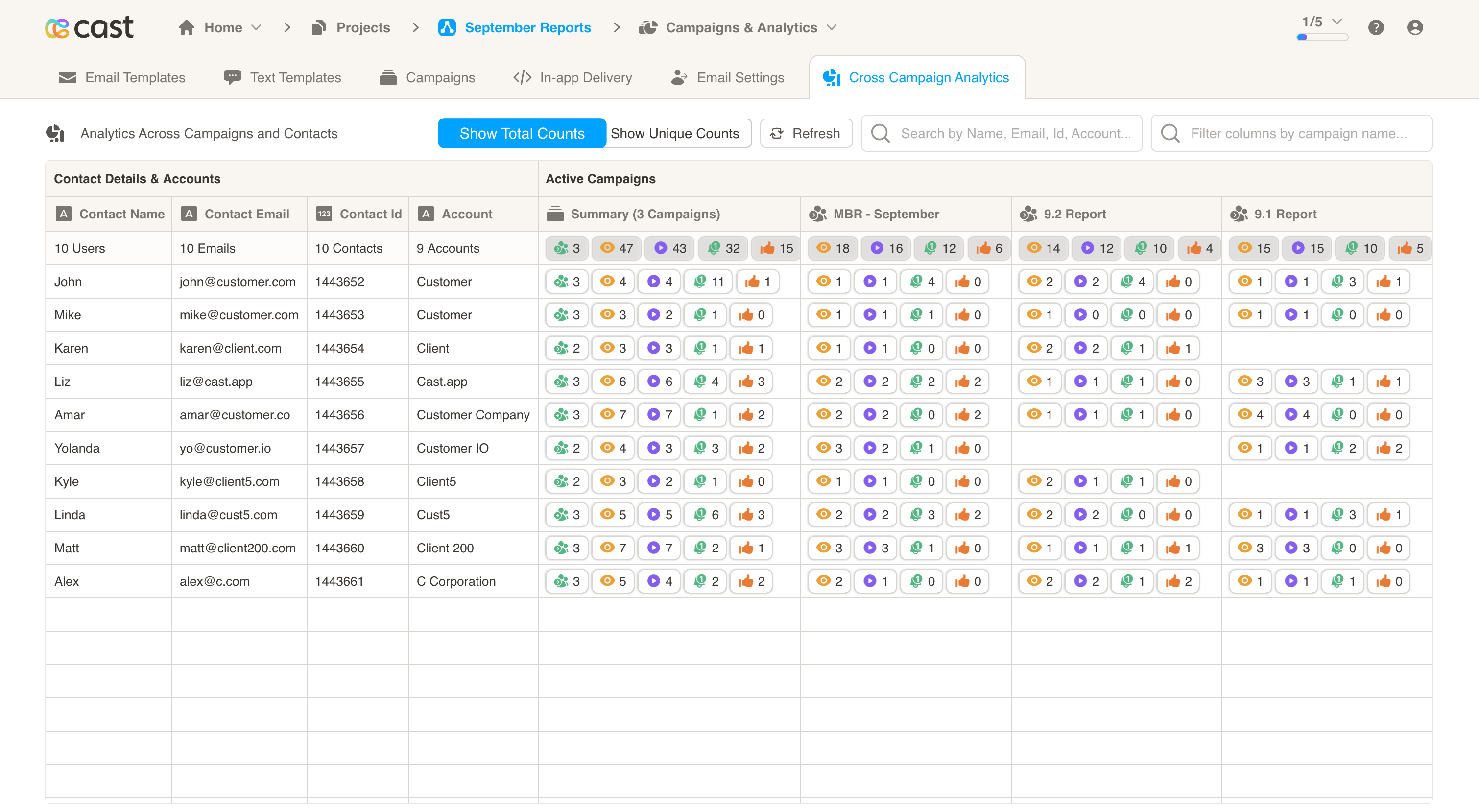
Analytics Views
The analytics can be viewed in two modes, which you can toggle using the controls at the top of the page:
-
By Contact: Shows individual contact analytics with one row per contact, displaying their complete engagement profile including:
- Contact Details: Name, email, contact ID, and account information
- Campaign Participation: Number of campaigns the contact is part of
- Engagement Metrics: Detailed interaction data across all event types
-
By Account (Beta): Shows account-level analytics with aggregated metrics across all contacts in each account. This view groups contacts by their account and provides aggregated engagement data at the account level.
Event Types Tracked
The system tracks and displays multiple types of engagement events:
| Event Type | Description |
|---|---|
| Campaigns | Number of campaigns a contact participates in |
| Email Delivered | Email delivery confirmations |
| Email Opened | Email open tracking events |
| Total Plays | All content views and plays |
| Immersive Plays | Interactive content engagement |
| Recommendations | Recommendation clicks and actions |
| Feedback | User feedback submissions |
| Form Submits | Form completion events |
| AMA Chats | AI chat interactions |
Campaign Filtering
Use the Campaign Selector to filter analytics by specific campaigns:
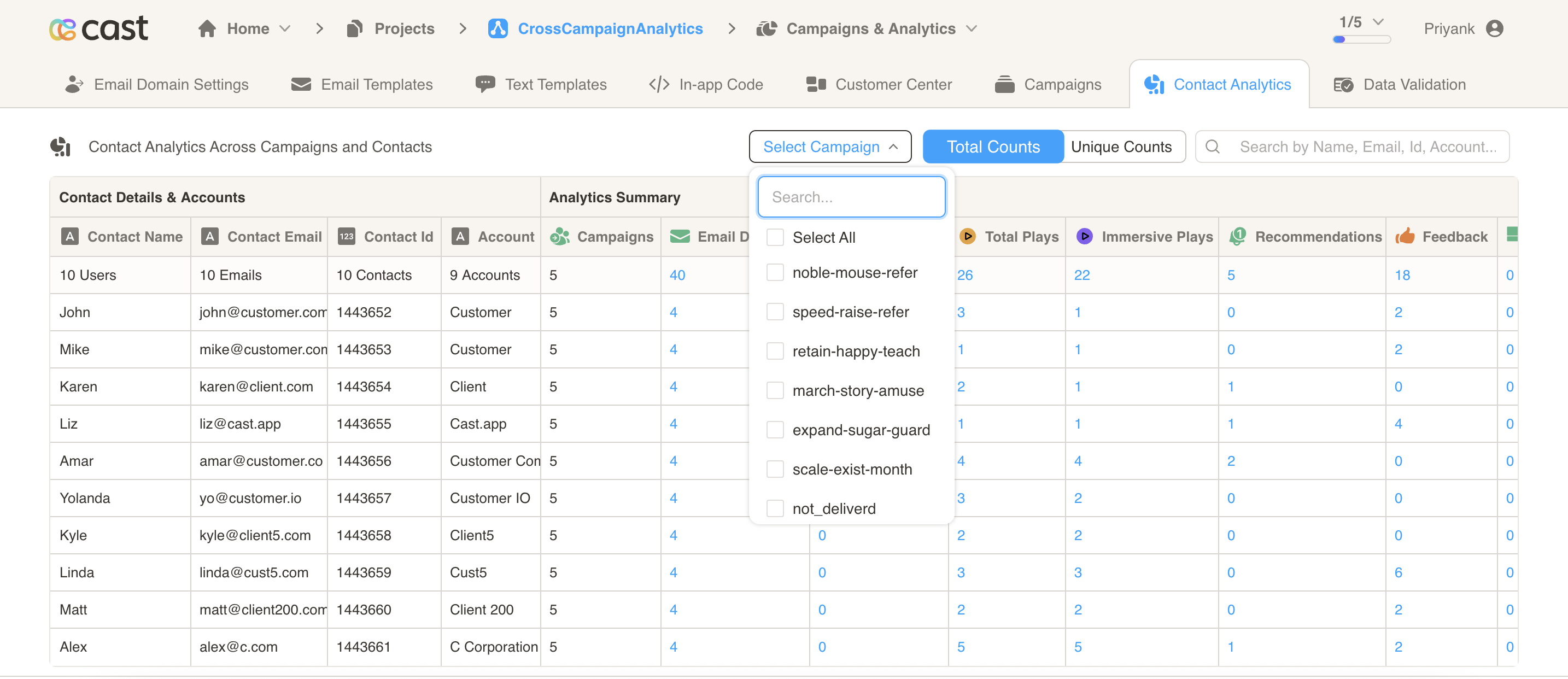
- Campaign Search: Filter the campaign list by typing campaign names to quickly find specific campaigns
- Campaign Details: Hover over campaigns to see generation date, delivery date, and archive status
- Multi-select: Choose multiple campaigns simultaneously using checkboxes
- Select All/Unselect All: Quick selection options to select or deselect all campaigns at once
The selector shows “Select Campaign” when no campaigns are chosen, or “X Campaigns Selected” when filters are applied.
Campaign Status Filtering
Use the Campaign Filters dropdown to filter analytics by campaign status and delivery dates:
- Show Delivered: Filter to show only campaigns that have been delivered
- Time Period Selection: When “Show Delivered” is selected, you can choose a specific time period to filter campaigns by their delivery date
- Predefined Periods: Select from quick options including:
- All: No date restrictions
- Recent Periods: “Last 30 days”, “Last 90 days”, “Last 180 days”
- Quarterly Periods: Q1-Q4 for the past 24 months (e.g., “Q4 2025 (Oct - Dec)”, “Q3 2025 (Jul - Sep)”)
- Custom Range: Choose a custom start and end date for more precise filtering
- Show Archived: Filter to show only archived campaigns
- Show All: Display all campaigns regardless of status
The filter indicator shows the active filter status, and when a time period is applied, it displays the selected period (e.g., “Delivered in last 30 days” or “Delivered between [start date] and [end date]”).
Total vs Unique Counts
Toggle between two counting methods using the controls at the top of the page:
- Total Counts: Show cumulative event counts across all campaigns for each contact
- Unique Counts: Show unique events per contact per campaign
This toggle affects all metrics displayed in the grid, allowing you to view either comprehensive engagement volume or distinct interaction patterns.
Search and Filtering
The Analytics page provides multiple ways to filter and search your data:
Contact/Account Search
Use the search box in the top right to find specific contacts or accounts. The searchable fields depend on which view mode you’re using:
When viewing “By Contact”:
- Contact Name: Search by full or partial names
- Email Address: Find contacts by email
- Contact ID: Search by numeric contact identifiers
- Account ID: Filter by account identifier
- Account Name: Filter by account or organization name
When viewing “By Account”:
- Account ID: Search by account identifier
- Account Name: Search by account or organization name
Note: In the Account view, you can only search using Account ID and Account Name. Contact-specific fields like name, email, and contact ID are not searchable in this view.
Campaign Filtering
You can also filter analytics by campaigns using the Campaign Selector (see Campaign Filtering section above). The Campaign Selector includes a search feature that allows you to filter the campaign list by typing campaign names, making it easy to find and select specific campaigns to analyze.
Search results update in real-time as you type, making it easy to quickly locate specific contacts, accounts, or campaigns.
Detailed Event Analysis
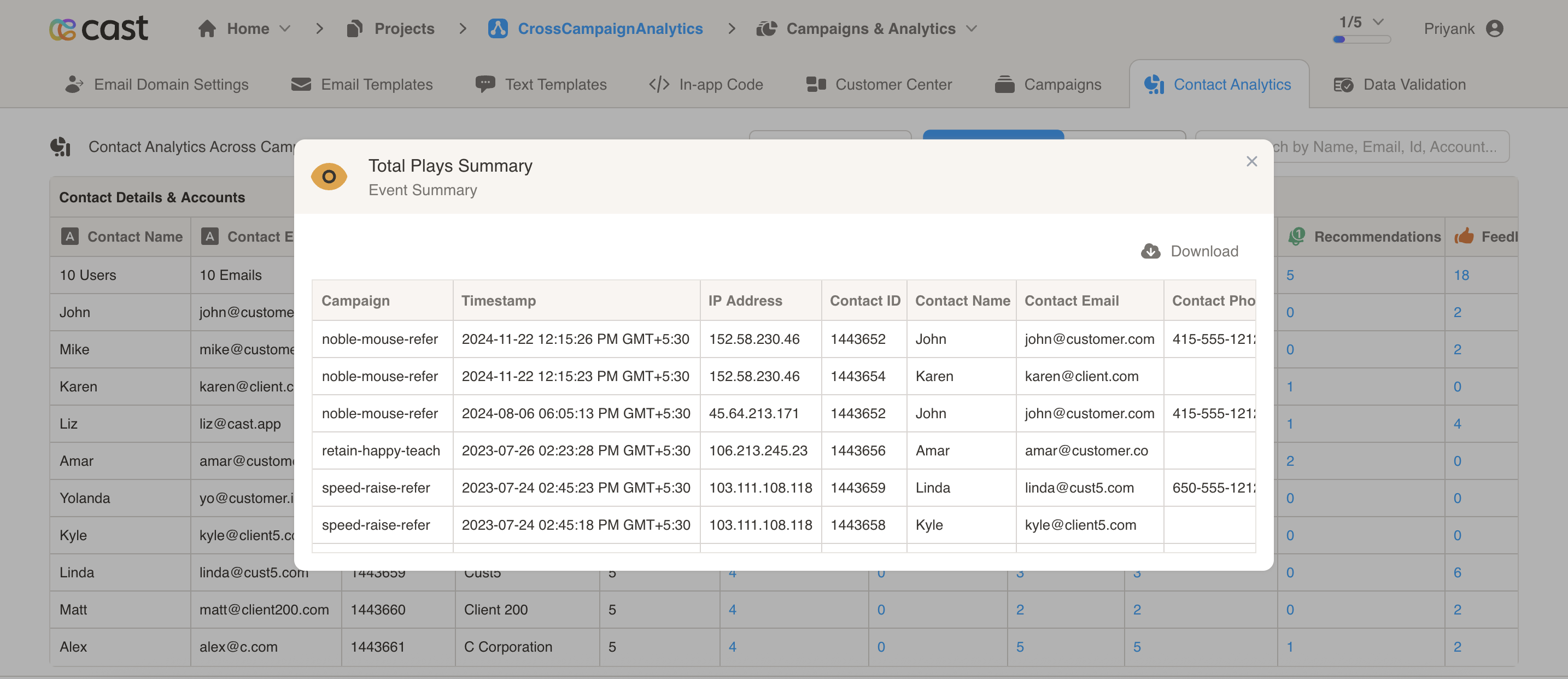
Click on any metric in the data grid to open the Event Details Modal, which provides:
Contact-Specific Views
- Complete event history for the selected contact
- Detailed event information including timestamps
- Device and browser information for each interaction
- Campaign context for each event
Event-Specific Views
- All instances of a specific event type across contacts
- Comprehensive event details in a sortable table format
- Export capability for detailed analysis
Event Detail Columns
The modal displays different information based on event type:
- Basic Info: Contact details, timestamp, IP address, device information
- Email Events: Delivery status, open tracking data
- Feedback Events: Rating, feedback type, and user comments
- Form Events: All form field submissions and values
- Recommendation Events: Recommendation type, title, and content
Data Export
From the Event Details Modal, you can export detailed event data for external analysis:
- Excel Export: Download comprehensive event data in spreadsheet format