Contacts & Language
Contacts Dataset & Aliases
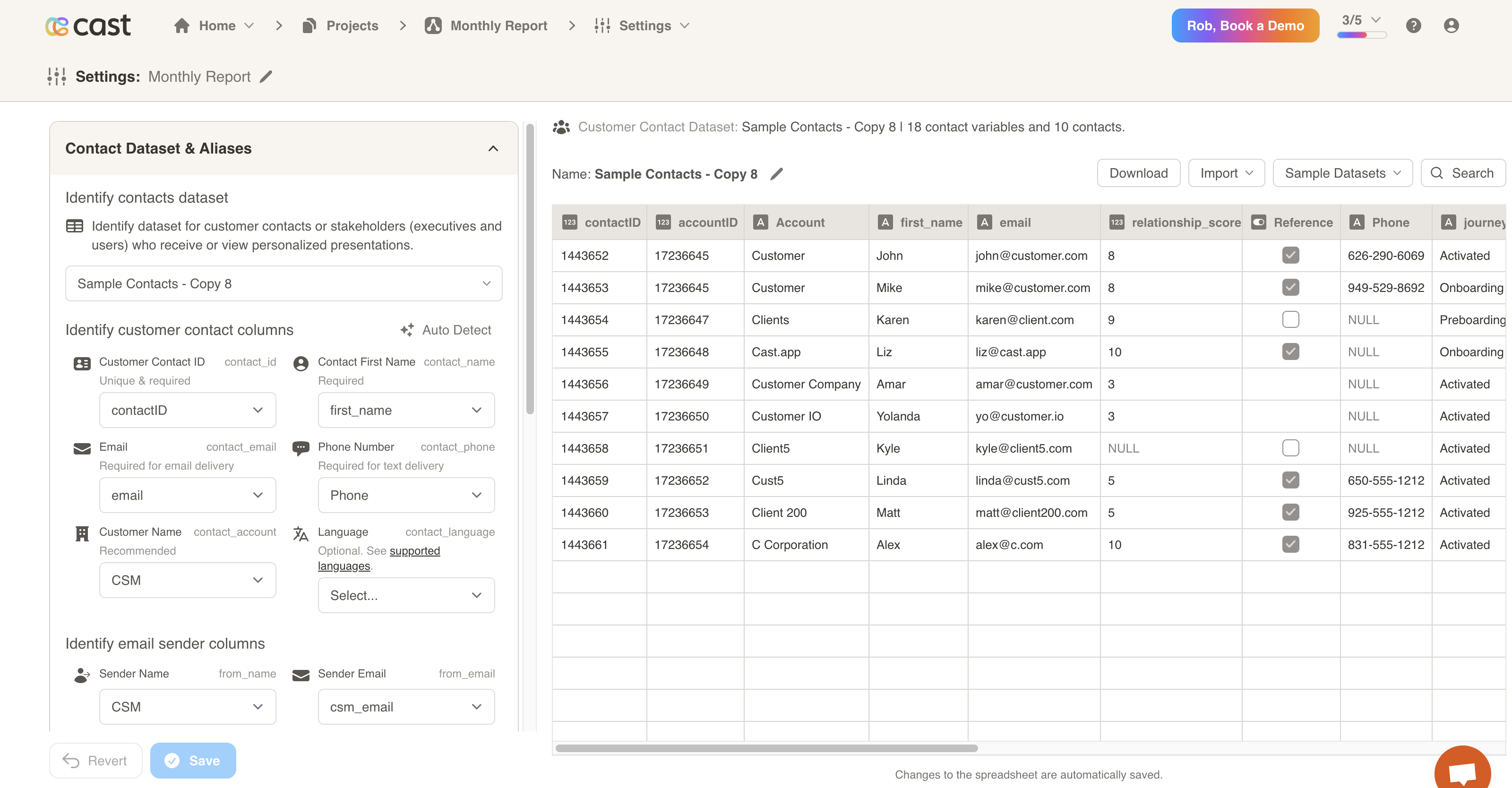
- Identify customer contacts or stakeholders (executives and users) who receive or view personalized presentations. To start, select a dataset from the “Identify contacts dataset” dropdown.
- Then, you will need to identify customer contact columns. You must selected a column from the dataset for each field listed:
- Customer Contact ID (unique and required)
- Contact First Name (required)
- Email (required for email delivery)
- Phone Number (required for text delivery)
- Customer Name (recommended)
- Language (optional, see below)
- Sender Name (The name of the person sending the presentations to the contact)
- Sender Email (The email of the person sending the presentations to the contact)
- You may use the Auto Detect button to have Cast identify the columns for you. If you do so, please verify the columns before saving.
Language
You can set a dataset column to personalize the default language for your cast presentations. This is optional, and may help if your customers have different language preferences. Supported language values include (case-insensitive):
- English
- British
- Australian
- French
- Spanish
- Italian
- German
- Dutch
- Danish
- Japanese
- Hindi
- Chinese
- Portuguese
- Turkish (Available only in premium voices)
- Korean (Available only in premium voices)
- Chinese_traditional (Available only in premium voices)
- Indonesian (Available only in premium voices)
Toggle Show/Hide Language Section
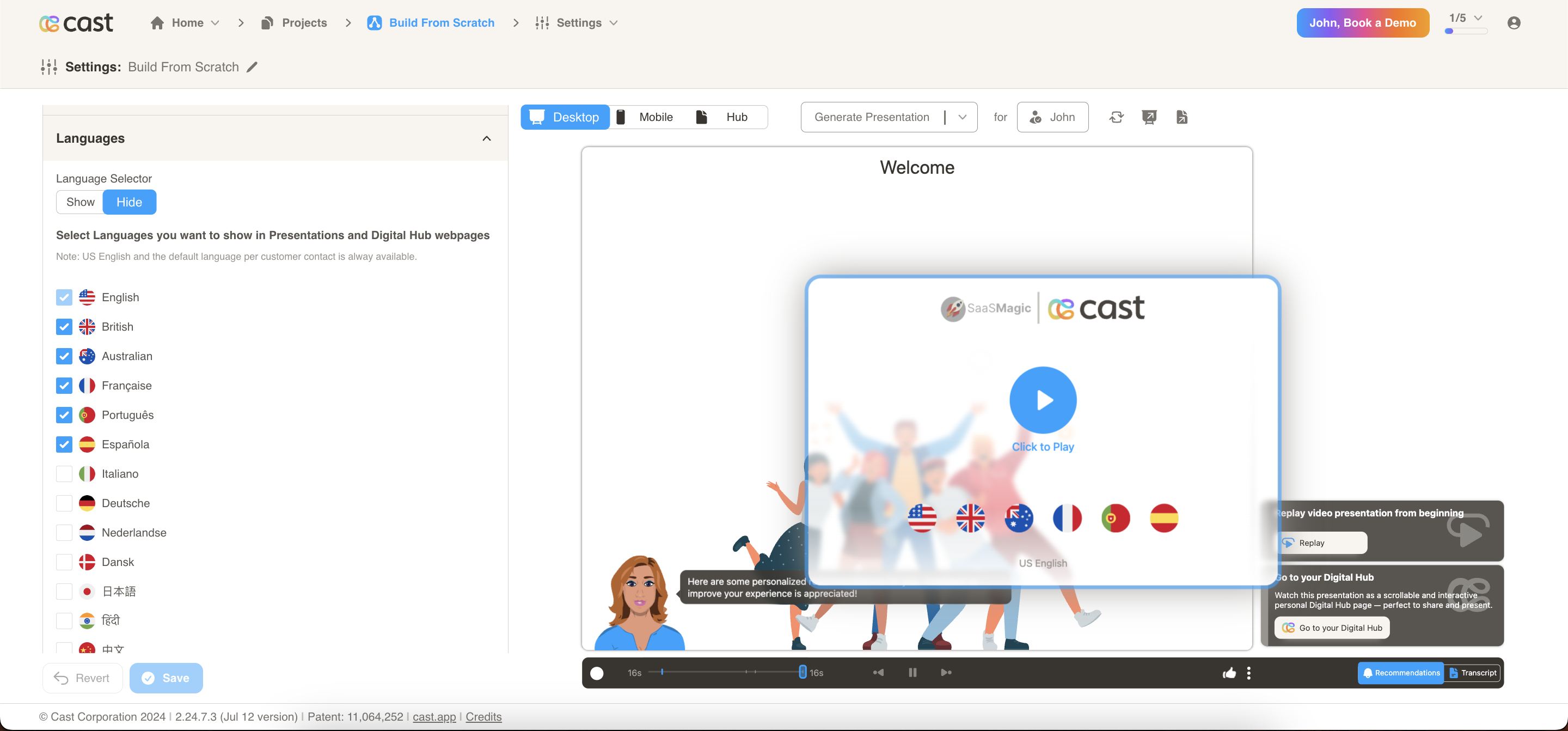
The language section now includes a toggle feature that allows users to show or hide the section on the player based on their selection.
Language Selection and Display
A feature allows users to select languages from a list using checkboxes. The selected languages’ flags will be displayed on the player’s splash screen, as well as in the language and avatar sections. If no languages are selected, US English will be shown by default. If a language is set from the contact list, both that language and the default US English flag will be displayed.