Interactions & Feedback
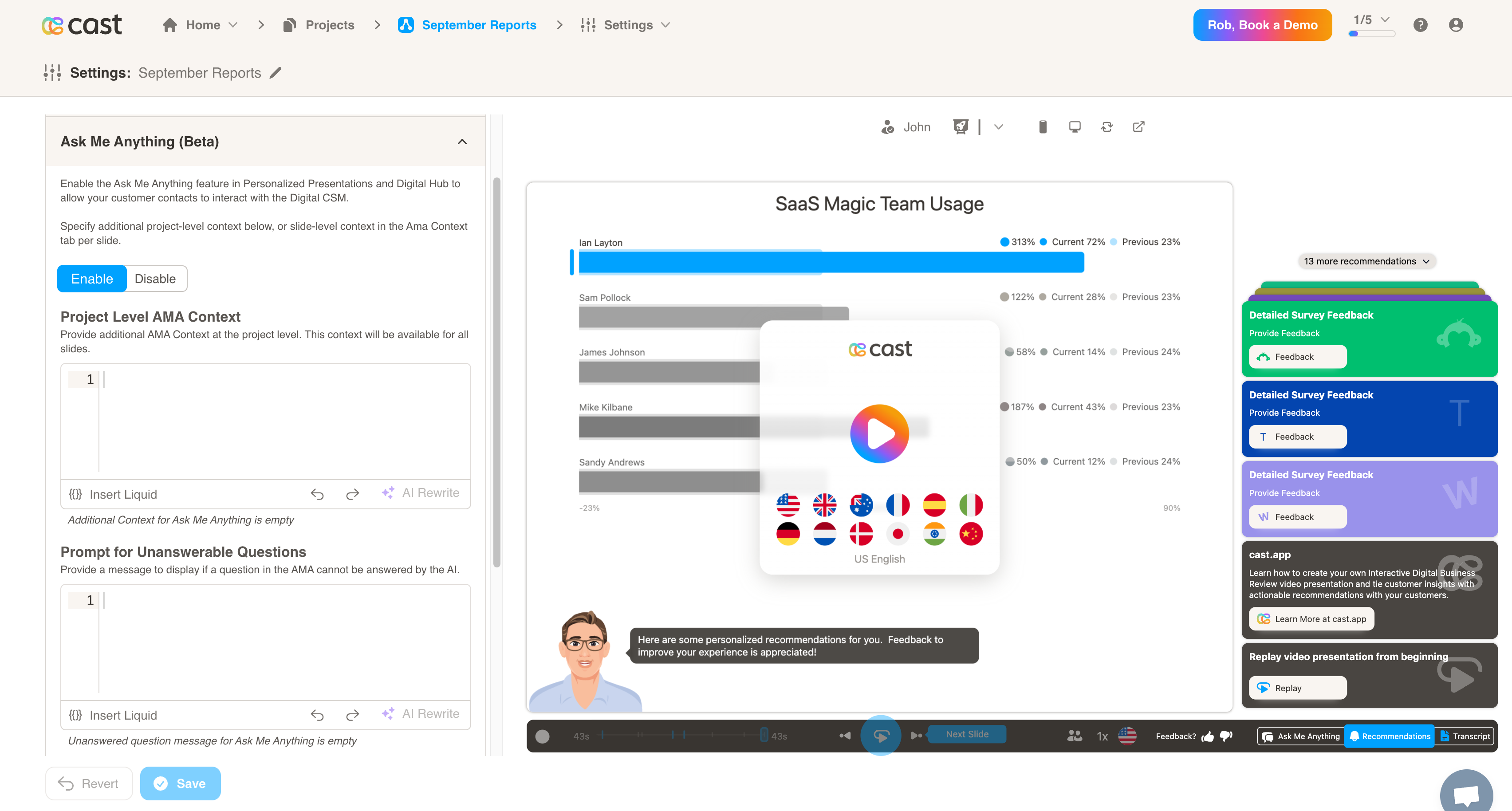
Ask Me Anything
- When enabled, your customers will be able to interact with the Digital CSM. They may ask questions about the current slide, and the Digital CSM will respond based on the data.
- Project Level AMA Context: You may provide some optional context so the Digital CSM will have more information to form an answer from. This can be any general insights or information that the customer should know about.
- Prompt for Unanswerable Questions: You may provide an optional prompt for when the Digital CSM cannot answer a question. One example may be to redirect the user to a human CSM to get their questions answered.
Agent Personas
Agent Personas allow you to configure AI agents that interact with contacts during AMA conversations. The system supports three types:
-
Lifecycle Agent - Default agent for general conversations
-
Feedback Agent - Specialized agent for feedback collection
-
Custom Agents - User-defined agents with custom IDs
Agent Types Comparison
| Feature | Lifecycle Agent | Feedback Agent | Custom Agent |
|---|---|---|---|
| Agent Label | ✅ | ✅ | ✅ |
| Male Agent Name | ✅ | ❌ | ❌ |
| Female Agent Name | ✅ | ❌ | ❌ |
| Agent Name (single) | ❌ | ❌ | ✅ |
| Agent ID | ❌ | ❌ | ✅ (required) |
| First Messages | ✅ (male/female) | ✅ (male/female) | ✅ (male/female) |
| Feedback Type | ❌ | ✅ | ❌ |
| Reserved Snippets | ✅ (when override enabled) | ❌ | ❌ |
| Default Override | Disabled | Disabled | Enabled |
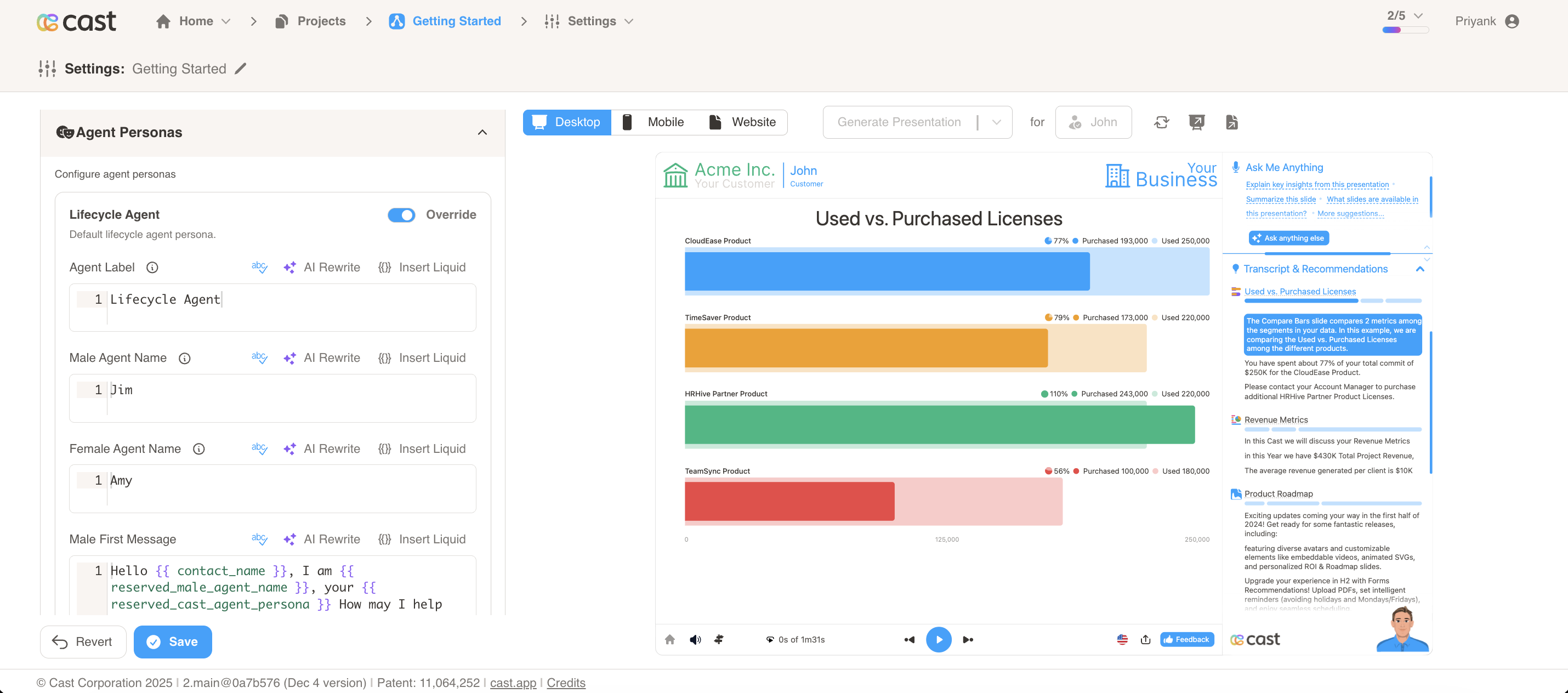
Lifecycle Agent
-
Toggle “Override” to enable custom configuration
-
Set Agent Label (e.g., “Customer Success Manager”)
-
Set Male Agent Name (default: “Jim”)
-
Set Female Agent Name (default: “Amy”)
-
Set First Messages for male and female agents
Default First Messages:
-
Male:
Hello , I am , your How may I help you today? -
Female:
Hello , I am , your How may I help you today?
Feedback Agent
-
Toggle “Override” to enable custom configuration
-
Set Agent Label (default: “Feedback Agent”)
-
Set First Messages for male and female agents
-
Set Conversational Feedback Type (e.g., “nps”, “csat”, “ces”, “thumbsupdown”)
Default First Messages:
-
Male:
Hello , I am , your here to collect your valuable feedback. -
Female:
Hello , I am , your here to collect your valuable feedback.
Setup Configuration:
Optionally set a custom Product/Service name - if left blank, your project name will be used as default.
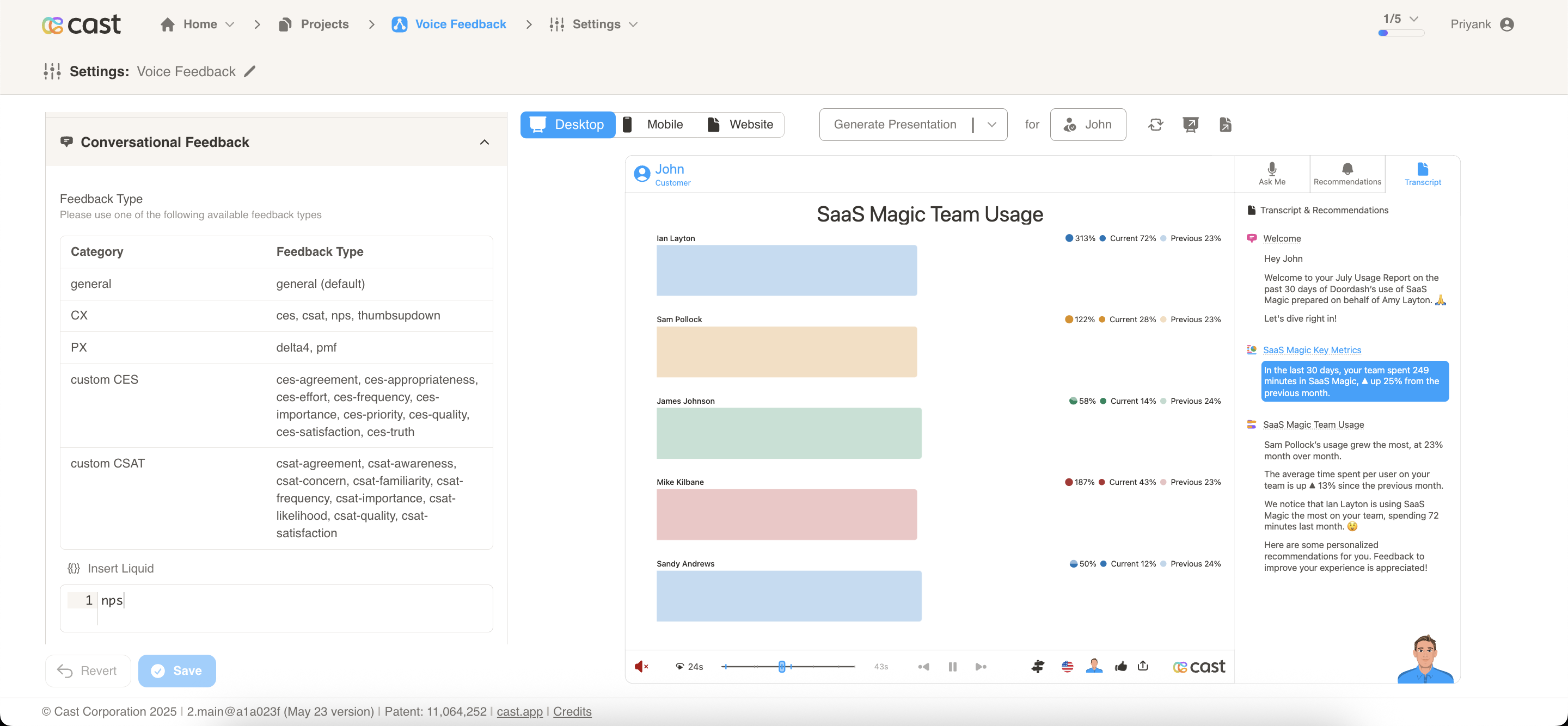
Available Feedback Types:
The Feedback Agent collects structured customer feedback through conversational AI with multiple feedback categories and seamless analytics integration. Common feedback types include:
- CX Category:
thumbsupdown,ces,csat,nps,oes - PX Category:
pmf,psat - Custom CES:
ces-agreement,ces-appropriateness,ces-effort - Custom CSAT: Various custom CSAT types
The feedback type determines the type of feedback collection mechanism used in conversations.
How It Works:
- Customers access feedback through the feedback icon at the bottom of the player interface.
- The system automatically switches to “Feedback Agent” mode in the AMA section.
- Customers provide responses using rating scales (0-10) or other configured formats.
- All interactions are captured and processed automatically for analytics.
Custom Agent
Custom agents allow you to create specialized AI agents tailored to specific use cases beyond the standard Lifecycle and Feedback agents.
Setup Process:
Custom agents require configuration support from our team. To set up a custom agent:
-
Share your use case and requirements with the CAST support team at support@cast.app
-
Our team will work with you to configure the custom agent to meet your specific needs
This ensures your custom agent is properly configured and optimized for your unique business requirements.
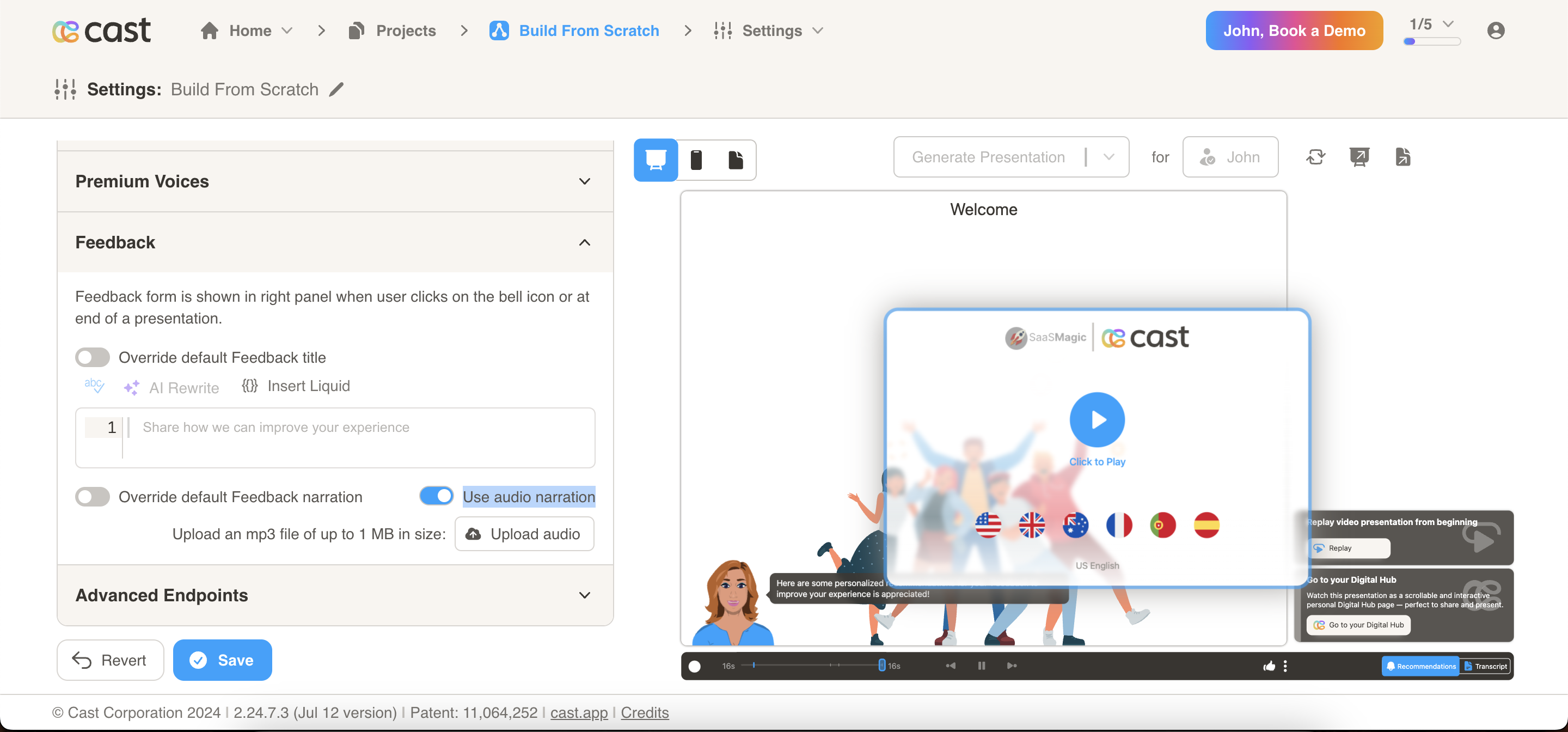
Feedback
- Edit the feedback form displayed at the end of the presentation.
- Options include overriding the default feedback title and overriding the default feedback narration.
- You can now upload an MP3 file of up to 1 MB in size for the Feedback narration. Use the toggle “Use audio narration” to enable this feature. You can name the audio file (e.g., “End Narration”). In the transcript, sections with an audio narration will be marked with a music icon (🎵) at the end.