Document Types
Knowledge Base supports four different document creation methods, each optimized for different content sources and use cases.
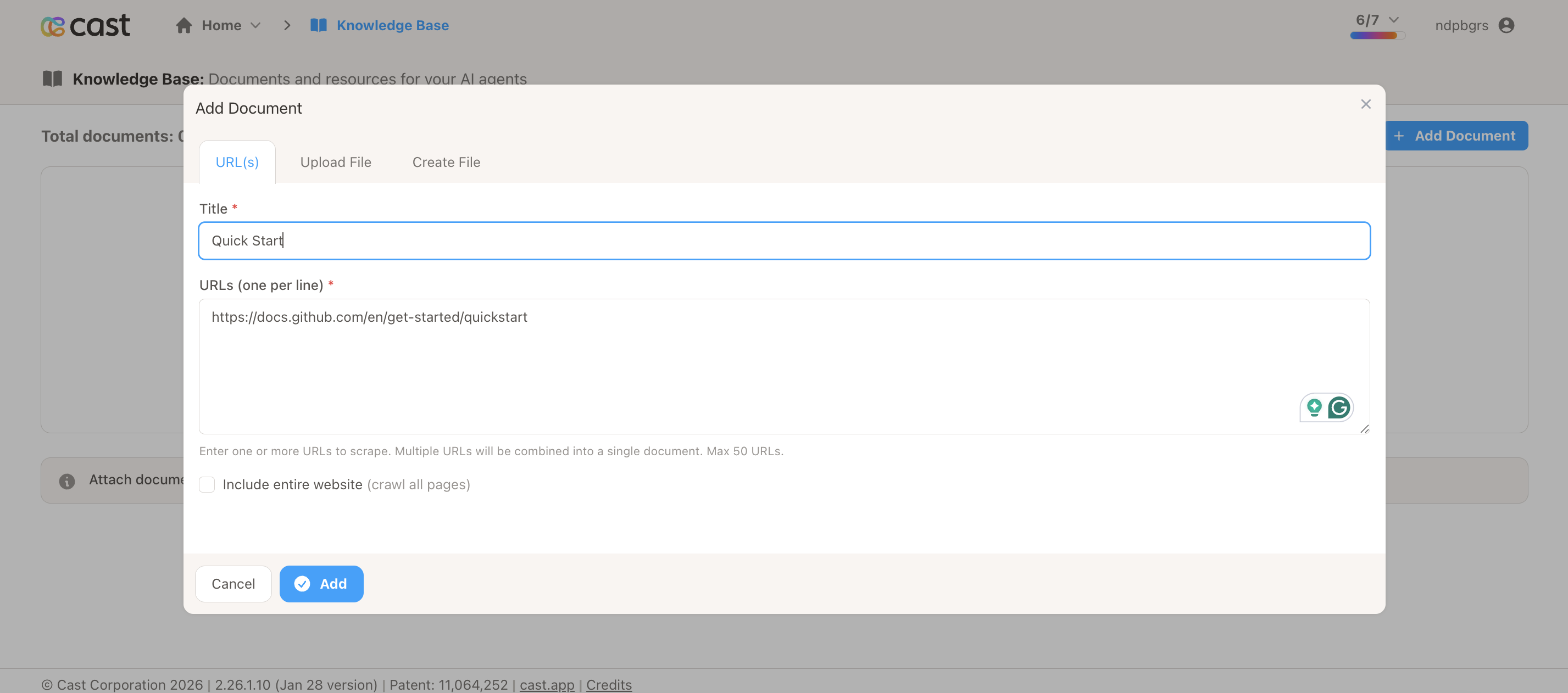
Single URL Scraping
Extract content from a specific webpage.
When to Use
- Documentation pages
- Blog posts and articles
- Product pages
- FAQ pages
- Single-page content
How It Works
- You provide a URL
- System scrapes the page content
- Content is processed and stored
- Document is uploaded to AI platform
Best Practices
- Use publicly accessible URLs (no login required)
- Choose pages with well-structured text content
- Verify the URL loads properly in a browser first
- Single focused pages work better than homepage aggregations
Processing Time
30-60 seconds on average
Examples
Good URLs to use:
https://docs.github.com/en/get-started/quickstarthttps://www.paulgraham.com/startupideas.htmlhttps://en.wikipedia.org/wiki/Artificial_intelligence
Limitations
- URL must be publicly accessible
- Pages behind authentication will fail
- Heavy JavaScript pages may not scrape completely
- Images and videos are not processed
Website Crawling
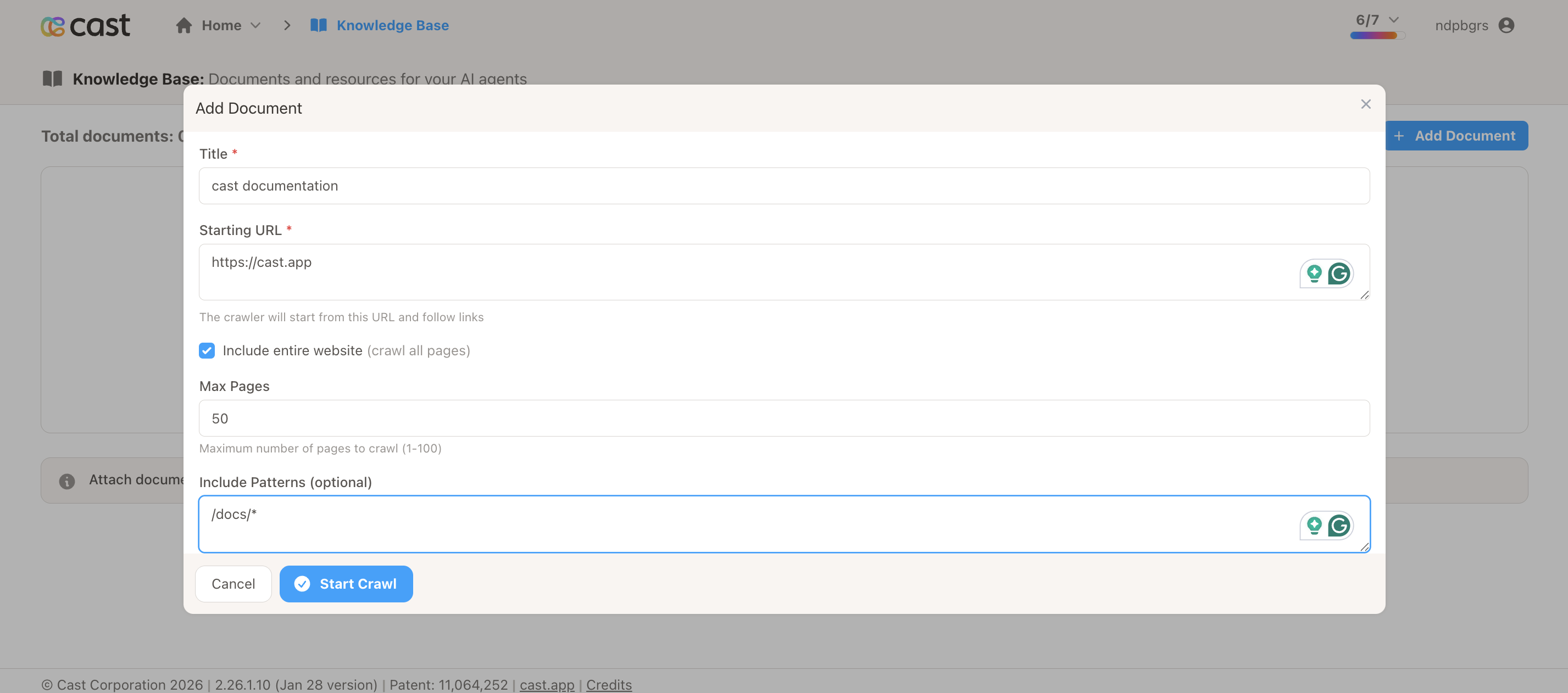
Scrape multiple pages from a website and combine into one knowledge document.
When to Use
- Documentation sites with multiple pages
- Blog archives
- Multi-page guides
- Knowledge base sites with related content
How It Works
- You provide a base URL and crawl settings
- System discovers and visits related pages
- All page content is combined into one document
- Document is uploaded to AI platform
Configuration Options
Base URL
The starting point for the crawl (e.g., https://docs.yourcompany.com)
Max Pages
Limit the number of pages to crawl (1-100). Start with 5-10 for testing.
Include Patterns (Optional)
Pages to include using wildcards:
/docs/*- Include all pages in docs folder/guides/*- Include all pages in guides folder/*.html- Include all HTML files
Exclude Patterns (Optional)
Pages to skip:
/api/*- Skip API reference pages/changelog/*- Skip changelog pages*.pdf- Skip PDF files
Best Practices
- Start with small max_pages (5-10) to test patterns
- Use include/exclude patterns to avoid irrelevant content
- Be specific with patterns to save processing time
- Consider breaking large sites into multiple focused crawls
Processing Time
2-10 minutes depending on page count. Allow 30-120 seconds per page.
Example Configurations
Documentation Site:
Base URL: https://docs.yourcompany.com
Max Pages: 20
Include: /guides/*, /tutorials/*
Exclude: /api/*, /changelog/*, *.pdf
Blog Content:
Base URL: https://blog.yourcompany.com
Max Pages: 10
Include: /posts/*, /articles/*
Exclude: /author/*, /category/*
Limitations
- Maximum 100 pages per crawl
- Subject to web scraping service rate limits
- Slower processing for large page counts
- Crawling respects robots.txt
File Upload
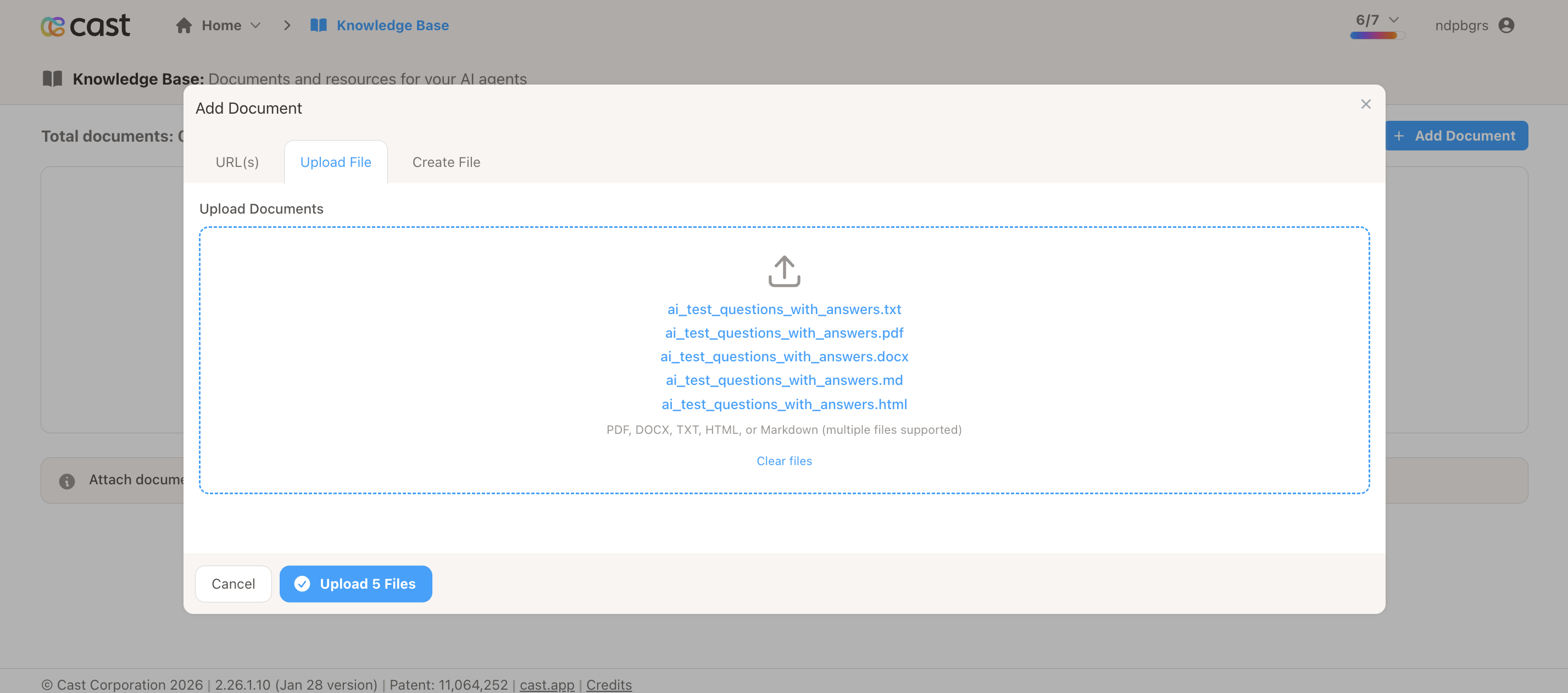
Upload existing documents from your computer.
When to Use
- You have existing documentation files
- Content from internal systems
- Formatted documents (PDFs)
- Structured data (CSV, JSON)
Supported File Formats
- PDF (.pdf) - Formatted documents
- Markdown (.md) - Structured text
- Plain Text (.txt) - Simple text content
- HTML (.html) - Web content
- CSV (.csv) - Tabular data
- JSON (.json) - Structured data
File Size Limit
10 MB maximum per file
Best Practices
- Use PDFs for formatted documents
- Use Markdown for structured text content
- Keep files under 5 MB for best performance
- Clean up unnecessary formatting before upload
- Use descriptive filenames
Processing Time
5-10 seconds on average
Multiple File Upload
You can upload multiple files at once. Each file becomes a separate document in your Knowledge Base.
Limitations
- 10 MB maximum per file
- Text-based content works best
- Images in PDFs may not be processed
- Scanned PDFs (OCR required) may not work well
Inline Text
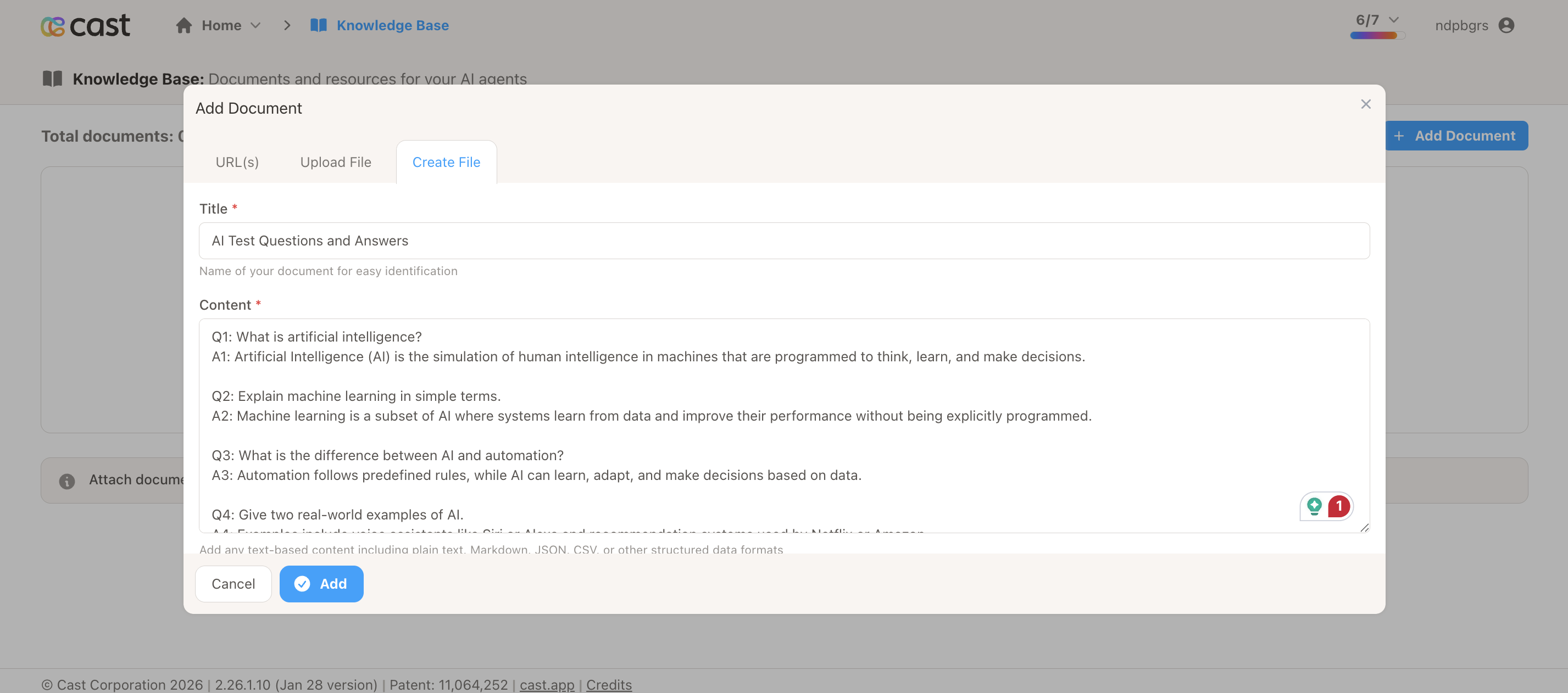
Create documents by typing or pasting content directly into the interface.
When to Use
- Quick FAQs
- Company policies
- Support scripts
- Product information
- Contact details
- Any content you can copy/paste
How It Works
- You provide a title
- Type or paste content into the text area
- Content is saved as a text file
- Document is uploaded to AI platform
Best Practices
- Use clear, descriptive titles
- Format content with line breaks for readability
- Use Q&A format for FAQs
- Break content into logical sections
- Include relevant contact information
Processing Time
Less than 5 seconds (fastest method)
Example Content Formats
FAQ Format:
Q: What are your business hours?
A: Monday-Friday, 9 AM - 5 PM EST.

Q: How do I contact support?
A: Email support@cast.app or call 1-800-XXX-XXXX.
Policy Format:
PRIVACY POLICY SUMMARY

We collect only necessary user data and never sell personal
information to third parties. All data is encrypted at rest
and in transit.

DATA RETENTION
- Active accounts: Data retained indefinitely
- Deleted accounts: Data purged after 90 days
Product Information:
CAST PLATFORM OVERVIEW

Cast is a video communication platform for creating personalized
content at scale.

KEY FEATURES:
- Personalized video based on viewer data
- Multi-language support (50+ languages)
- Real-time analytics and insights
- CRM and marketing tool integrations

PRICING:
Starter: $49/month - Up to 100 videos
Professional: $199/month - Up to 1,000 videos
Enterprise: Custom pricing - Unlimited videos
Limitations
- Plain text only (rich formatting is stripped)
- Very long text (>1MB) may be slow
- Emojis and special characters are preserved
Comparison Chart
| Type | Processing Time | Best For | Size Limit |
|---|---|---|---|
| URL | 30-60 sec | Single pages, articles | N/A |
| Crawl | 2-10 min | Multi-page sites | 100 pages |
| File | 5-10 sec | Existing documents | 10 MB |
| Text | < 5 sec | Quick content, FAQs | No limit |
Choosing the Right Type
Use URL when:
- You have a single webpage with good content
- Content is publicly accessible
- You want to be able to refresh content later
Use Crawl when:
- You need content from multiple related pages
- Documentation spans several pages
- You want all related content in one document
Use File when:
- You have existing documents to upload
- Content is in PDF or other supported formats
- You’re migrating from another system
Use Text when:
- You need to create content quickly
- You’re writing FAQs or policies
- You have content to copy/paste from elsewhere
Need Help?
- Support: support@cast.app
- Quick Reference: Cheat Sheet
- Troubleshooting: FAQ & Troubleshooting