Project Settings
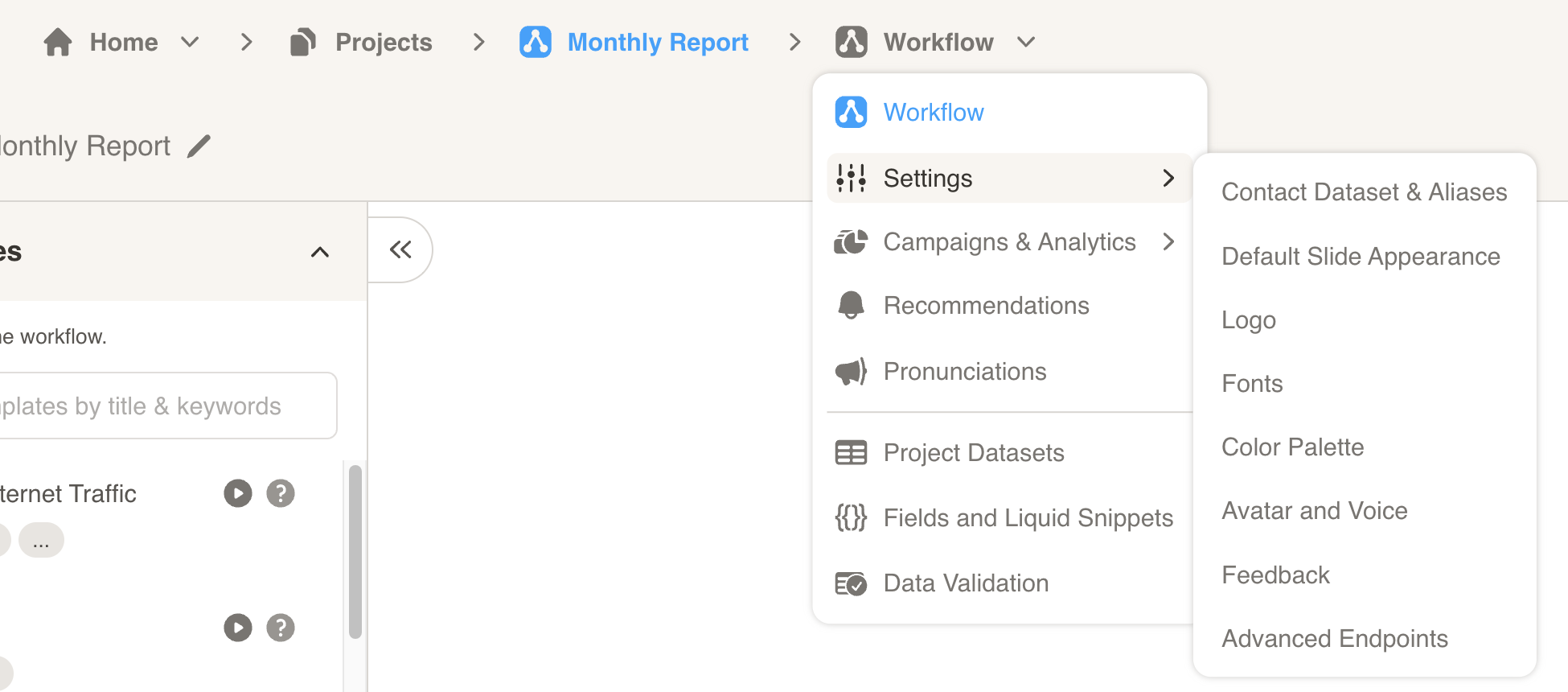
Edit your project settings to configure your customer contact list and customize the look and feel of your cast.
- Contacts & Language
- Appearance & Branding
- Interactions & Feedback
- Advanced Settings – Transcriptions Panel, Default Narrations, URL Slug, Advanced Endpoints
Contacts & Language
Contacts Dataset & Aliases
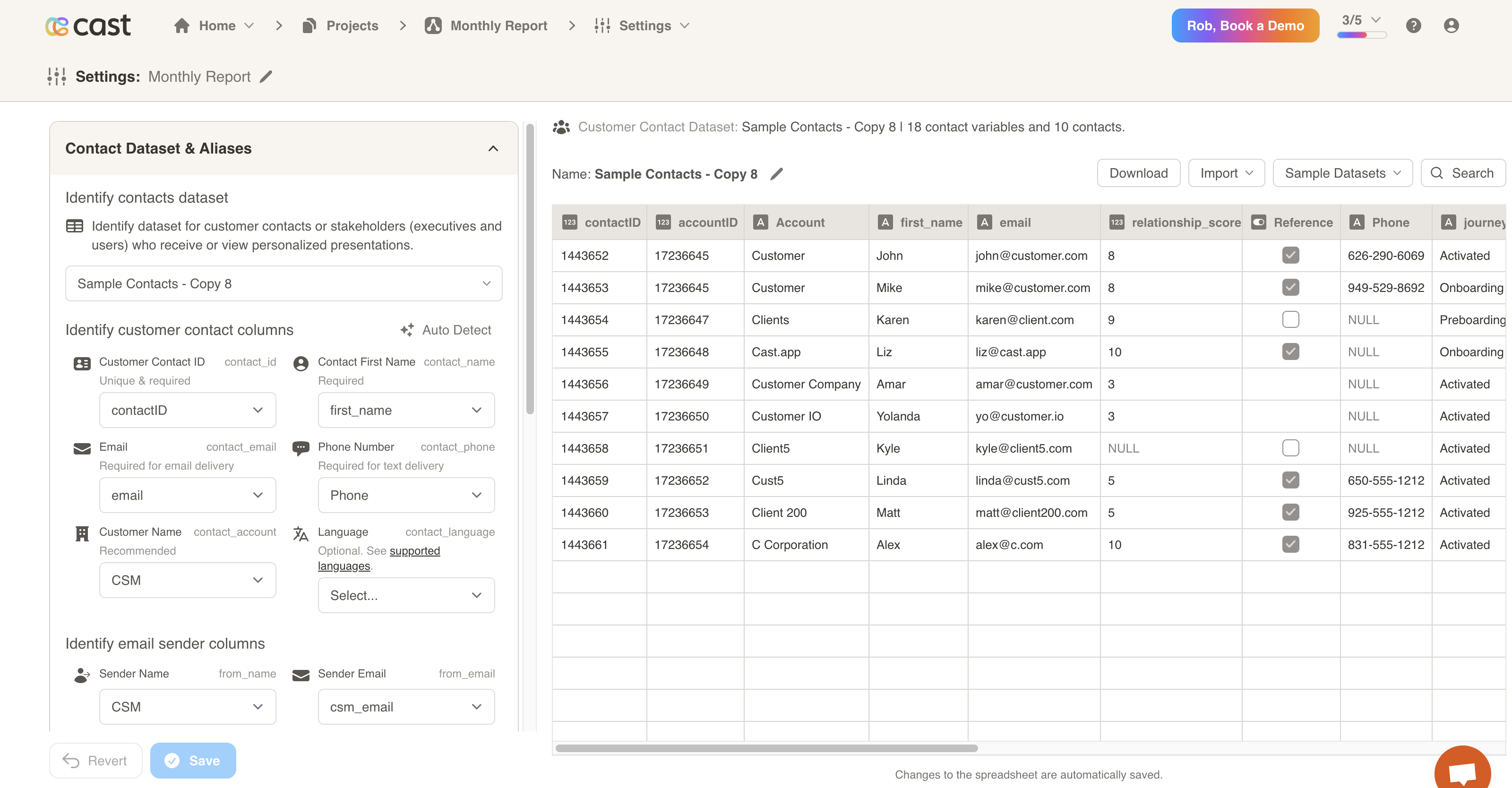
- Identify customer contacts or stakeholders (executives and users) who receive or view personalized presentations. To start, select a dataset from the “Identify contacts dataset” dropdown.
- Then, you will need to identify customer contact columns. You must selected a column from the dataset for each field listed:
- Customer Contact ID (unique and required)
- Contact First Name (required)
- Email (required for email delivery)
- Phone Number (required for text delivery)
- Customer Name (recommended)
- Language (optional, see below)
- Sender Name (The name of the person sending the presentations to the contact)
- Sender Email (The email of the person sending the presentations to the contact)
- You may use the Auto Detect button to have Cast identify the columns for you. If you do so, please verify the columns before saving.
Language
You can set a dataset column to personalize the default language for your cast presentations. This is optional, and may help if your customers have different language preferences. Supported language values include (case-insensitive):
- English
- British
- Australian
- French
- Spanish
- Italian
- German
- Dutch
- Danish
- Japanese
- Hindi
- Chinese
- Portuguese
- Turkish (Available only in premium voices)
- Korean (Available only in premium voices)
- Chinese_traditional (Available only in premium voices)
- Indonesian (Available only in premium voices)
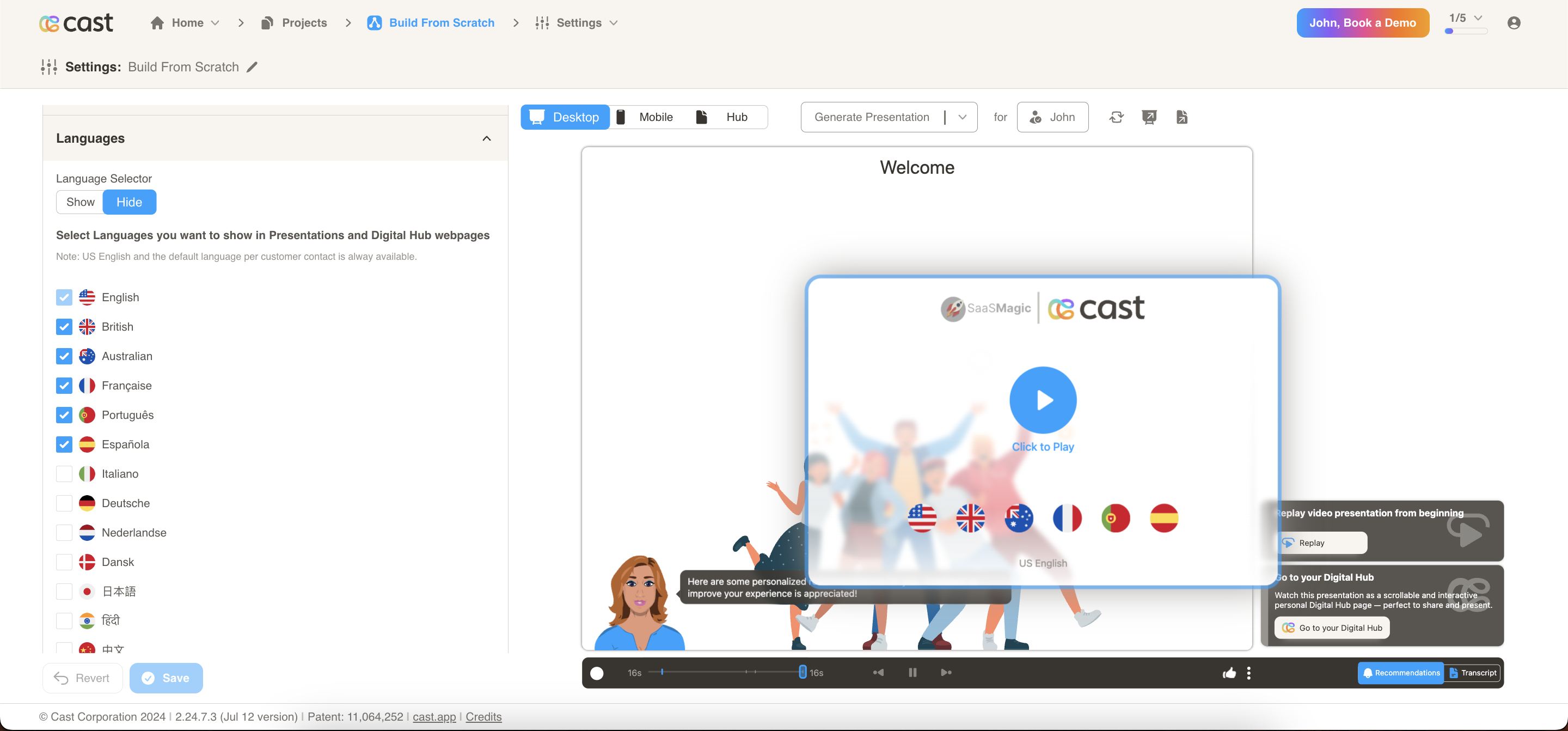
Toggle Show/Hide Language Section
The language section now includes a toggle feature that allows users to show or hide the section on the player based on their selection.
Language Selection and Display
A feature allows users to select languages from a list using checkboxes. The selected languages’ flags will be displayed on the player’s splash screen, as well as in the language and avatar sections. If no languages are selected, US English will be shown by default. If a language is set from the contact list, both that language and the default US English flag will be displayed.
Appearance & Branding
Customization in Cast.app implies customizing the branding expression, which is differentiated from per-user personalization.
Your presentations are aligned with your brand story and identity. You use your design, logos and wordmarks, color palettes, typography, decorative images or icons, visual components, and narration tone.
Personalization refers to changing the content and recommendations for each user, persona at each customer.
Default Slide Appearance
- You may choose a default background color, text color and background images for your slides.
- Supported image files include: SVG (recommended), PNG and JPG. A maximum size of 500KB is allowed.
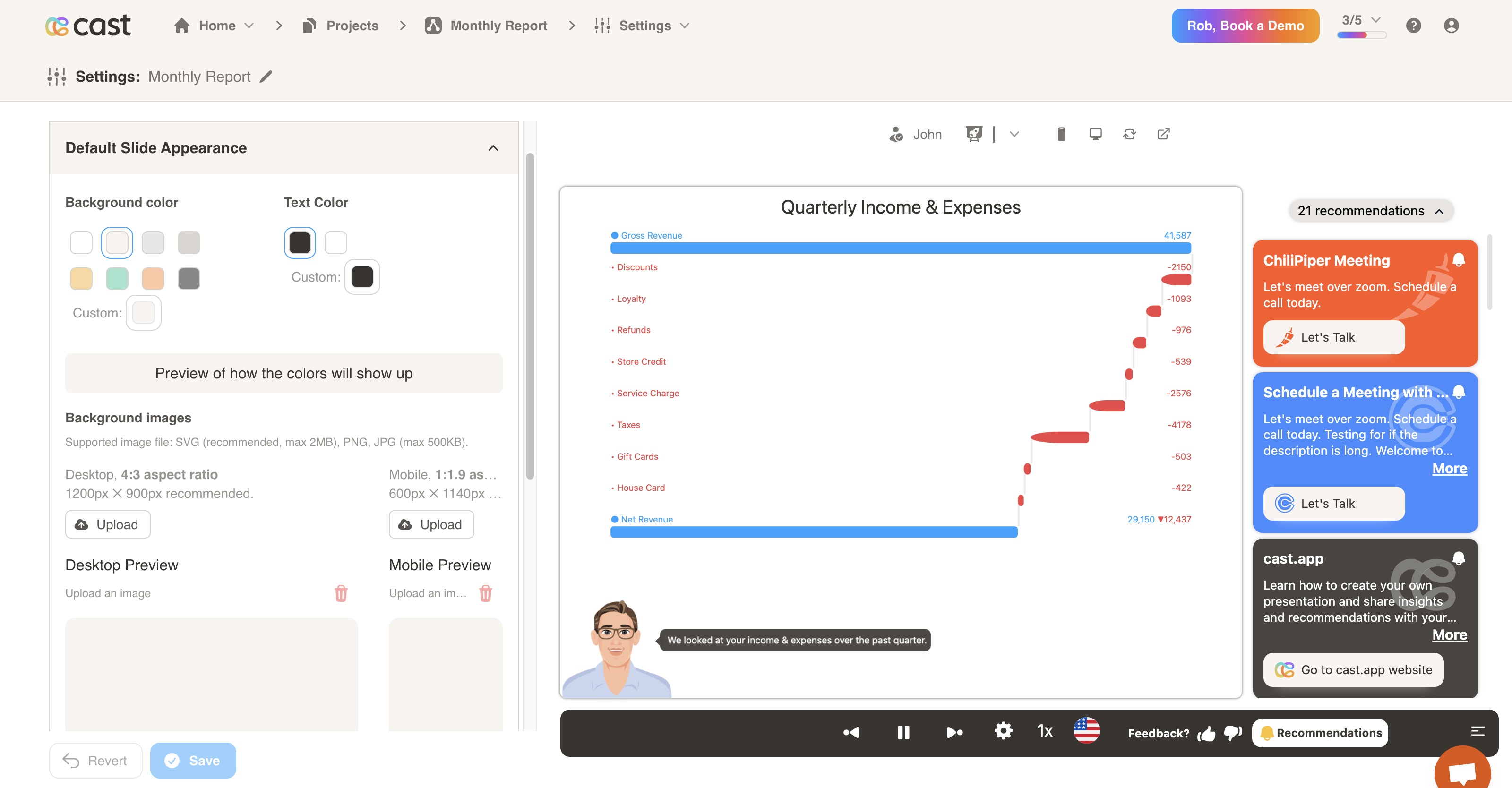
Player Header Bar
- Configure the header bar displayed in the player interface.
- Project Logo: Upload a project logo (usually your logo) that is shown in the player header bar with a white background. Maximum size 125KB. Transparent SVG preferred. PNG, WebP & AVIF images are acceptable.
- Customer Account Logo: Optionally override the customer account logo shown in the player header bar using contact-specific data.
- Customer Account Name: Optionally override the customer account name shown in the player header bar using contact-specific data.
- Contact Name: Optionally override the contact name shown in the player header bar using contact-specific data.
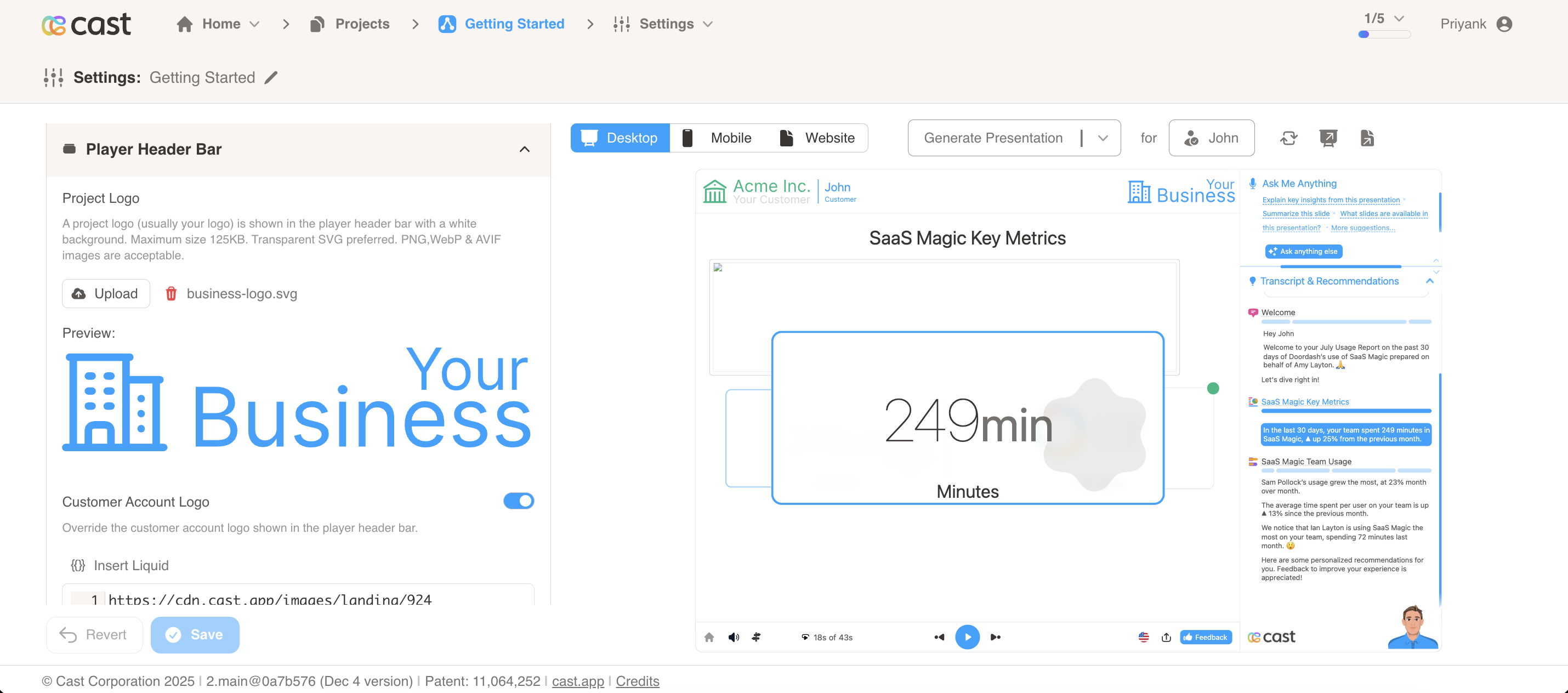
Customer Center Icon
Configure the in-app icon that appears when you embed Cast into your application. This icon is displayed wherever you embed Cast, and when users click on it, it will launch the Cast presentation. You can customize this icon’s appearance and behavior from this settings page.
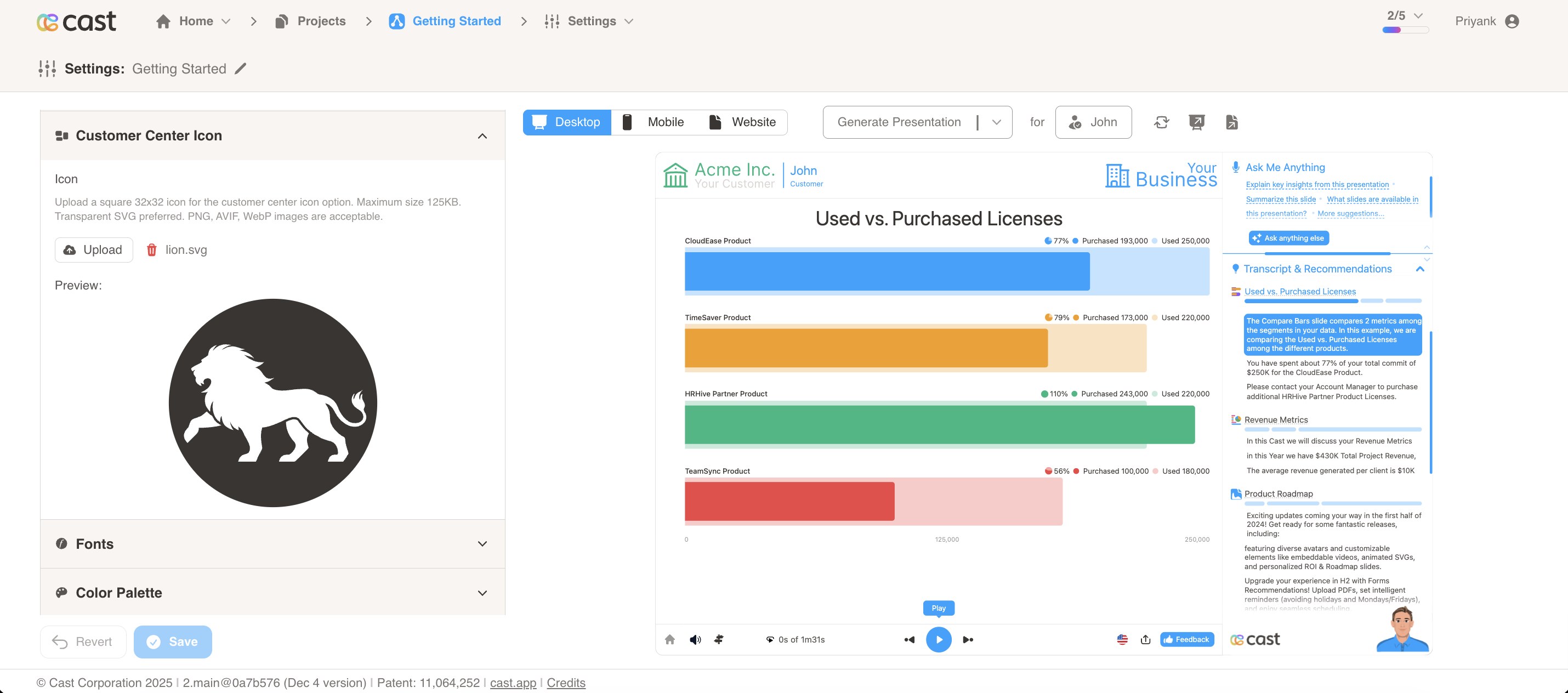
- Upload a square 32x32 icon for the customer center icon option.
- Maximum size 125KB. Transparent SVG preferred. PNG, AVIF, WebP images are acceptable.
- This icon is used in the customer center interface.
Example: See the in-app icon in action at https://cast.app/inapp
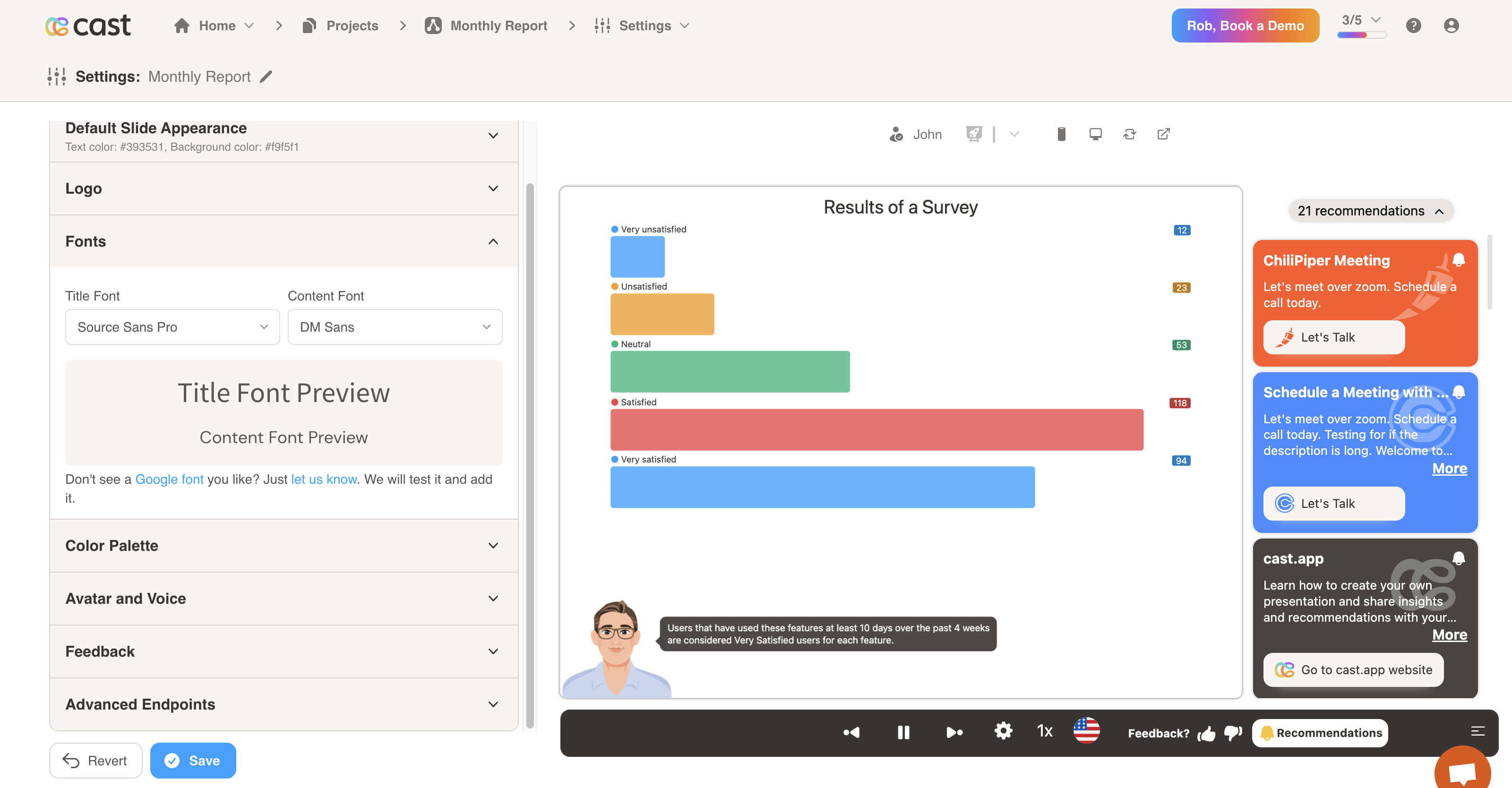
Fonts
- Choose personalized fonts for your titles and content.
- Let us know if there is a font you’d like to add.
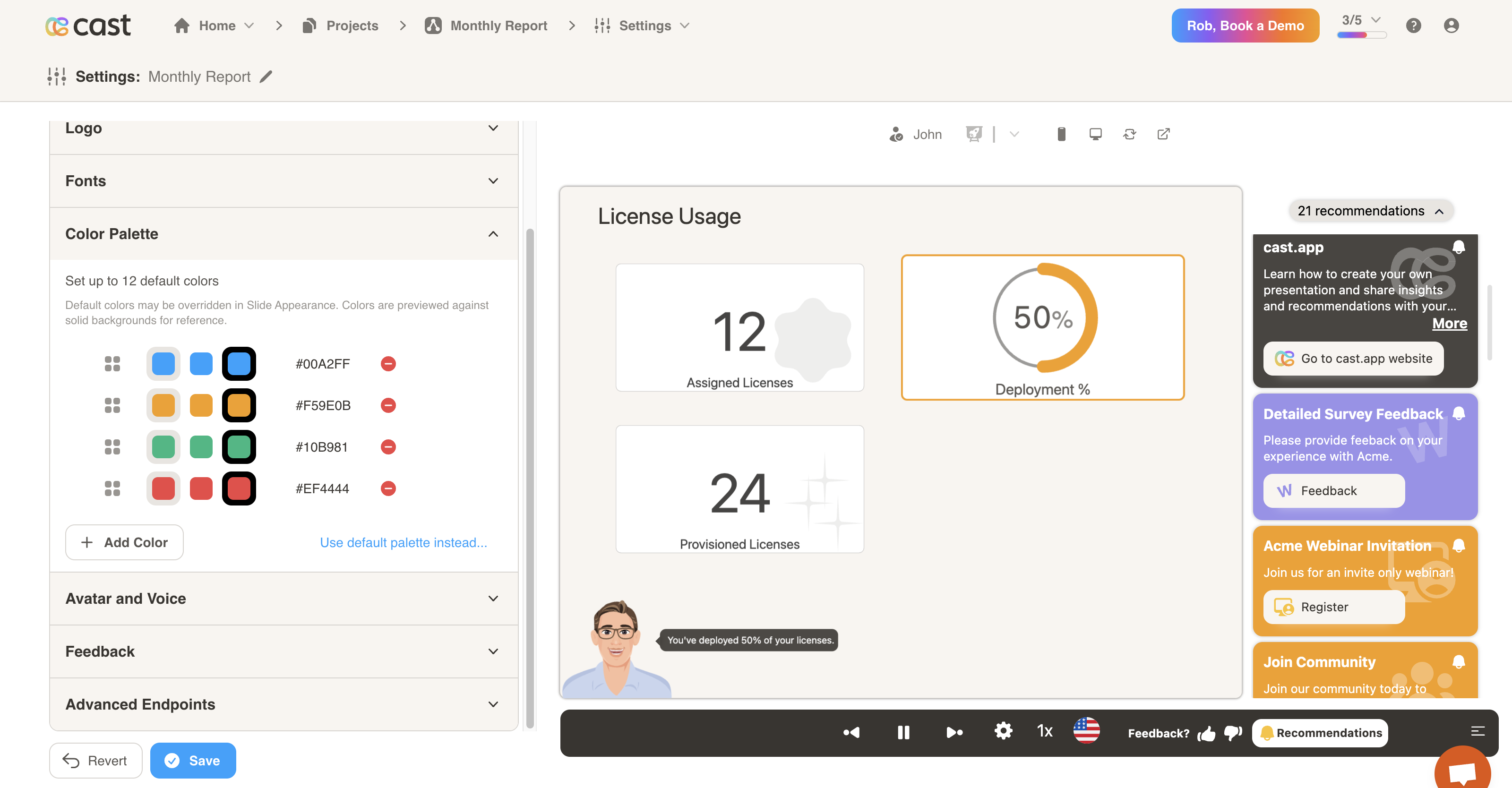
Color Palette
- Choose the default colors for your presentations.
- Click on the Add Color button to select a new color from the color picker.
Avatar
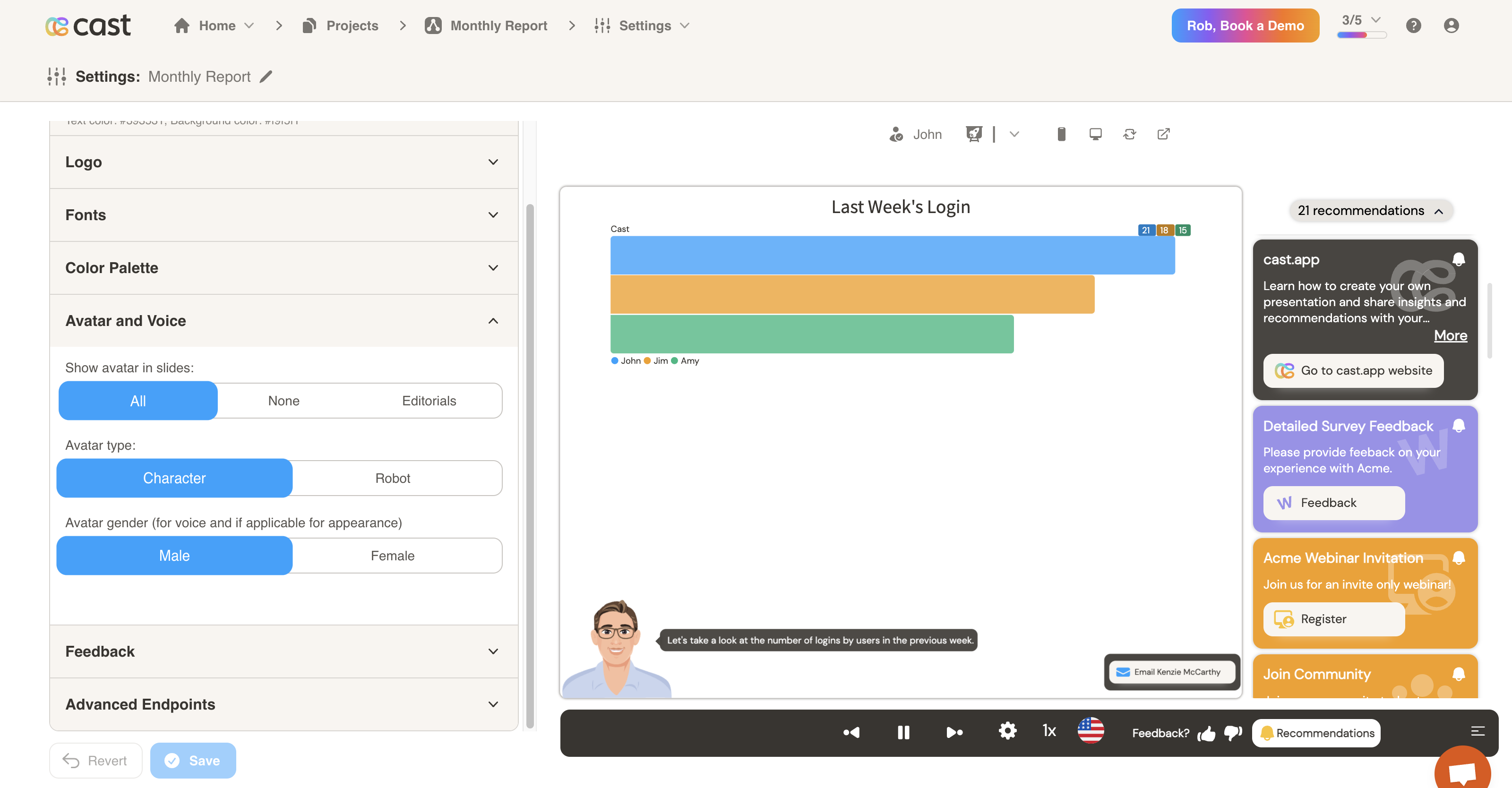
- Assign avatar visibility, type and gender for narrating slides.
- You may choose between no avatar, a male avatar, female avatar, or robot. Customizations are possible.
Premium Voices
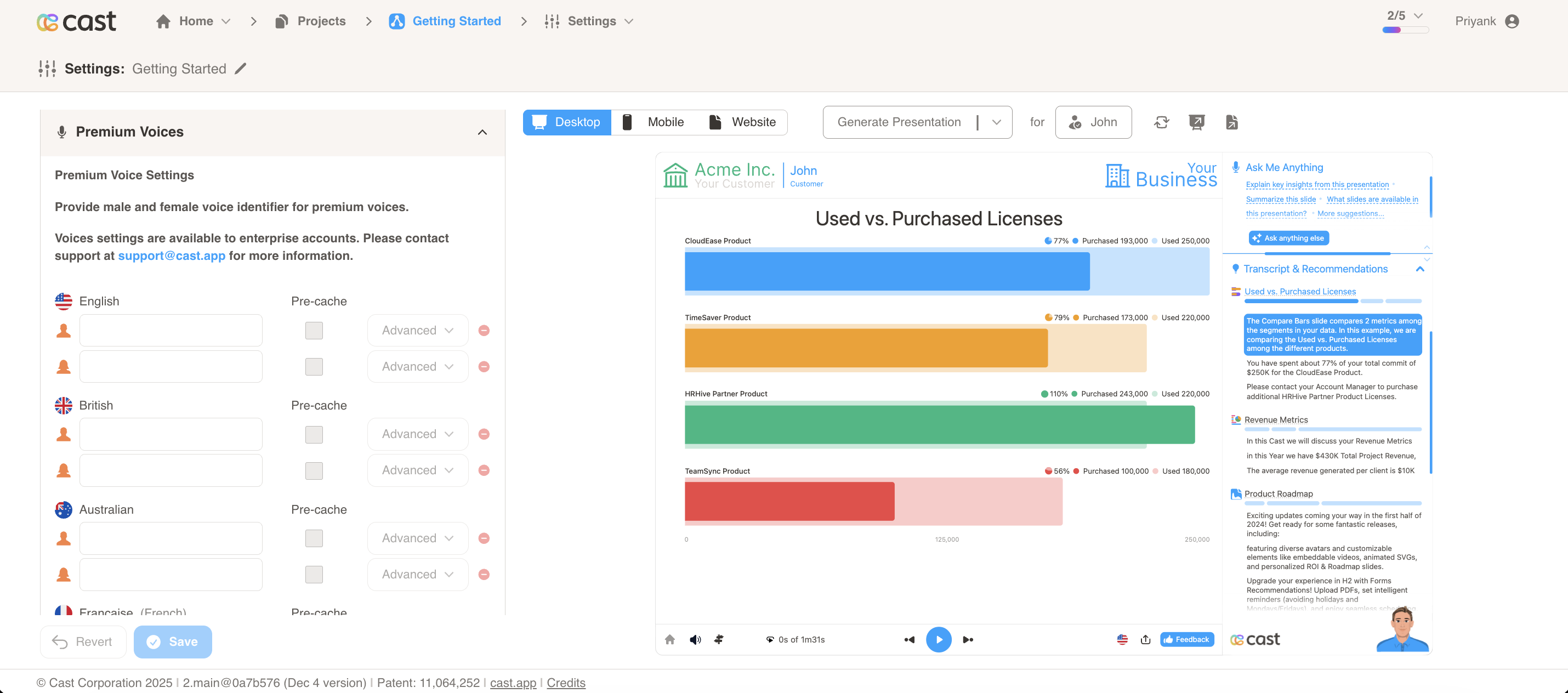
- Configure premium voice settings for different languages and genders.
- Provide male and female voice identifiers for premium voices.
- Voice settings are available to enterprise accounts. Please contact support at support@cast.app for more information.
Voice Settings Configuration:
For each supported language, you can configure:
- Voice ID: The identifier for the premium voice (alphanumeric characters only)
- Vendor: The voice provider (e.g., “eleven”, “polly”)
- Language: The language for the voice (e.g., “english”, “spanish”, “french”)
- Gender: Male or female voice option
- Play Rate: Playback speed percentage (1-100%)
- Similarity: Voice similarity setting (0-1)
- Stability: Voice stability setting (0-1)
- Cache: Enable or disable TTS caching for faster playback
Supported Languages:
Premium voices are available for multiple languages including English, Spanish, French, Italian, German, Dutch, Danish, Japanese, Hindi, Chinese, Portuguese, Turkish, Korean, Chinese Traditional, and Indonesian.
Note: Premium voice settings allow you to customize the voice characteristics for narrations, providing more control over the audio experience in your presentations.
Interactions & Feedback
Ask Me Anything
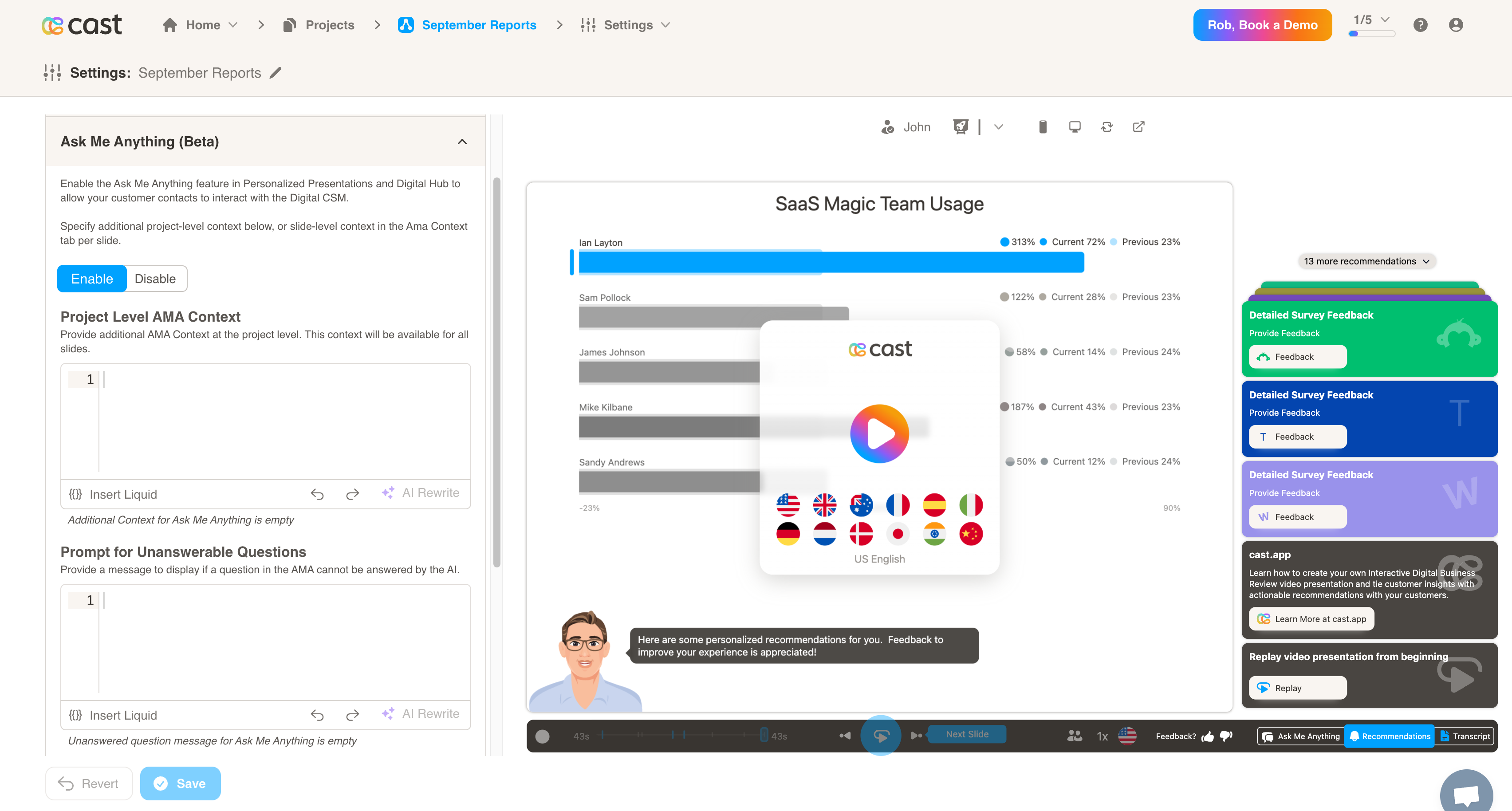
- When enabled, your customers will be able to interact with the Digital CSM. They may ask questions about the current slide, and the Digital CSM will respond based on the data.
- Project Level AMA Context: You may provide some optional context so the Digital CSM will have more information to form an answer from. This can be any general insights or information that the customer should know about.
- Prompt for Unanswerable Questions: You may provide an optional prompt for when the Digital CSM cannot answer a question. One example may be to redirect the user to a human CSM to get their questions answered.
Agent Personas
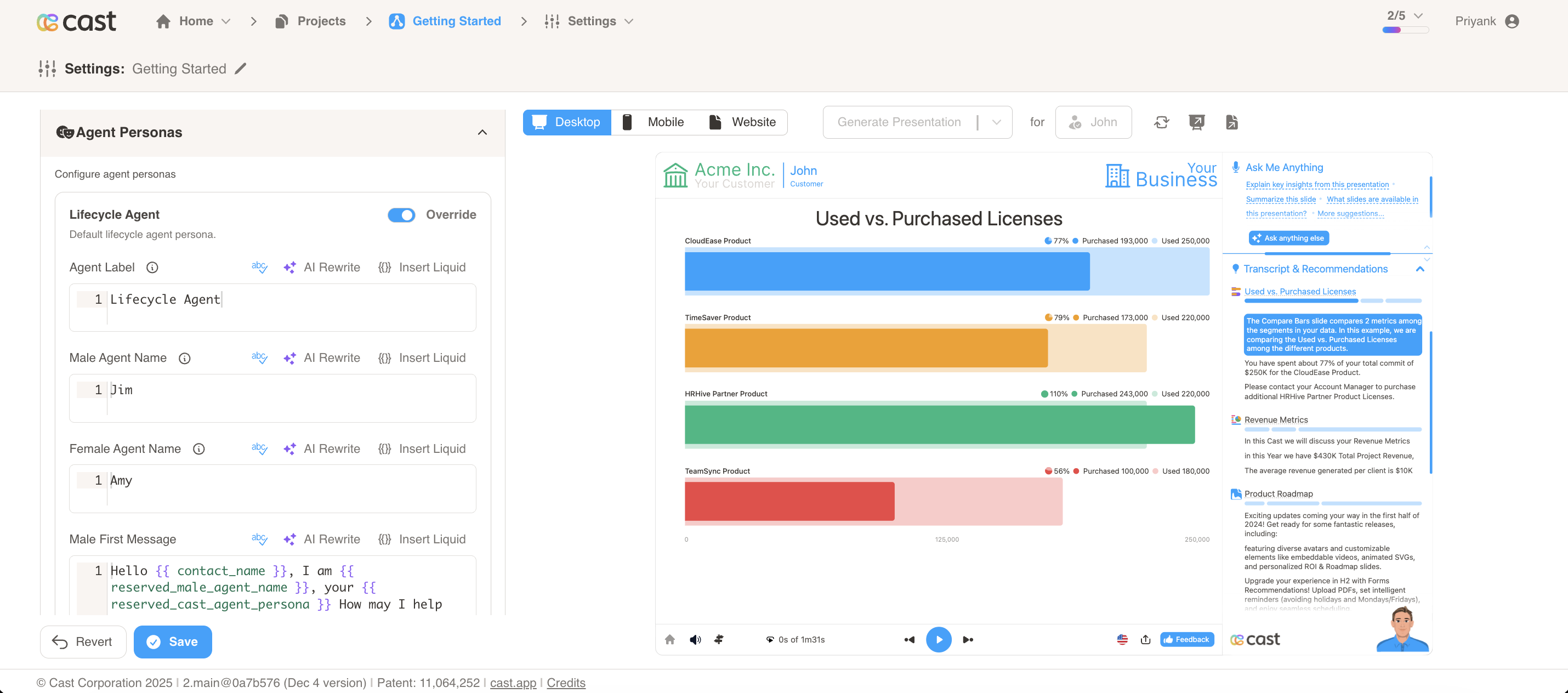
Agent Personas allow you to configure AI agents that interact with contacts during AMA conversations. The system supports three types:
-
Lifecycle Agent - Default agent for general conversations
-
Feedback Agent - Specialized agent for feedback collection
-
Custom Agents - User-defined agents with custom IDs
Agent Types Comparison
| Feature | Lifecycle Agent | Feedback Agent | Custom Agent |
|---|---|---|---|
| Agent Label | ✅ | ✅ | ✅ |
| Male Agent Name | ✅ | ❌ | ❌ |
| Female Agent Name | ✅ | ❌ | ❌ |
| Agent Name (single) | ❌ | ❌ | ✅ |
| Agent ID | ❌ | ❌ | ✅ (required) |
| First Messages | ✅ (male/female) | ✅ (male/female) | ✅ (male/female) |
| Feedback Type | ❌ | ✅ | ❌ |
| Reserved Snippets | ✅ (when override enabled) | ❌ | ❌ |
| Default Override | Disabled | Disabled | Enabled |
Lifecycle Agent
-
Toggle “Override” to enable custom configuration
-
Set Agent Label (e.g., “Customer Success Manager”)
-
Set Male Agent Name (default: “Jim”)
-
Set Female Agent Name (default: “Amy”)
-
Set First Messages for male and female agents
Default First Messages:
-
Male:
Hello , I am , your How may I help you today? -
Female:
Hello , I am , your How may I help you today?
Feedback Agent
-
Toggle “Override” to enable custom configuration
-
Set Agent Label (default: “Feedback Agent”)
-
Set First Messages for male and female agents
-
Set Conversational Feedback Type (e.g., “nps”, “csat”, “ces”, “thumbsupdown”)
Default First Messages:
-
Male:
Hello , I am , your here to collect your valuable feedback. -
Female:
Hello , I am , your here to collect your valuable feedback.
Setup Configuration:
Optionally set a custom Product/Service name - if left blank, your project name will be used as default.
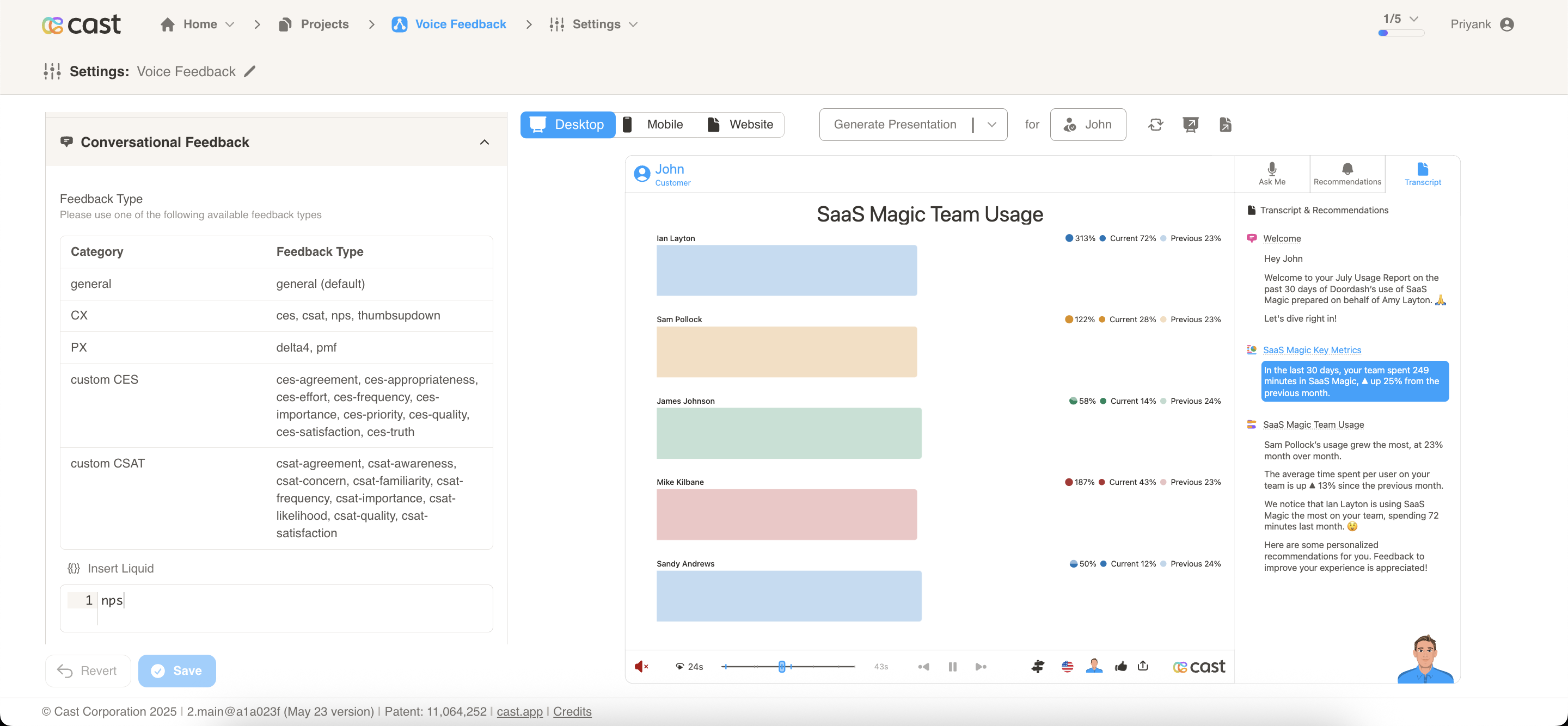
Available Feedback Types:
The Feedback Agent collects structured customer feedback through conversational AI with multiple feedback categories and seamless analytics integration. Common feedback types include:
- CX Category:
thumbsupdown,ces,csat,nps,oes - PX Category:
pmf,psat - Custom CES:
ces-agreement,ces-appropriateness,ces-effort - Custom CSAT: Various custom CSAT types
The feedback type determines the type of feedback collection mechanism used in conversations.
How It Works:
- Customers access feedback through the feedback icon at the bottom of the player interface.
- The system automatically switches to “Feedback Agent” mode in the AMA section.
- Customers provide responses using rating scales (0-10) or other configured formats.
- All interactions are captured and processed automatically for analytics.
Custom Agent
Custom agents allow you to create specialized AI agents tailored to specific use cases beyond the standard Lifecycle and Feedback agents.
Setup Process:
Custom agents require configuration support from our team. To set up a custom agent:
-
Share your use case and requirements with the CAST support team at support@cast.app
-
Our team will work with you to configure the custom agent to meet your specific needs
This ensures your custom agent is properly configured and optimized for your unique business requirements.
Feedback
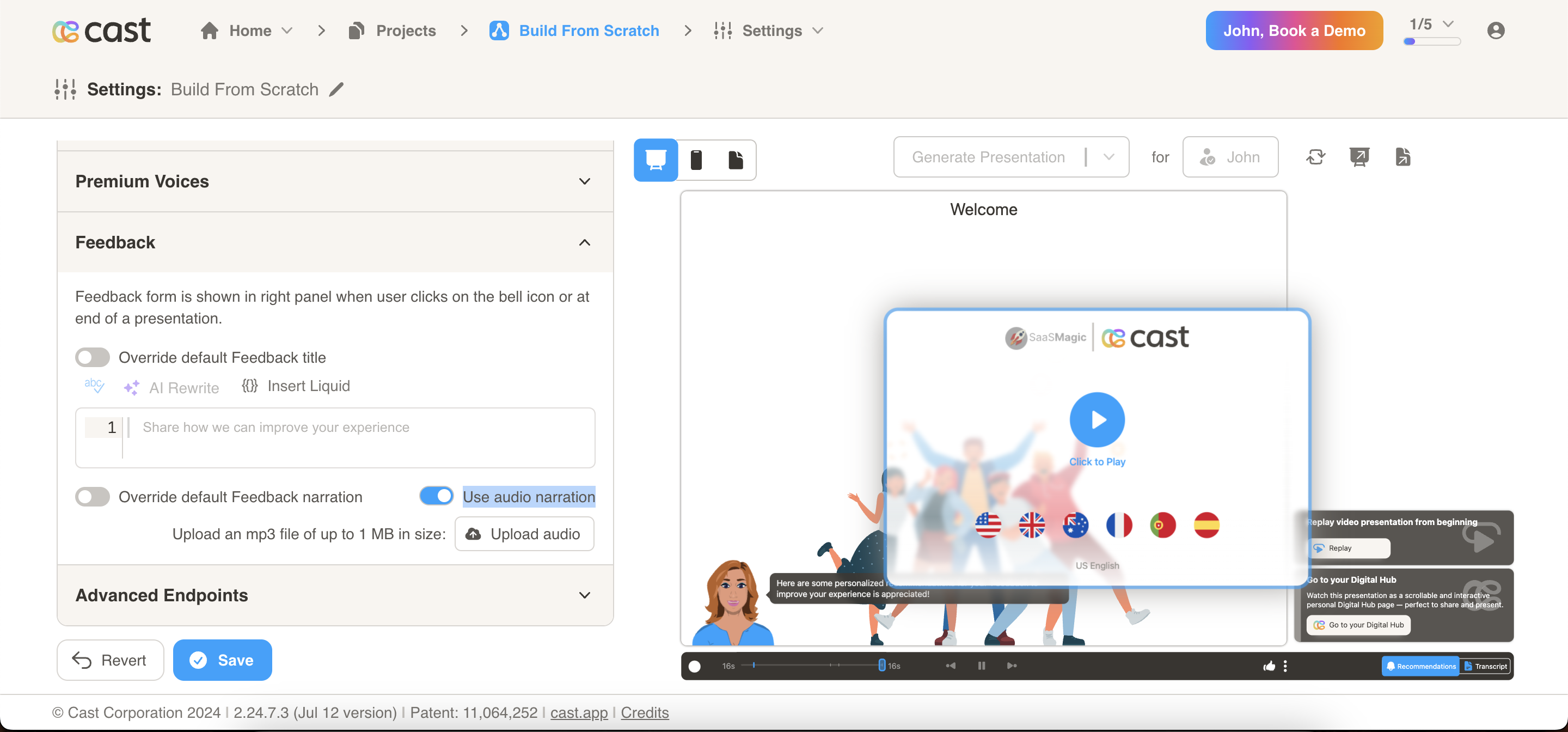
- Edit the feedback form displayed at the end of the presentation.
- Options include overriding the default feedback title and overriding the default feedback narration.
- You can now upload an MP3 file of up to 1 MB in size for the Feedback narration. Use the toggle “Use audio narration” to enable this feature. You can name the audio file (e.g., “End Narration”). In the transcript, sections with an audio narration will be marked with a music icon (🎵) at the end.
Advanced Settings
Transcriptions Panel
Control how the transcriptions panel appears when viewers open a presentation.
- Show Collapsed transcriptions – When enabled, the transcriptions panel will be collapsed by default when the presentation is opened. Viewers can expand it if they want to read the narration text alongside the slides.
- When disabled, the transcriptions panel is expanded by default.
This setting applies to the Cast player and helps you choose the default view for accessibility and readability preferences.
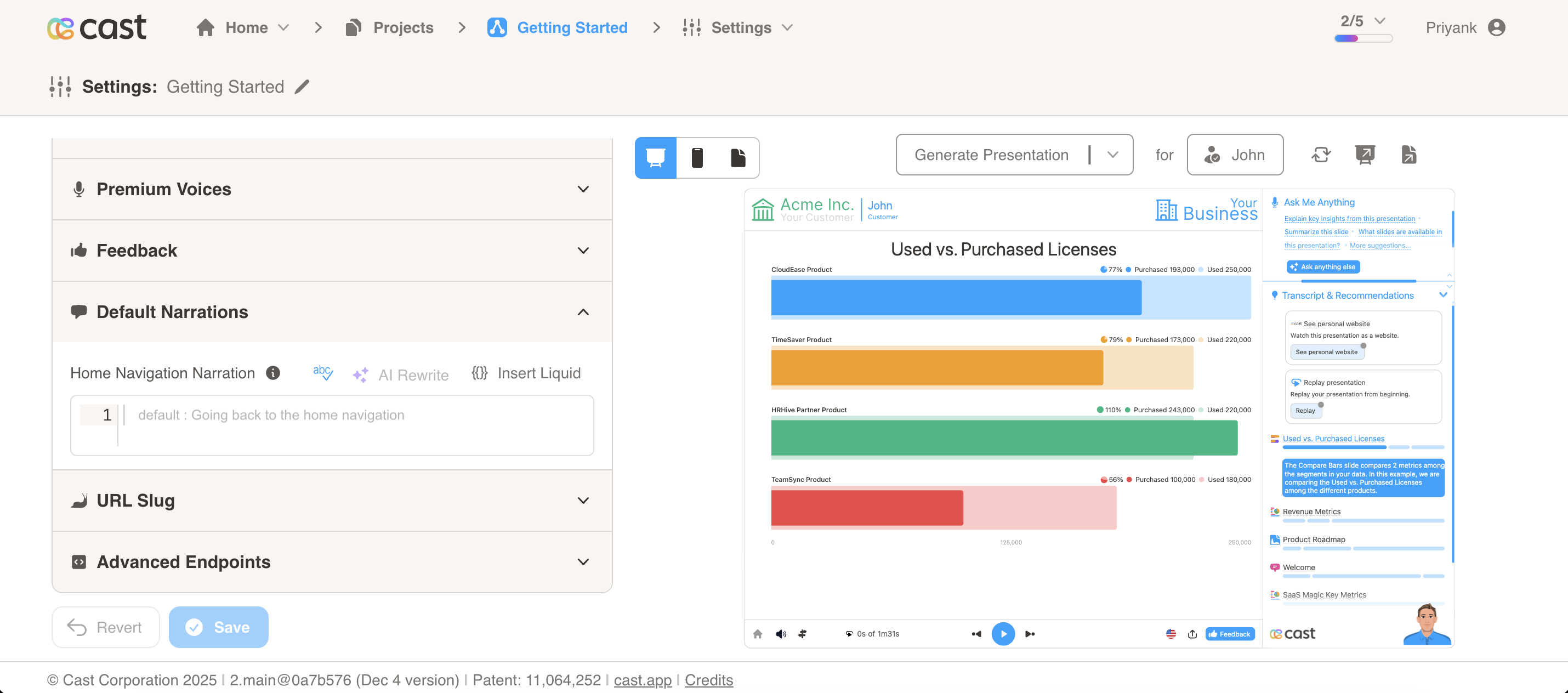
Default Narrations
- Configure default narration settings for navigation and other system actions.
- Home Navigation Narration: Override the narration played when navigating back to home. The default narration is “Going back to the home navigation”.
- A home icon is displayed on the bottom bar of the player interface. When users click on this home icon, the configured narration will be played.
- This narration is automatically synced with the
reserved_goto_first_narrationsnippet. - You can use Liquid template variables to personalize the narration based on contact data.
URL Slug
Add a custom slug to personalize cast presentation and website URLs. The slug supports Liquid template variables, enabling dynamic URL generation based on contact data.
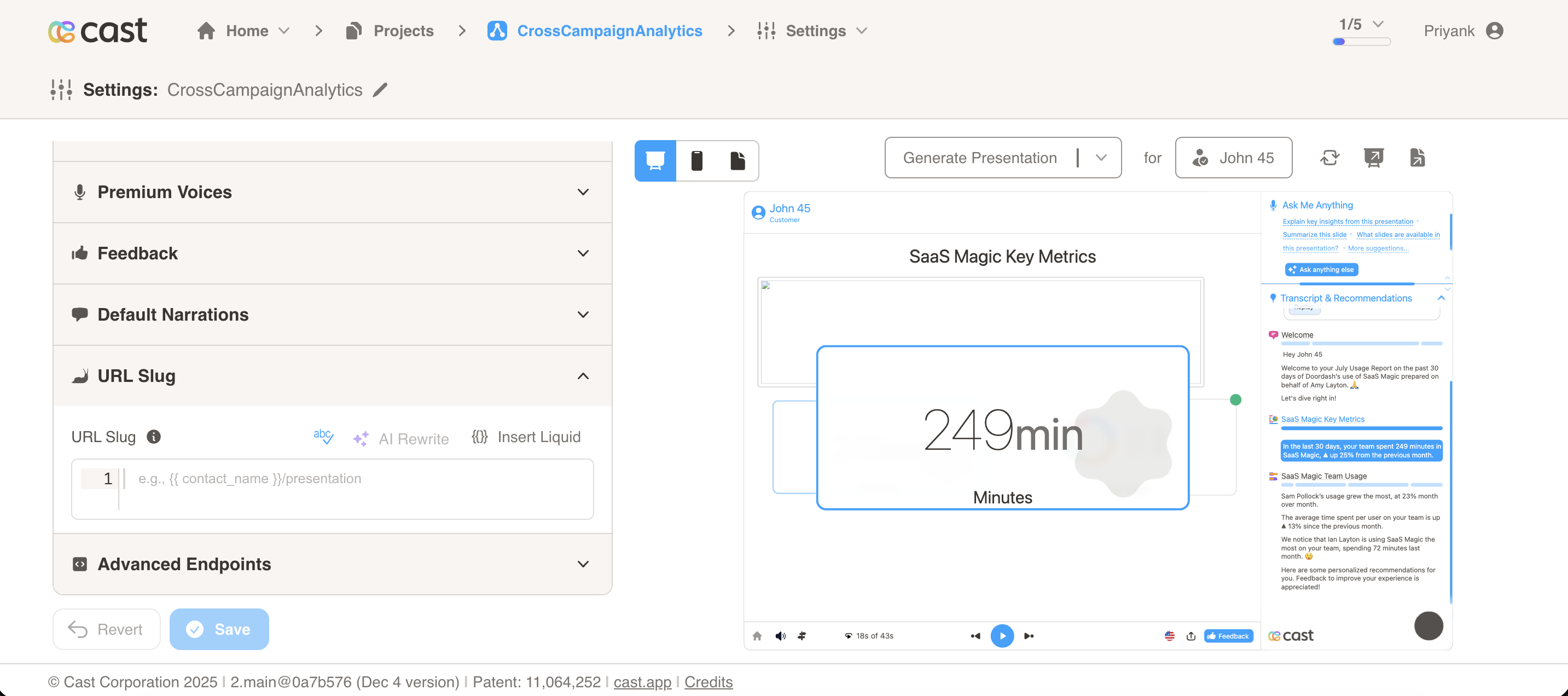
Setting a URL Slug
The URL Slug field accepts plain text or Liquid template variables:
- Plain text:
business-review - Liquid variables:
/qbr - Complex expressions:
//review
Example Values:
/business-review/qbr-
customer-insights {{ contact_account | slugify }}/{{ contact_name | slugify }}/review
How It Works
When a campaign is generated, the slug template is rendered using the contact’s liquid context. The processed slug is then:
- Automatically appended to permanent URLs (
contact_perma_urlandcontact_perma_page_url) - Made available as the
reserved_url_slugvariable in your templates
Example:
- URL Slug:
/qbr - Contact Account:
Acme Corp - Original Perma URL:
https://cast.app/play/latest/rZe9y5CxQoP5XMrkUj7fSA - Result:
https://cast.app/play/latest/rZe9y5CxQoP5XMrkUj7fSA/Acme Corp/qbr - Available variable: `` =
Acme Corp/qbr
Note: If rendering fails or returns empty, the slug falls back to contact_name. The value is automatically slugified (URL-safe) while maintaining case and allowing slashes.
Slug Formatting Rules:
- Special Characters: All special characters (except letters, numbers, underscores, hyphens, and slashes) are converted to hyphens
- Spaces: Spaces are always converted to hyphens (
-), never preserved - Multiple Spaces: Multiple consecutive spaces or special characters are collapsed into a single hyphen
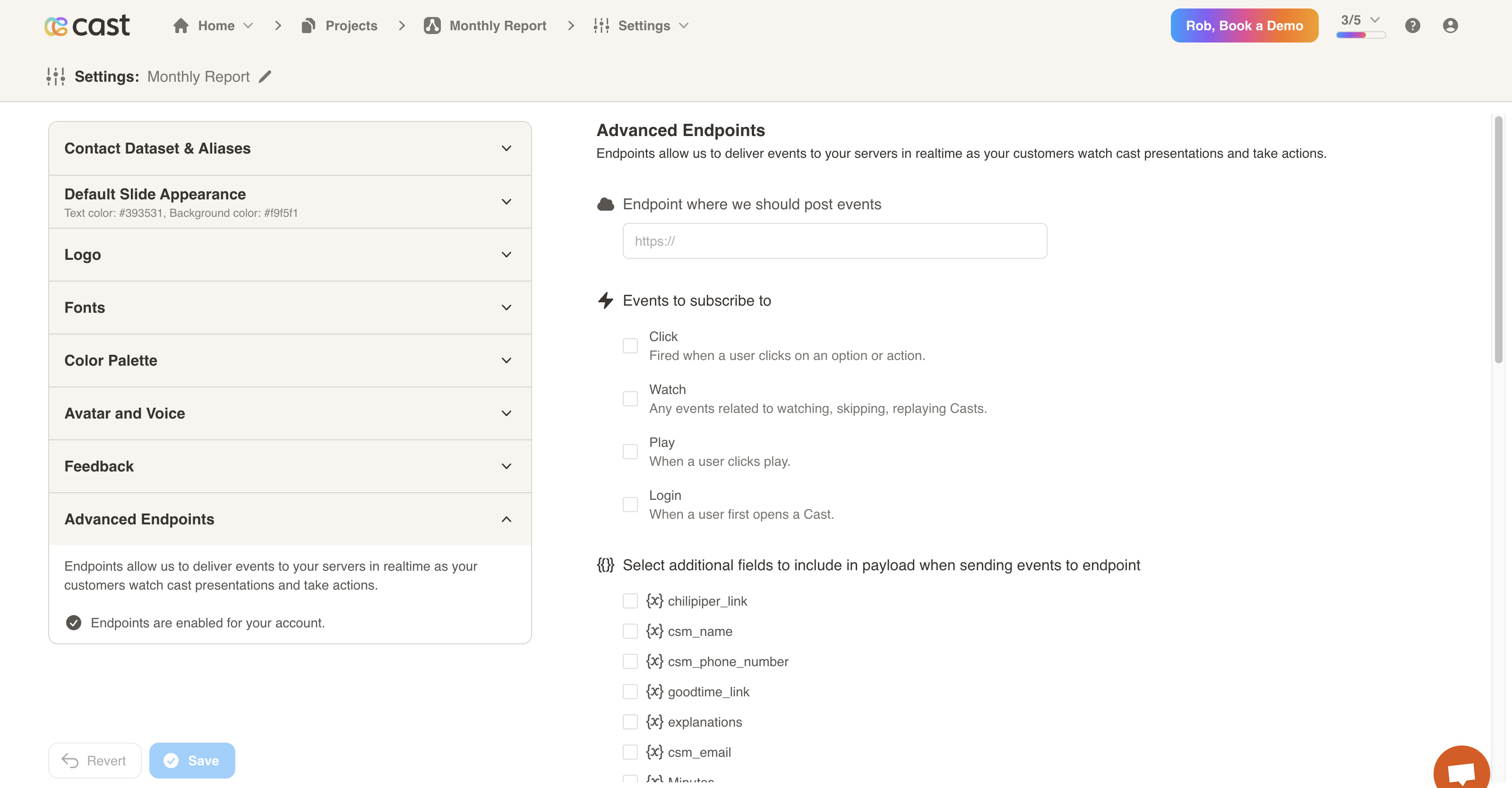
Advanced Endpoints
- Endpoints allow us to deliver events to your servers in realtime as your customers watch cast presentations and take actions.
- You may configure an endpoint, subscribe to events and select additional fields to include in the payload.