Frosted glass focus areas with lc_glass_*
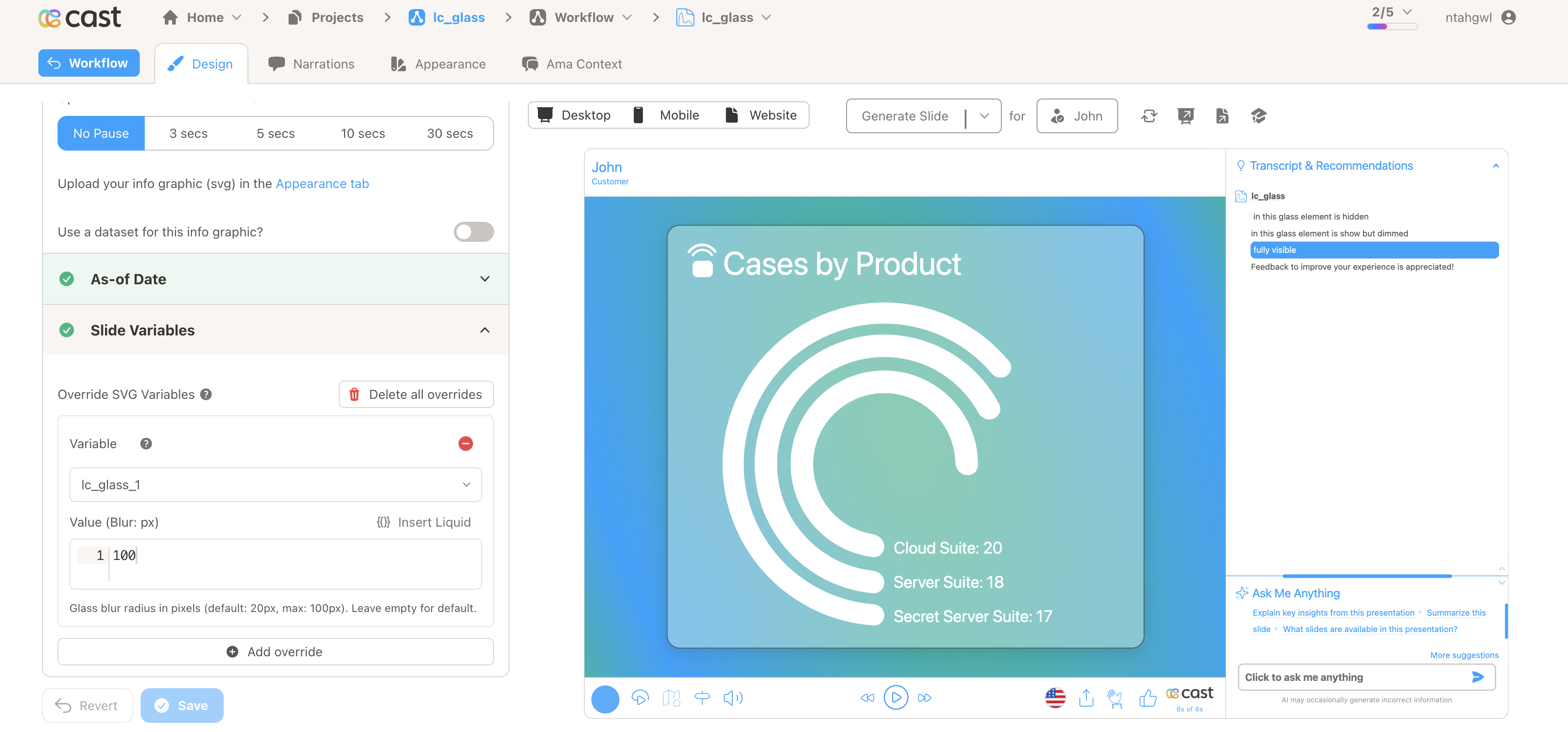
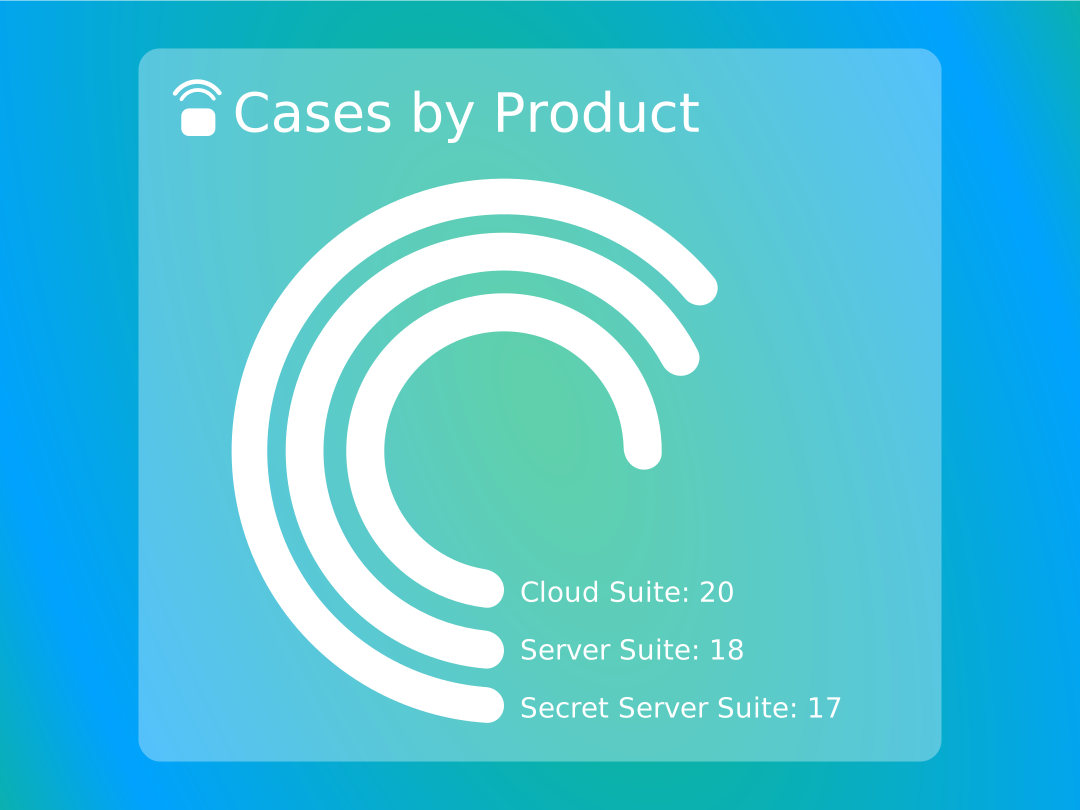
Use lc_glass_* on infographic slides when you want a soft, frosted “glass” panel over part of your artwork—great for drawing attention to KPIs, callouts, or busy charts without redesigning the whole slide.
When to use it
- Highlight a metric or message with a subtle frosted panel
- Soften a busy background behind text or charts
- Pair with narration highlights so the glass area appears when you want it in the story
Download sample SVG — includes a glass rectangle named lc_glass_1 you can try in Cast.
What you need in your SVG
- A rectangle (
<rect>) whose ID includeslc_glass_(for examplelc_glass_1orchart_lc_glass_focus). - The rectangle’s position and size in the design tool define where the frosted area appears on the slide.
This page covers standalone glass on the slide. For click-to-reveal modal glass, use lc_action.
How to set blur in Cast
- Open your Custom (infographic) slide in Cast Designer.
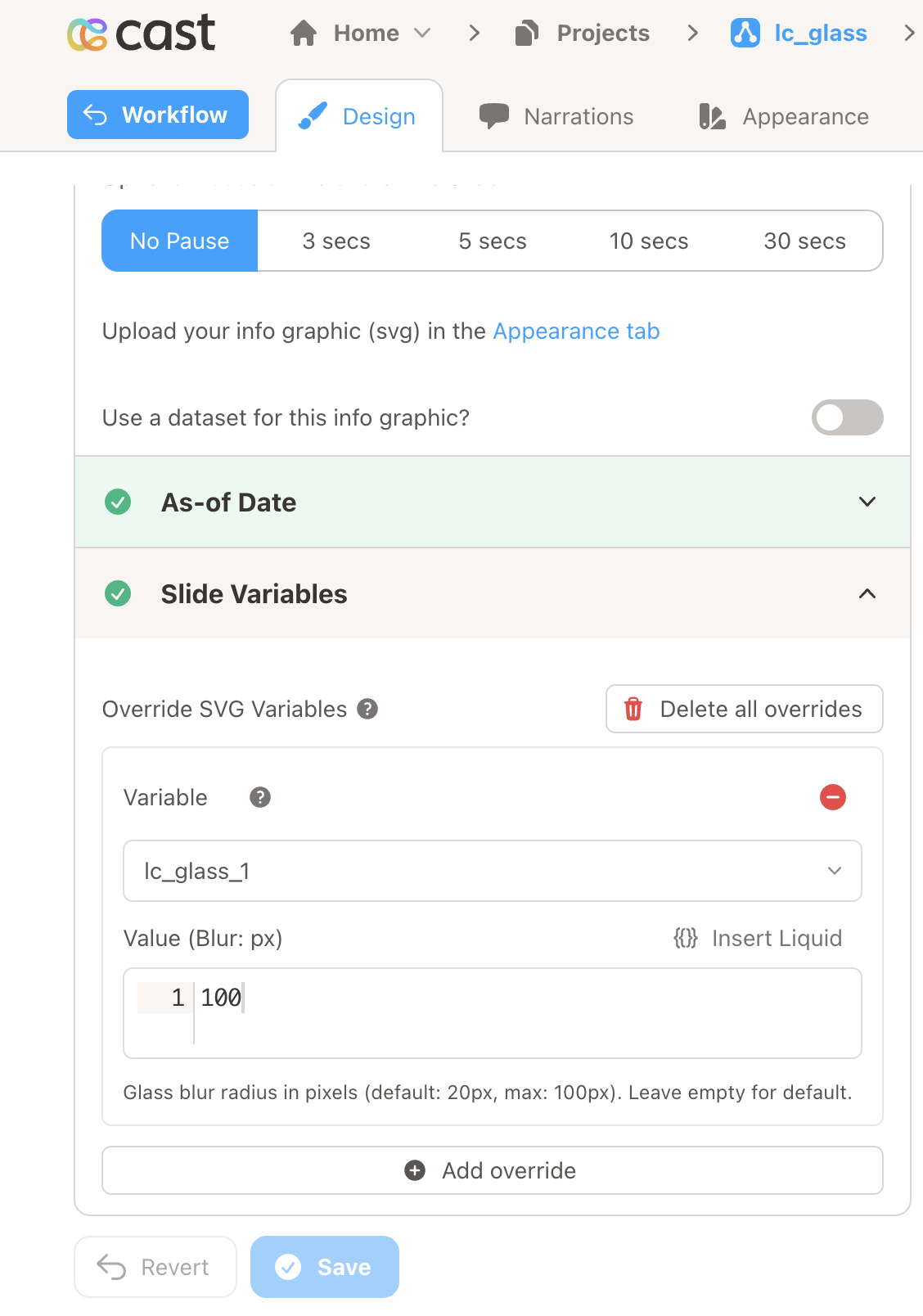
- Open Override SVG Variables for that slide (same place you personalize other SVG IDs).
- Find the variable that matches your glass rectangle’s ID (for example
lc_glass_1). - Enter a blur amount as a simple number, or add
pxif you prefer—examples:10,20,13.5px. - Leave the value empty if you want Cast to use the default blur strength.
Blur strength
- You can use values from 0 (very little blur) up to 100 (strongest).
- If you leave the field blank, Cast applies a comfortable default blur (20px).
- If you enter a number above 100, Cast treats it as 100.
Tips for a polished look
- Match the glass rectangle’s corners to your layout (rounded corners in the SVG carry through to the effect where supported).
- Adjust blur in small steps until the background feels readable but still softened.
- Avoid IDs that contain
lc_glass_effectunless you intend that separate behavior—stick to names likelc_glass_*for this frosted panel.
Designer view (placeholder)
Use this spot for a screenshot of Override SVG Variables or the slide editor showing the glass variable.
Playback & narration (placeholder)
Optional second visual: glass during playback or with highlights.
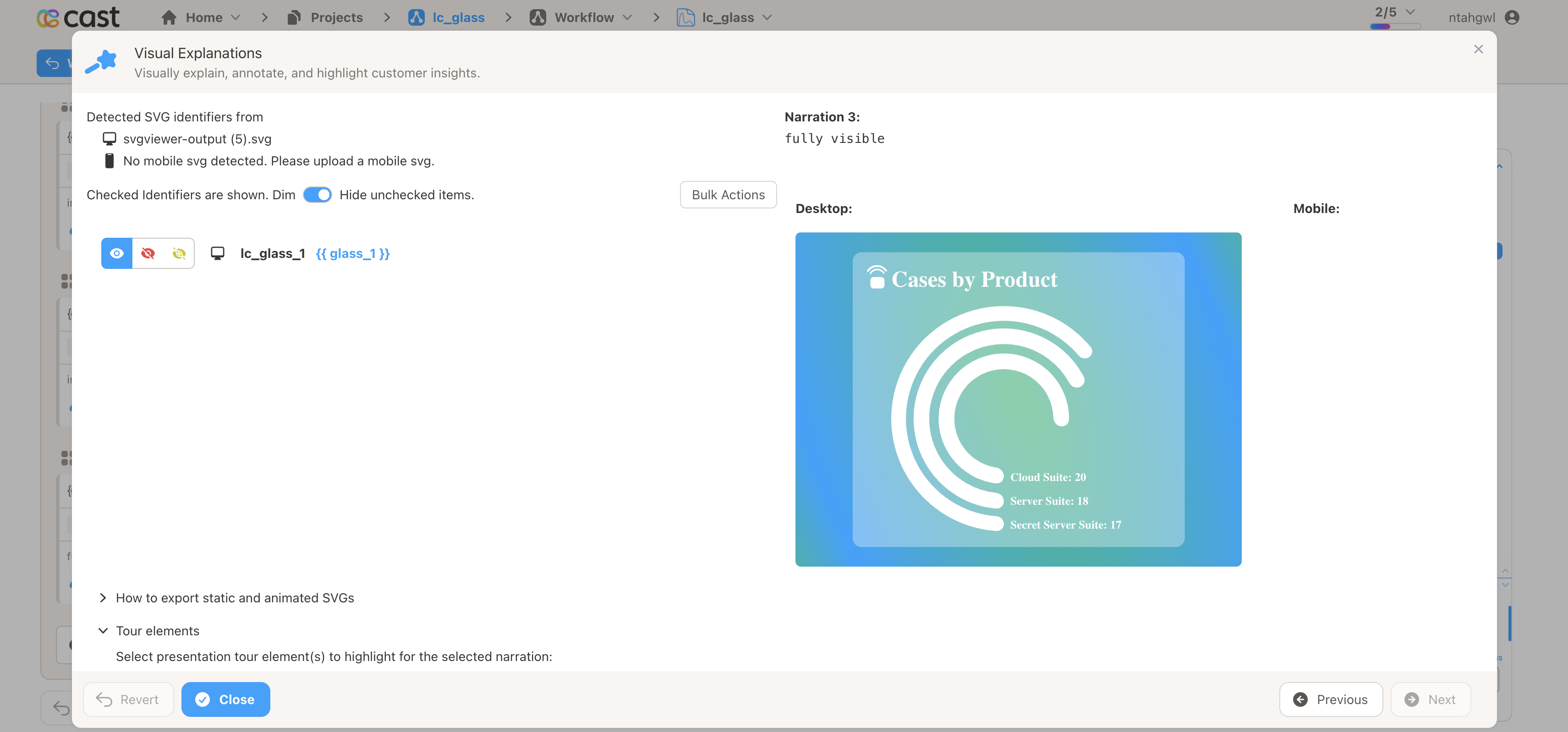
During playback, the frosted area follows the same highlight behavior as other slide elements you configure in narration—so you can reveal or soften the panel as the story progresses.
If something looks wrong
| What you notice | What to try |
|---|---|
| No frosted area | Check that the shape is a rectangle and the ID includes lc_glass_. |
| Cast won’t save the blur | Use a number between 0 and 100, or add px after the number (for example 24px). |
| Too strong or too soft | Lower or raise the blur value in small steps. |
Simple example
In your SVG, a glass region might look like this (sizes and position are up to your design):
<rect id="lc_glass_kpi" x="120" y="180" width="420" height="180" rx="16" />
Then set your preferred blur in overrides (for example 18).