Polar Area Chart Visualization with lc_radial_*
The lc_radial_* prefix is used for SVG element IDs that need to display a polar area chart. Each category gets an equal slice of the circle, and the slice size reflects its value — making it ideal for comparing magnitudes across categories at a glance.
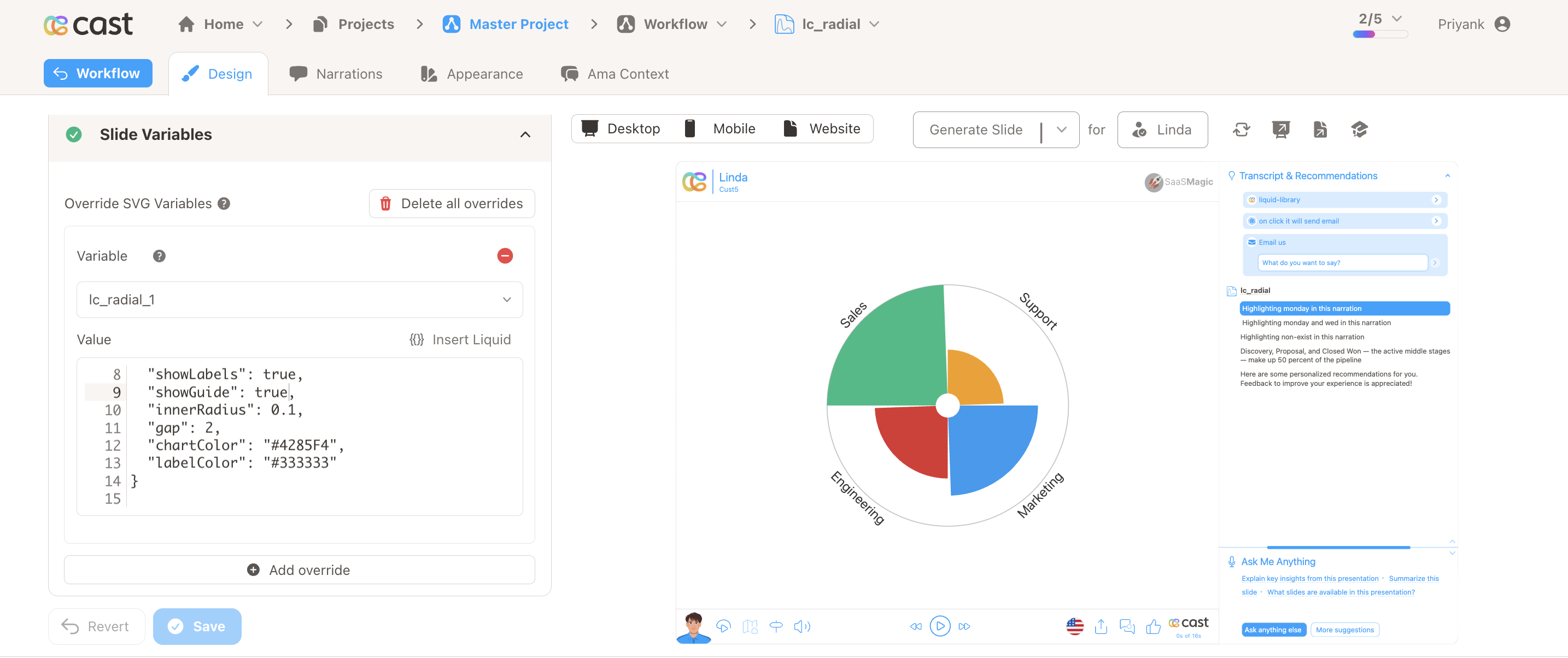
Element Identification
The target element must be a <rect> or <circle> with an ID that starts with lc_radial_* for polar area chart visualization.
Input Format
The input value must be provided as a JSON object containing a data array of segment objects.
JSON Format
{
  "data": [
    { "label": "Sales", "value": 380, "color": "#1ABC84" },
    { "label": "Support", "value": 140, "color": "#F59E0B" },
    { "label": "Marketing", "value": 260, "color": "#1D9BF0" },
    { "label": "Engineering", "value": 200, "color": "#DC3232" }
  ],
  "showLabels": true,
  "showGuide": false,
  "innerRadius": 0.1,
  "gap": 2,
  "chartColor": "#4285F4",
  "labelColor": "#333333"
}
Important Notes:
- Segments with zero, negative, or non-numeric values are silently skipped
- If the
dataarray is missing or empty, nothing will render - Key names are case-insensitive for the first character (e.g.
Labelandlabelboth work) - If data is not passed in the correct format, the element will display without any chart visualization
Configuration Properties
Required Segment Properties
label: Display name for the segment (string, mandatory for labels and highlighting)value: Numeric value for the segment (number, mandatory — determines the size of the segment)
Optional Segment Properties
| Property | Type | Description |
|---|---|---|
color | string | Custom hex color code or color name for the segment fill |
Optional Chart-Level Properties
| Property | Type | Default | Description |
|---|---|---|---|
chartColor | string | (auto from palette) | Default fill color for all segments when per-segment color is not set |
labelColor | string | Chart text color or #333 | Color for label text around the chart |
showLabels | boolean | true | Show or hide segment labels around the outer ring |
showGuide | boolean | false | Show a faint reference circle at the maximum radius |
innerRadius | number | 0.1 | Inner radius as a fraction of the max radius (0–1); controls the size of the center hole |
gap | number | auto | Gap between segments in degrees; auto-calculated if omitted |
Color Specifications
Custom Color:
- Provide hex color codes:
"#1ABC84","#F59E0B" - Use CSS color names:
"red","blue","green" - Each segment can have its own individual color
Default Behavior:
- If no color is provided, colors are auto-assigned from the appearance settings and project color palette
Compatibility: Works with <rect> and <circle> elements
Layout Behaviour
- The chart automatically scales to fit the target element
- Labels appear around the outside of the chart and are automatically positioned for readability
- Long labels are truncated with
…when space is limited
Animation
When the chart appears, segments animate outward from the center with a smooth growing effect.
Highlighting Segments
Polar area charts support two levels of highlighting during your presentation:
Whole-Chart Visibility
Use the chart ID (e.g. lc_radial_categories) in your highlight configuration to control the entire chart’s visibility. The chart fades in with the grow-from-center animation when it first becomes visible.
Segment-Level Highlighting
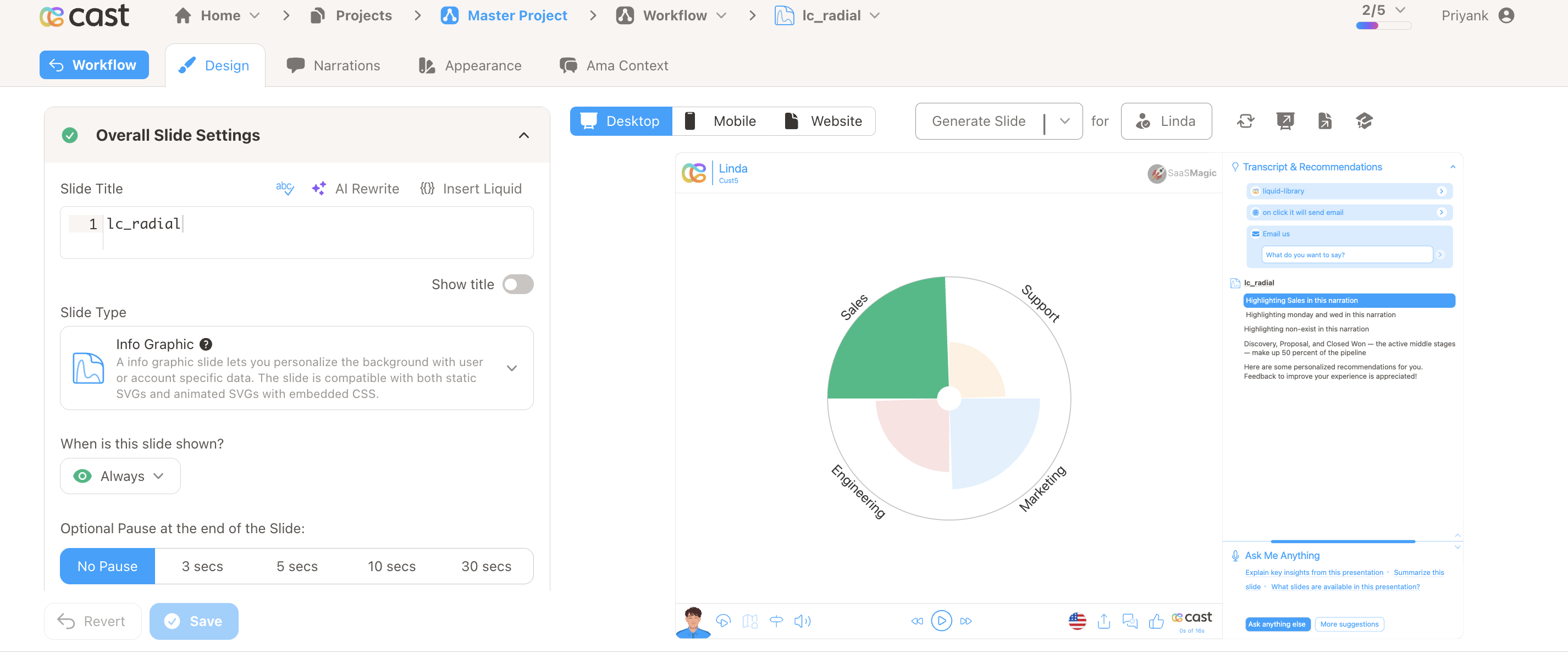
Highlight specific segments by referencing their label in your highlight configuration. The widget matches these labels against the chart data and highlights the matching segments.
Highlight Format:
Single segment:
[{ "label": "Sales" }]
Multiple segments:
[{ "label": "Sales" }, { "label": "Marketing" }]
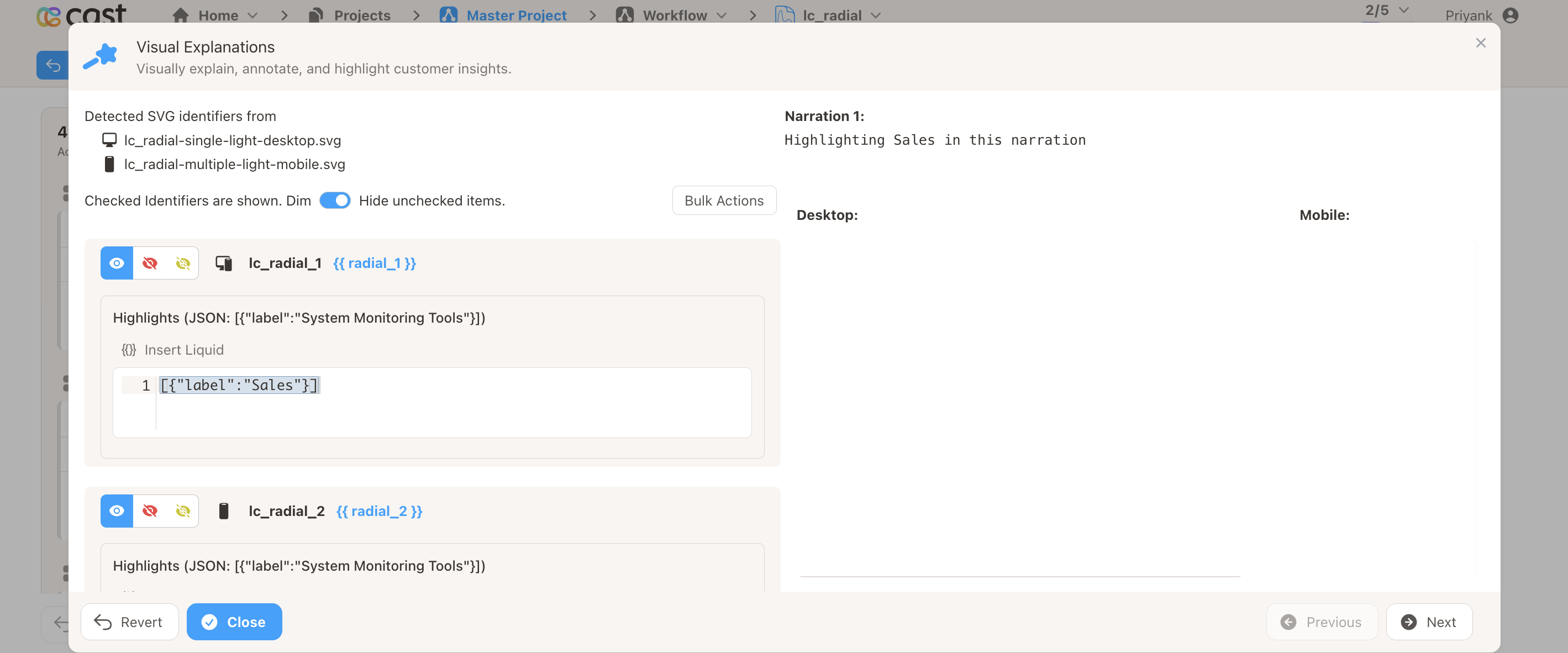
How to Add Highlights in Cast Designer:
- Open your project in Cast designer
- Navigate to the Narration tab
- Click on Visual Explanations for the slide with your polar area chart
- Find the liquid block for your
lc_radialelement - Add the highlight format directly in the liquid block
Highlight Preview:
When a segment is highlighted, it stays fully visible while the other segments are dimmed — making the selected categories stand out clearly.
Example Usage
Example 1: Simple Category Breakdown
{
  "data": [
    { "label": "Mon", "value": 120 },
    { "label": "Tue", "value": 80 },
    { "label": "Wed", "value": 200 },
    { "label": "Thu", "value": 50 },
    { "label": "Fri", "value": 160 }
  ]
}
Example 2: Custom Colors with Guide Circle
{
  "data": [
    { "label": "Sales", "color": "#1ABC84", "value": 380 },
    { "label": "Support", "color": "#F59E0B", "value": 140 },
    { "label": "Marketing", "color": "#1D9BF0", "value": 260 },
    { "label": "Engineering", "color": "#DC3232", "value": 200 }
  ],
  "showGuide": true
}
Example 3: Styled Chart with Inner Radius and Gap
{
  "data": [
    { "label": "Alpha", "value": 60 },
    { "label": "Beta", "value": 40 },
    { "label": "Gamma", "value": 90 },
    { "label": "Delta", "value": 25 }
  ],
  "chartColor": "#4285F4",
  "labelColor": "#222222",
  "innerRadius": 0.25,
  "gap": 4,
  "showGuide": true
}
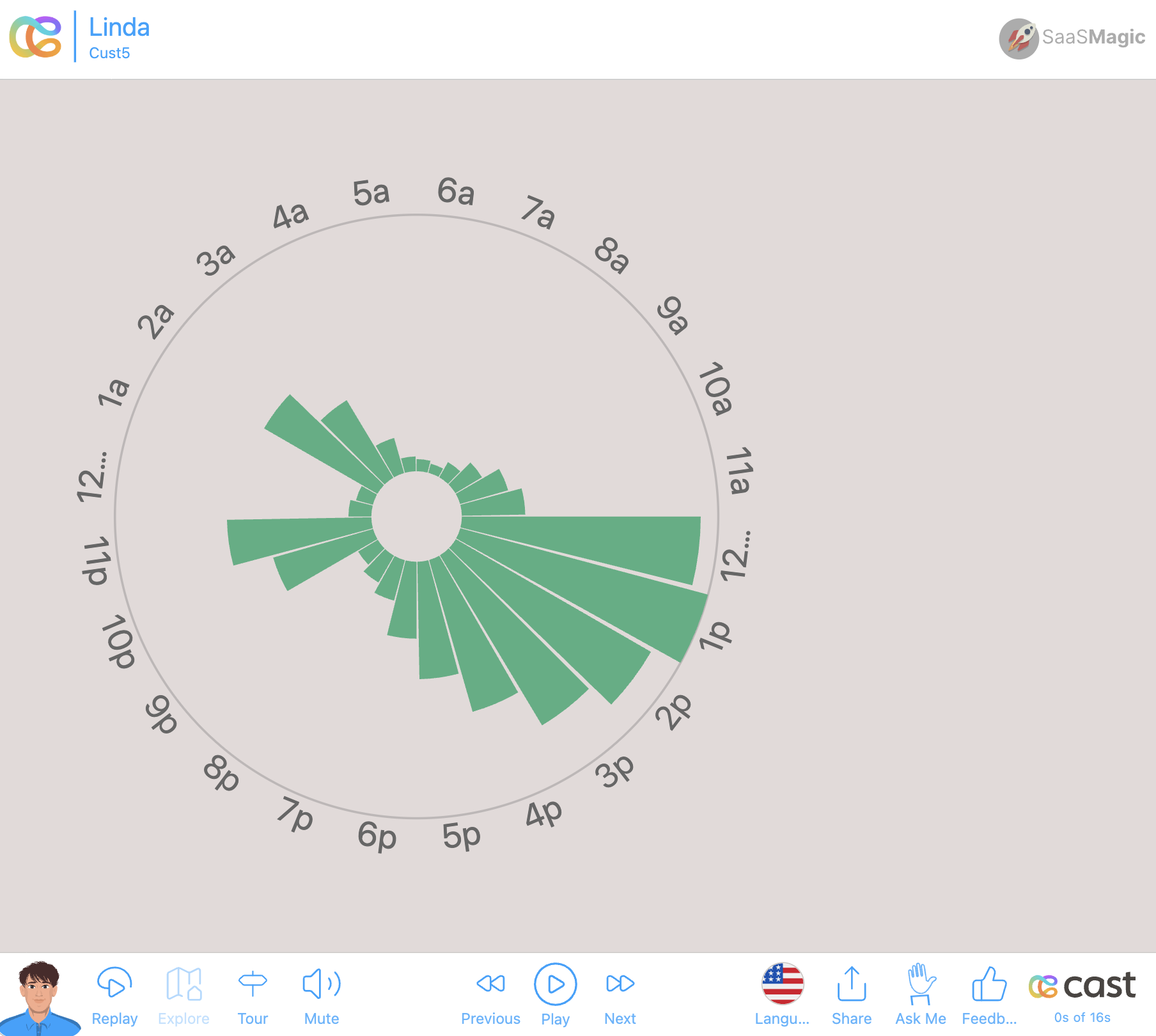
Example 4: 24-Hour Activity Radial
Use this format when each segment represents an hour-of-day bucket.
{
  "data": [
    { "label": "12am", "value": 5, "color": "#4CAF82" },
    { "label": "1a", "value": 3, "color": "#4CAF82" },
    { "label": "2a", "value": 45, "color": "#4CAF82" },
    { "label": "3a", "value": 30, "color": "#4CAF82" },
    { "label": "4a", "value": 10, "color": "#4CAF82" },
    { "label": "5a", "value": 2, "color": "#4CAF82" },
    { "label": "6a", "value": 1, "color": "#4CAF82" },
    { "label": "7a", "value": 0, "color": "#4CAF82" },
    { "label": "8a", "value": 3, "color": "#4CAF82" },
    { "label": "9a", "value": 8, "color": "#4CAF82" },
    { "label": "10a", "value": 15, "color": "#4CAF82" },
    { "label": "11a", "value": 20, "color": "#4CAF82" },
    { "label": "12pm", "value": 85, "color": "#4CAF82" },
    { "label": "1p", "value": 95, "color": "#4CAF82" },
    { "label": "2p", "value": 80, "color": "#4CAF82" },
    { "label": "3p", "value": 70, "color": "#4CAF82" },
    { "label": "4p", "value": 55, "color": "#4CAF82" },
    { "label": "5p", "value": 40, "color": "#4CAF82" },
    { "label": "6p", "value": 25, "color": "#4CAF82" },
    { "label": "7p", "value": 12, "color": "#4CAF82" },
    { "label": "8p", "value": 8, "color": "#4CAF82" },
    { "label": "9p", "value": 5, "color": "#4CAF82" },
    { "label": "10p", "value": 35, "color": "#4CAF82" },
    { "label": "11p", "value": 50, "color": "#4CAF82" }
  ],
  "showLabels": true,
  "showGuide": true,
  "innerRadius": 0.15,
  "gap": 1,
  "chartColor": "#4CAF82",
  "labelColor": "#666666"
}
Preview Placeholder:
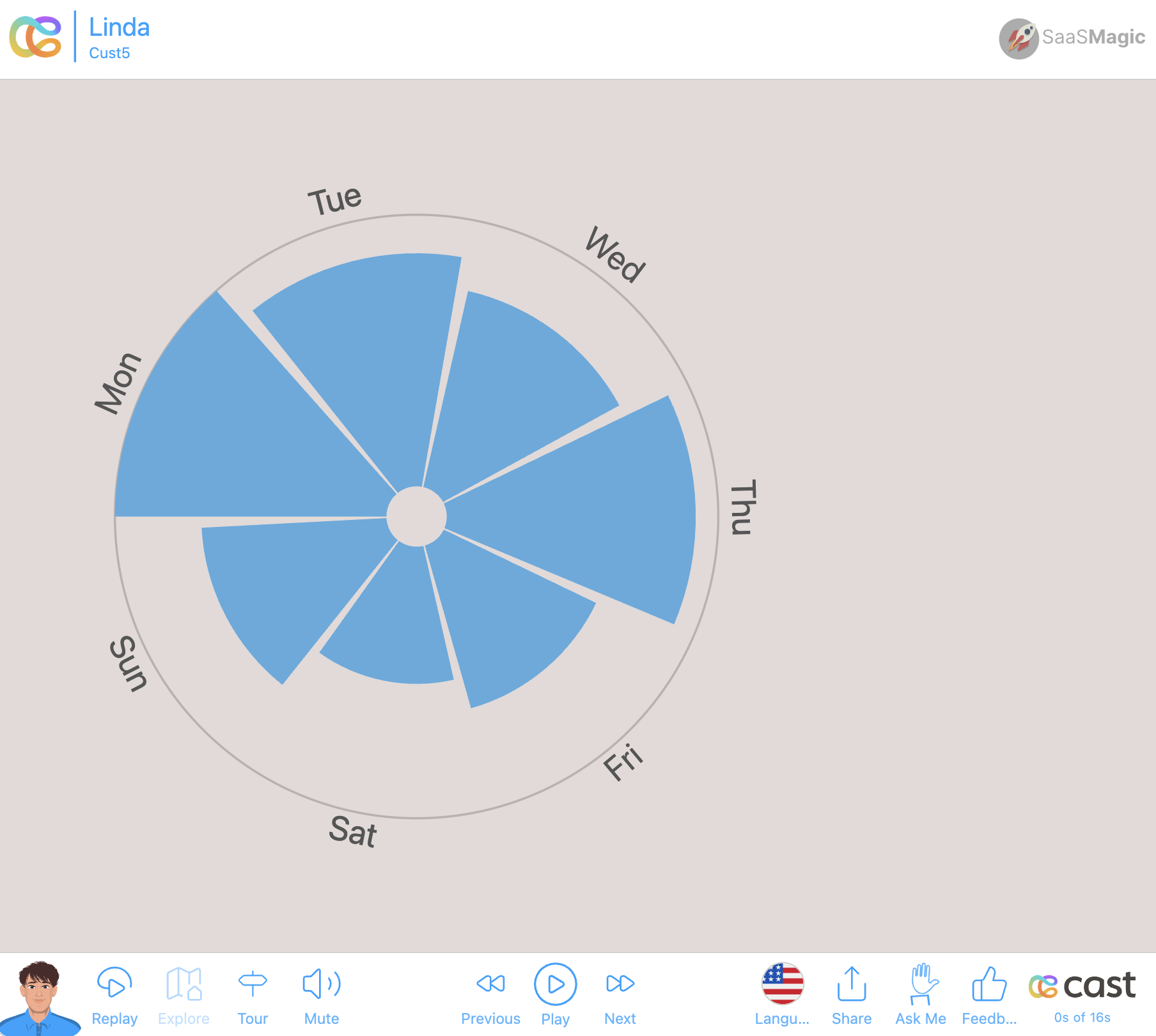
Example 5: Weekly Activity Radial
Use this format when each segment represents day-of-week activity.
{
  "data": [
    { "label": "Mon", "value": 85, "color": "#5AABDE" },
    { "label": "Tue", "value": 70, "color": "#5AABDE" },
    { "label": "Wed", "value": 60, "color": "#5AABDE" },
    { "label": "Thu", "value": 75, "color": "#5AABDE" },
    { "label": "Fri", "value": 50, "color": "#5AABDE" },
    { "label": "Sat", "value": 40, "color": "#5AABDE" },
    { "label": "Sun", "value": 55, "color": "#5AABDE" }
  ],
  "showLabels": true,
  "showGuide": false,
  "innerRadius": 0.35,
  "gap": 3,
  "chartColor": "#5AABDE",
  "labelColor": "#555555"
}
Preview:
Data Handling
- Segments with
valueof 0, negative, or non-numeric are silently skipped - If all segments are invalid, nothing renders
- If the JSON is malformed or the
dataarray is missing, nothing will render - Key names are case-insensitive for the first character (
Labelandlabelboth work) - Segments without a
labelwill not have labels and cannot be highlighted