Slide Types
What you’ll learn:
- Overview of all available slide types in Cast.app
- When to use each slide type for different scenarios
- How to choose the right visualization for your data
Overview
Cast.app supports multiple slide types designed for different presentation needs and data visualization requirements. Slides are grouped under a project and are conditionally shown to each user enabling personalization.

Custom
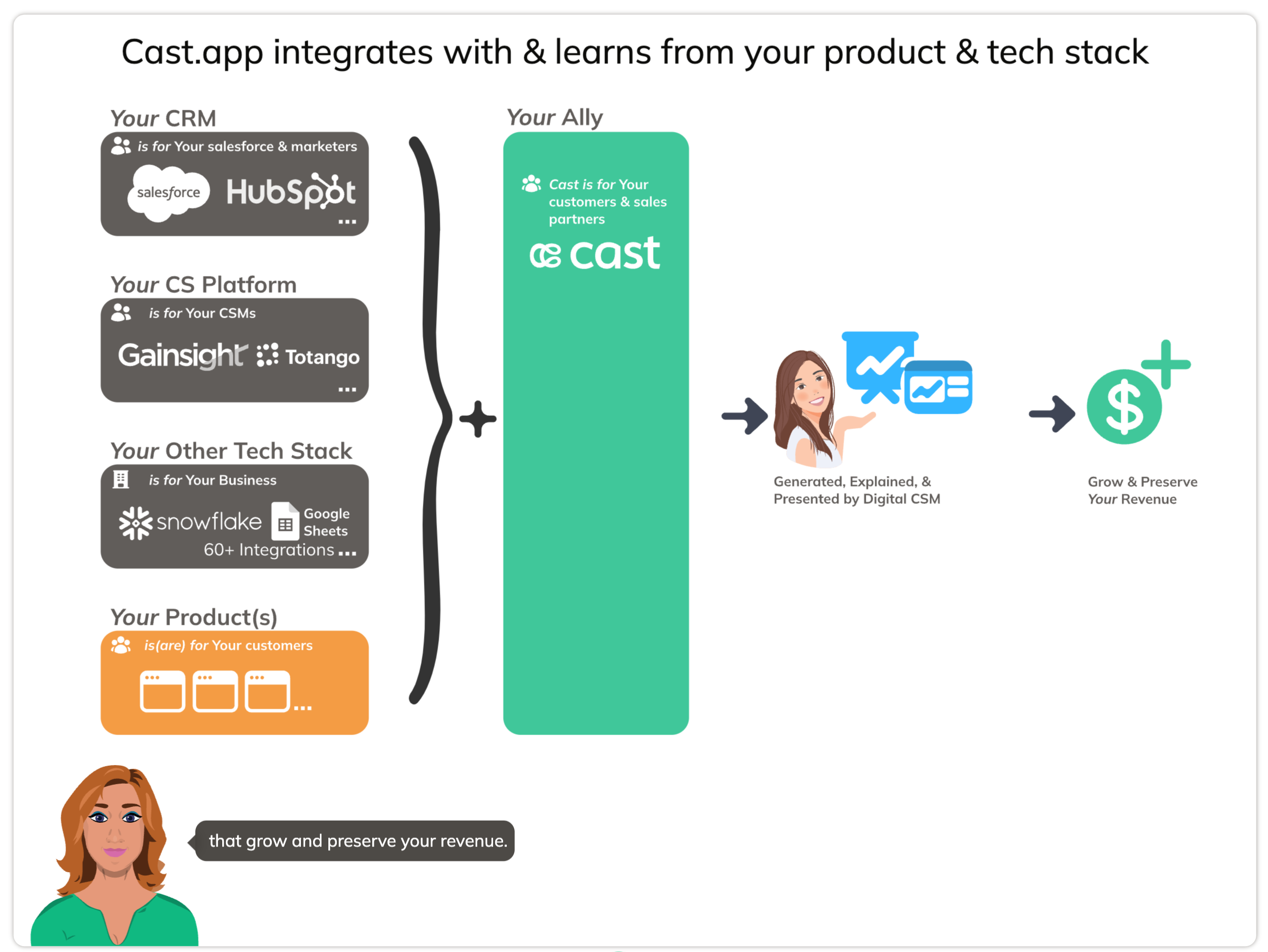
The Custom slide is the most powerful and flexible slide type. Create stunning, data-driven graphics that automatically personalize with user or account-specific data.
Use for:
- Progress & performance metrics (bars, columns, circular progress)
- Distribution & proportions (donut charts, ring charts)
- Dynamic colors and heatmaps
- Text & content display
- Images & videos with Ken Burns effects
→ Learn more about Custom slides
Line and Area Chart
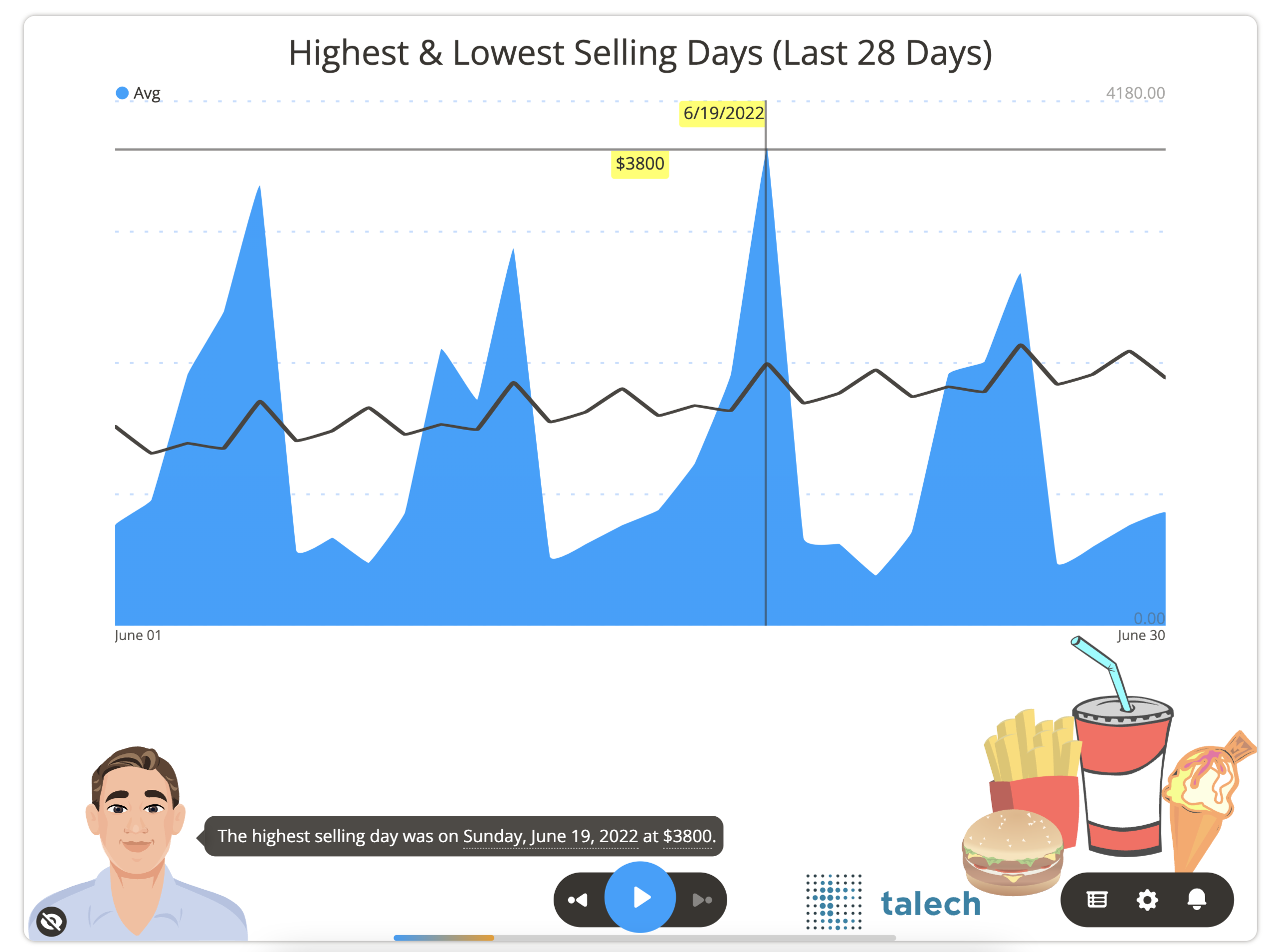
A Line and Area Chart presents change in one or more metrics over time. The slide may show several groups of area/line charts on the same slide.
Use for:
- Trends over time
- Comparing multiple time series
- Showing growth or decline patterns
→ Learn more about Line and Area Charts
Widgets
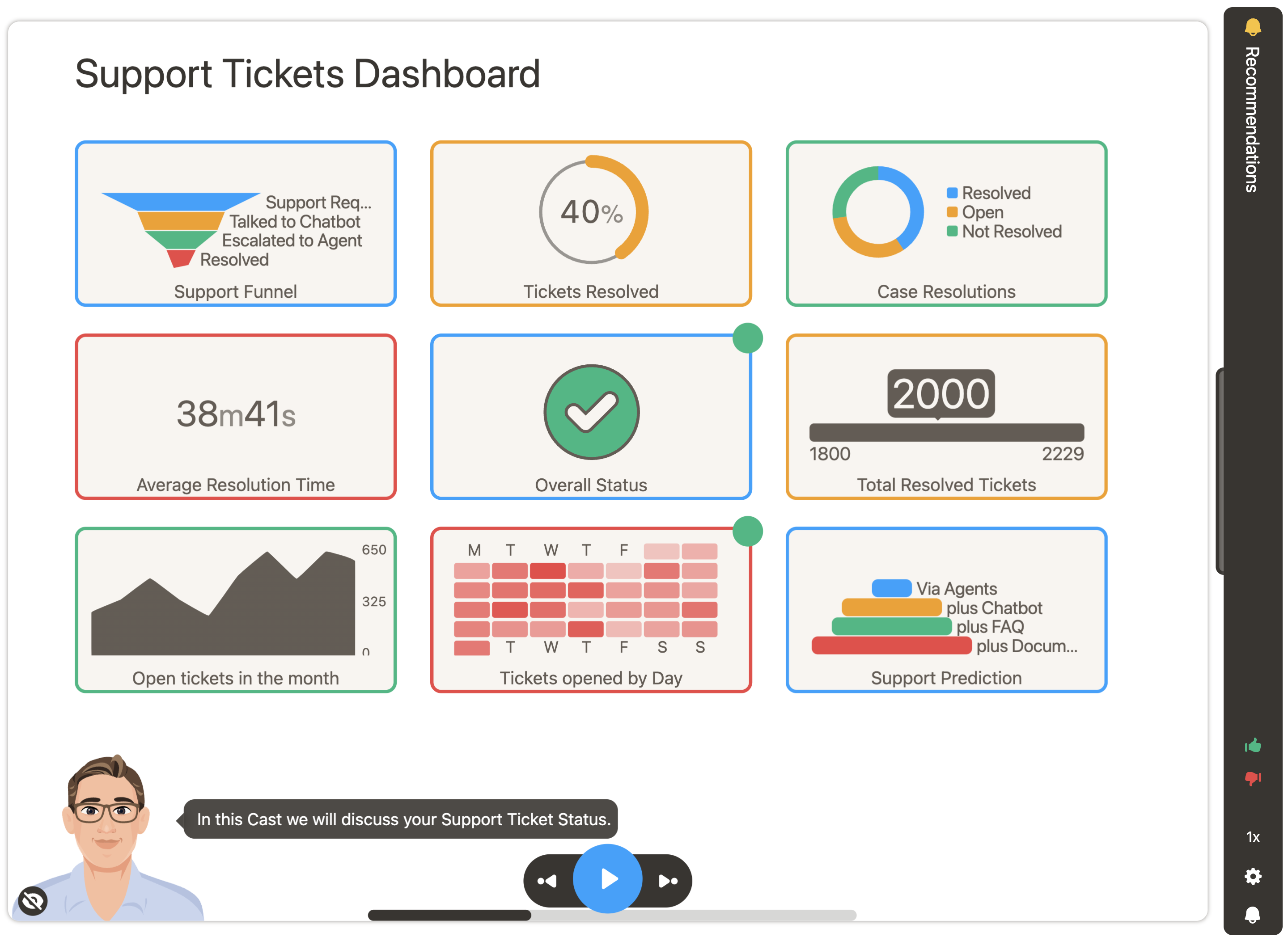
A Widgets slide shows various performance indicators, metrics and charts in a single slide. Supports multiple widget types including:
- Labels, Numbers, Percentages
- Doughnut, Pie, Piebar charts
- Progress indicators and Status icons
- Sparklines, Sparkbars, Sparkareas
- Funnel and Towers of Hanoi
- Calendar heatmaps (Days of Month, Hours of Day)
Generative Form
The Generative Form slide allows you to collect customer insights through personalized forms with various question types.
Use for:
- Surveys and feedback collection
- Customer input and preferences
- Interactive questionnaires
→ Learn more about Generative Forms
Navigation
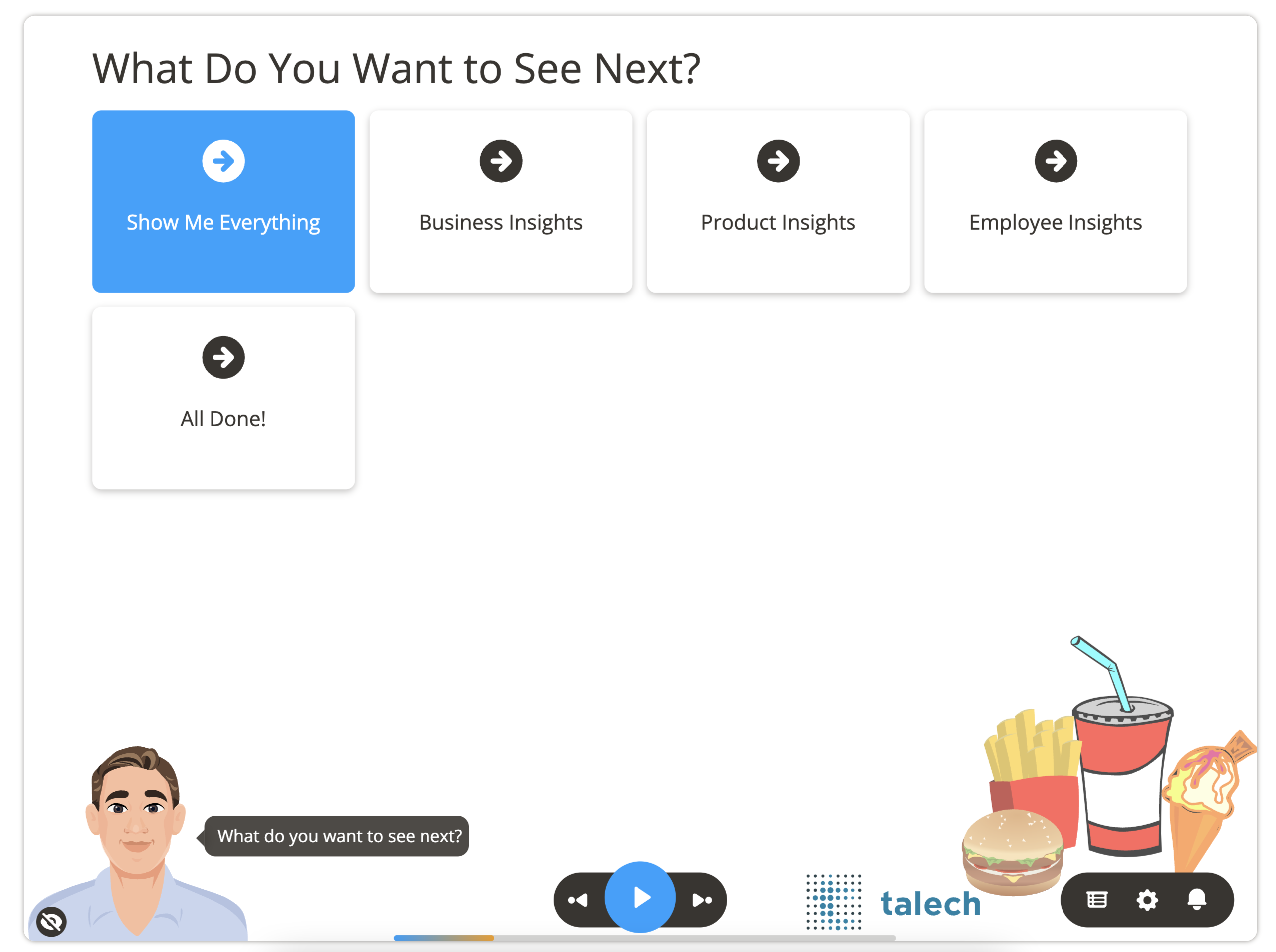
A Navigation slide lets viewers choose their journey or drill down into areas of specific interest. Perfect for creating personalized paths through your presentation.
Use for:
- Drill-down menus for detailed exploration
- Summary vs. detailed presentation versions
- Customer journey selection
- Role-based content paths
→ Learn more about Navigation slides
Legacy Slide Types
Additional slide types are available in Legacy Slide Types, including:
- Categorization - Pie-bar charts
- Checklist - Agendas and to-do lists
- Compare Bar - Side-by-side comparisons
- Editorials - Announcements and guidance
- Funnel / Towers of Hanoi - Process stages
- Gauges - Color-coded metrics
- Grouped Bar Chart - Grouped data comparisons
- Single Bar Chart - Simple bar charts
- Stacked Bars - Stacked categorical data
- Video - Video content
- Waterfall - Value flow visualization
- Welcome - Introduction slides
Next Steps
- Datasets - Connect data to power your slides
- Getting Started - Create your first presentation
- Recommendations - Add CTAs to your slides
See Also
- Liquid Context (LC) - Dynamic content in your slides
- Personalization - Customize slides for different users