Reserved Snippets
Reserved Snippets are used by the Cast player. Like Snippets, they let you personalize content, narration, and visuals—but they have special purposes tied to project settings and built-in player features.
All Reserved Snippets (Reference Table)
| Snippet Name | Purpose | Where to Edit |
|---|---|---|
reserved_cast_agent_persona | Cast agent persona used in AMA greetings (e.g. “your CSM”) | Project Settings → AMA Agent Personas |
reserved_feedback_agent_persona | Feedback agent persona used when collecting feedback | Project Settings → AMA Agent Personas |
reserved_feedback_product_name | Product or service name shown in feedback flows | Project Settings → AMA Agent Personas |
reserved_feedback_type | Feedback type (e.g. NPS, survey type) | Project Settings → Feedback Settings |
reserved_female_agent_name | Female agent name for AMA and feedback | Project Settings → AMA Agent Personas |
reserved_male_agent_name | Male agent name for AMA and feedback | Project Settings → AMA Agent Personas |
reserved_url_slug | Custom slug to personalize cast/website URLs | Project Settings → URL Slug |
reserved_goto_first_narration | Narration played when navigating back to home | Project Settings → Default Narrations, or Reserved Snippets tab |
reserved_ama_questions | Default AMA questions for the presentation (JSON array) | Reserved Snippets tab (create from “Not Created”) |
Finding the Reserved Snippets Tab
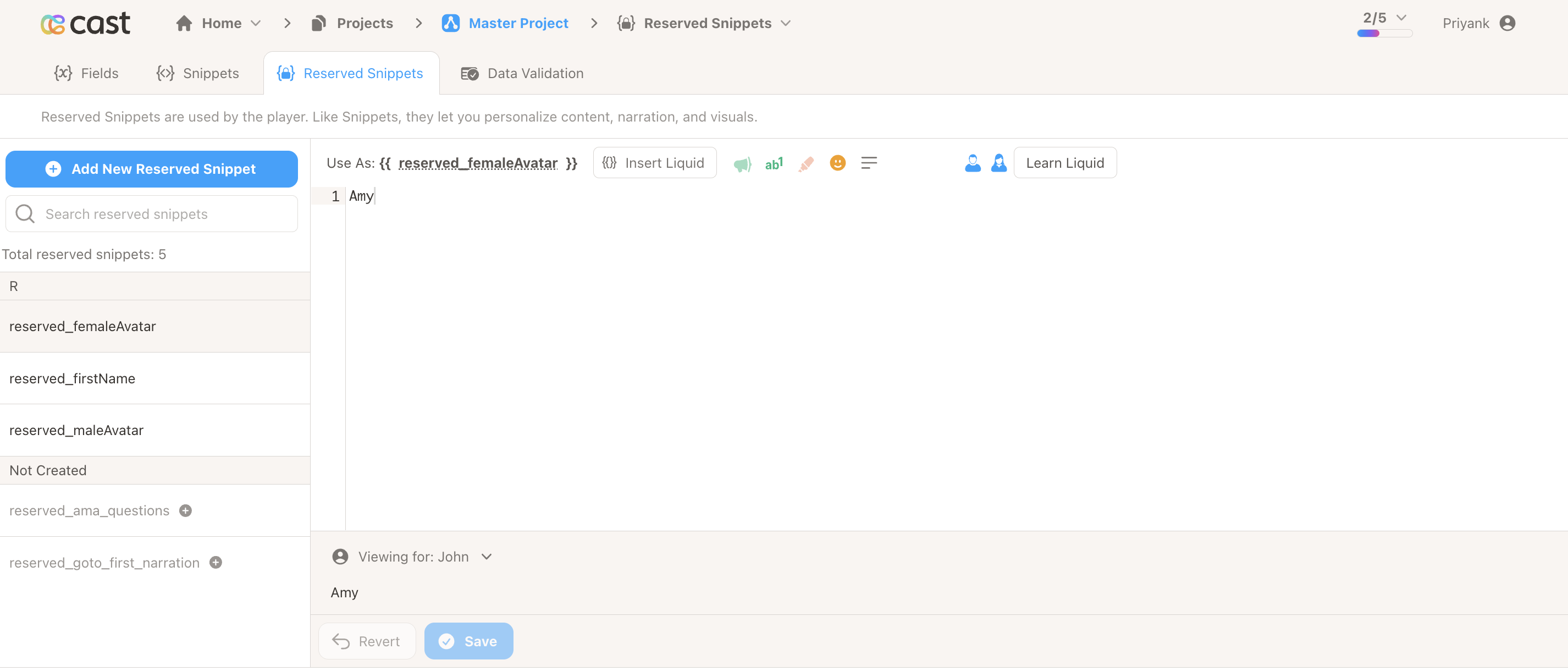
In the left navigation, expand Variables to access Contact Variables, Fields, Snippets, and Reserved Snippets. Click Reserved Snippets to manage reserved snippets.
Creating a Reserved Snippet
Option 1: Add a new reserved snippet manually
- Click Add new reserved snippet.
- Enter a name that starts with
reserved_(e.g.reserved_custom_greeting). - Add your Liquid content and save.
Option 2: Create from the “Not Created” list
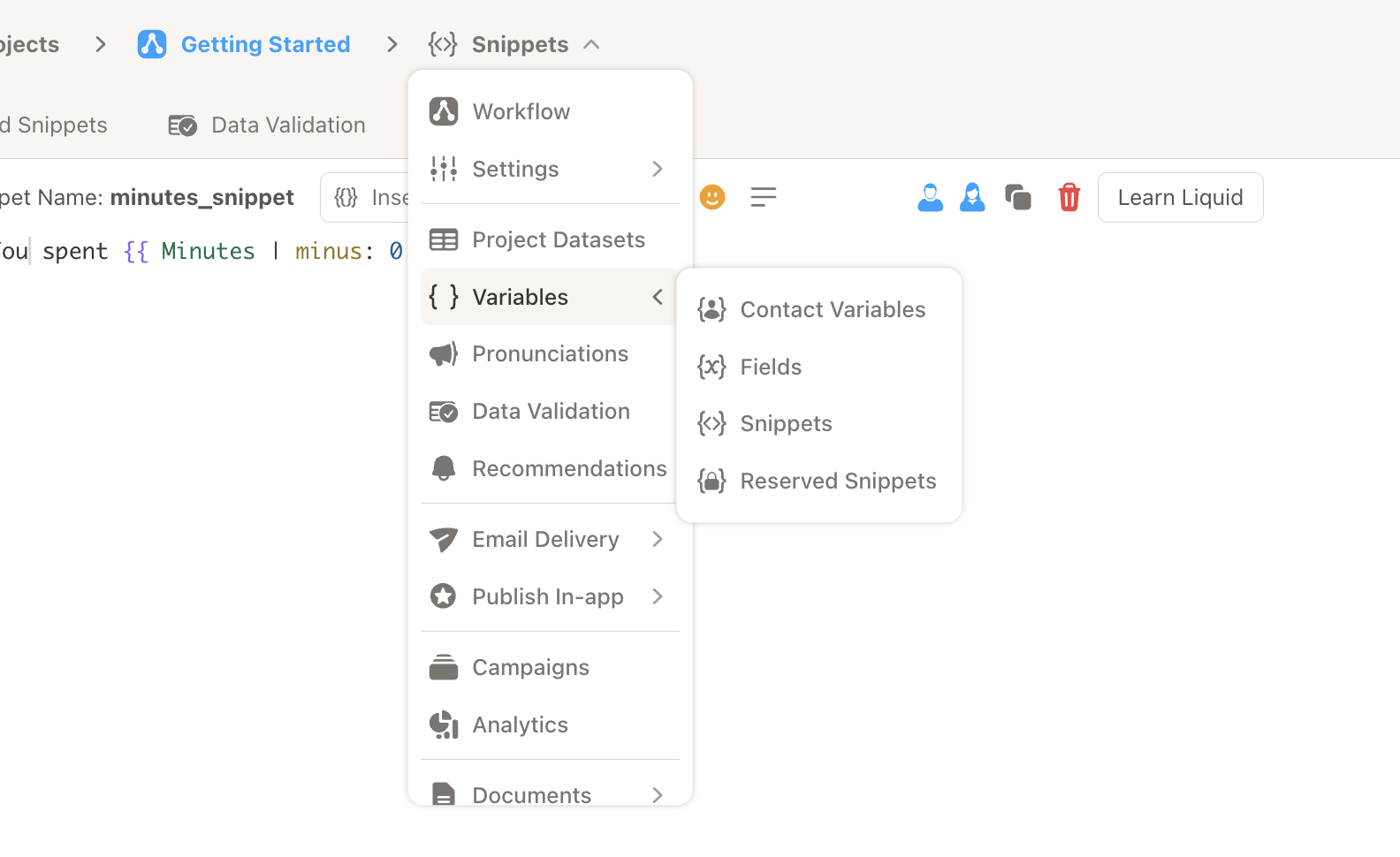
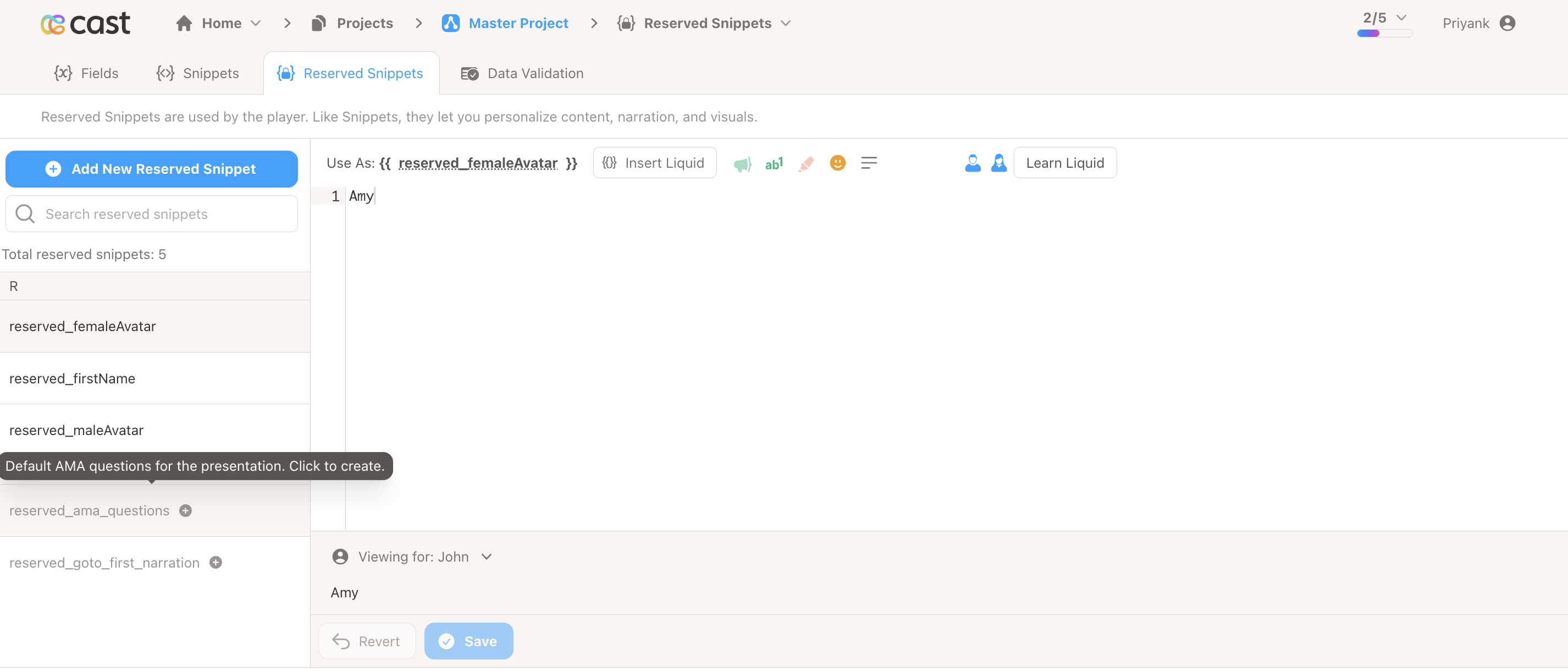
Some reserved snippets are predefined but not yet added to your cast. They appear in the Not Created section of the sidebar. Click an item to create it with a default value.
| Snippet Name | Purpose |
|---|---|
reserved_ama_questions | Default AMA questions for the presentation (JSON array) |
reserved_goto_first_narration | Narration text when going back to home navigation |
Settings-Bound Reserved Snippets
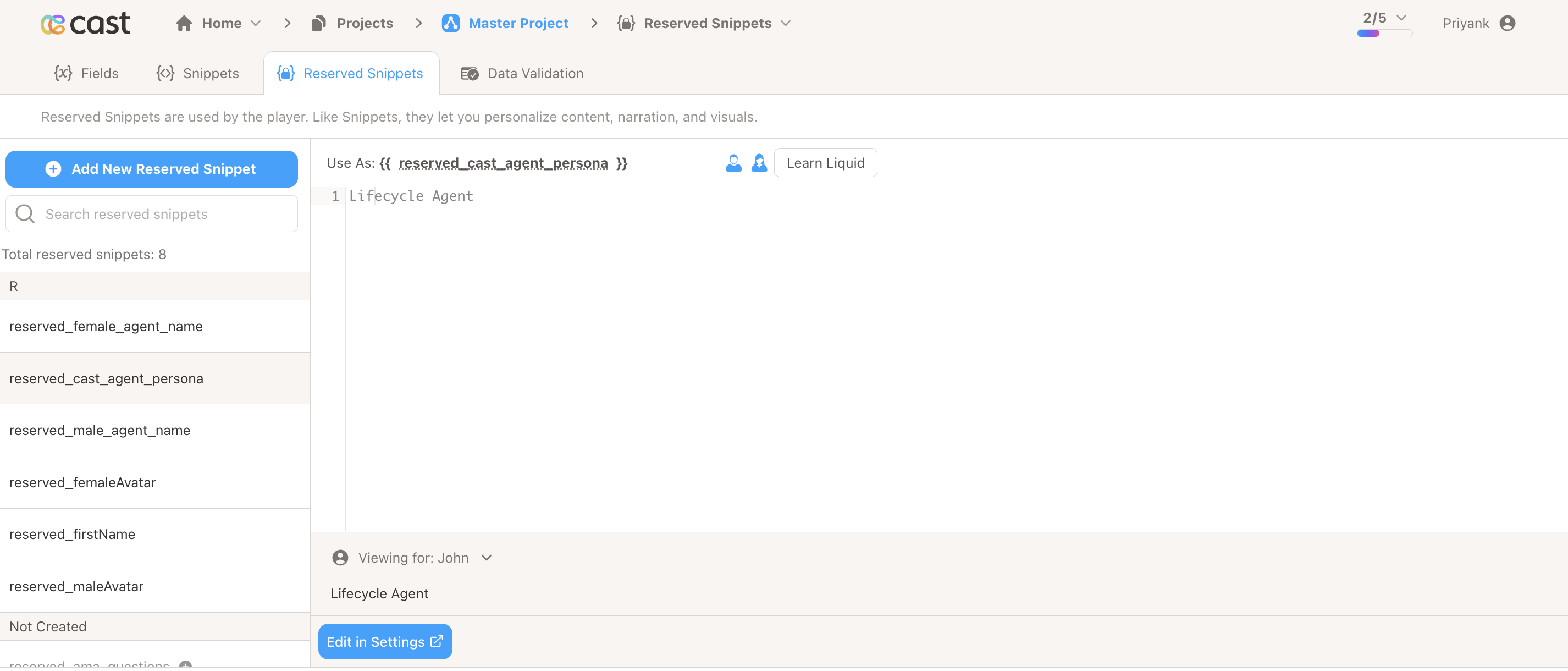
Seven reserved snippets are bound to Project Settings. For those, the value is edited in Settings rather than in the snippet editor. In the Reserved Snippets tab, the editor shows Edit in Settings instead of Save/Revert, and the content area is read-only.
Using Reserved Snippets in Narrations
The Insert Liquid button (under narrations) opens a dropdown with four options: Contact Variables, Fields, Snippets, and Reserved Snippets. Select Reserved Snippets to choose and insert a reserved snippet variable.
Steps:
- Place your cursor in the narration where the variable should go.
- Click Insert Liquid.
- Choose Reserved Snippets from the dropdown.
- Select the reserved snippet you need (e.g.
reserved_male_agent_name).
Usage in Liquid:
{{ reserved_male_agent_name }}
{{ reserved_goto_first_narration }}
Restrictions for Reserved Snippets
- Naming – Names must start with
reserved_(case-insensitive). - Deletion – Delete is not available for reserved snippets.
- Duplication – Duplicate is not available for reserved snippets.
- Settings-bound snippets – Content is edited in Project Settings, not in the snippet editor.
Related
- Fields – Dataset-driven values for personalization
- Snippets – Liquid snippets for narrations and content
- Add Fields and Snippets to Narrations – How to insert variables
- Project Settings & Setup – Where settings-bound reserved snippets are edited