
Form
 Generative Form
Section titled “ Generative Form”A generative form slide allows you to collect customer insights through personalized forms. There are several question types where you can personalize the question, and even the choices.
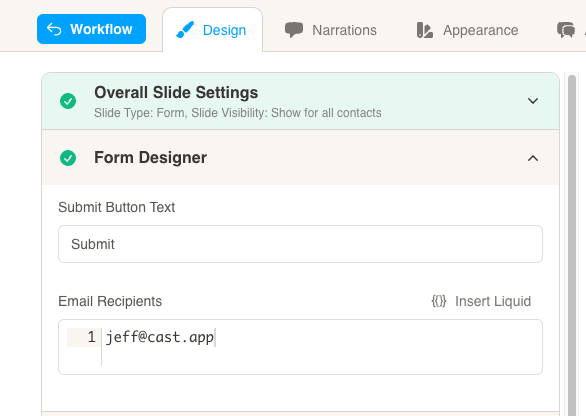
First, configure the Submit Button Text and Email Recipients under the Form Designer. If you leave Email Recipients blank, the form data will still be available under analytics.
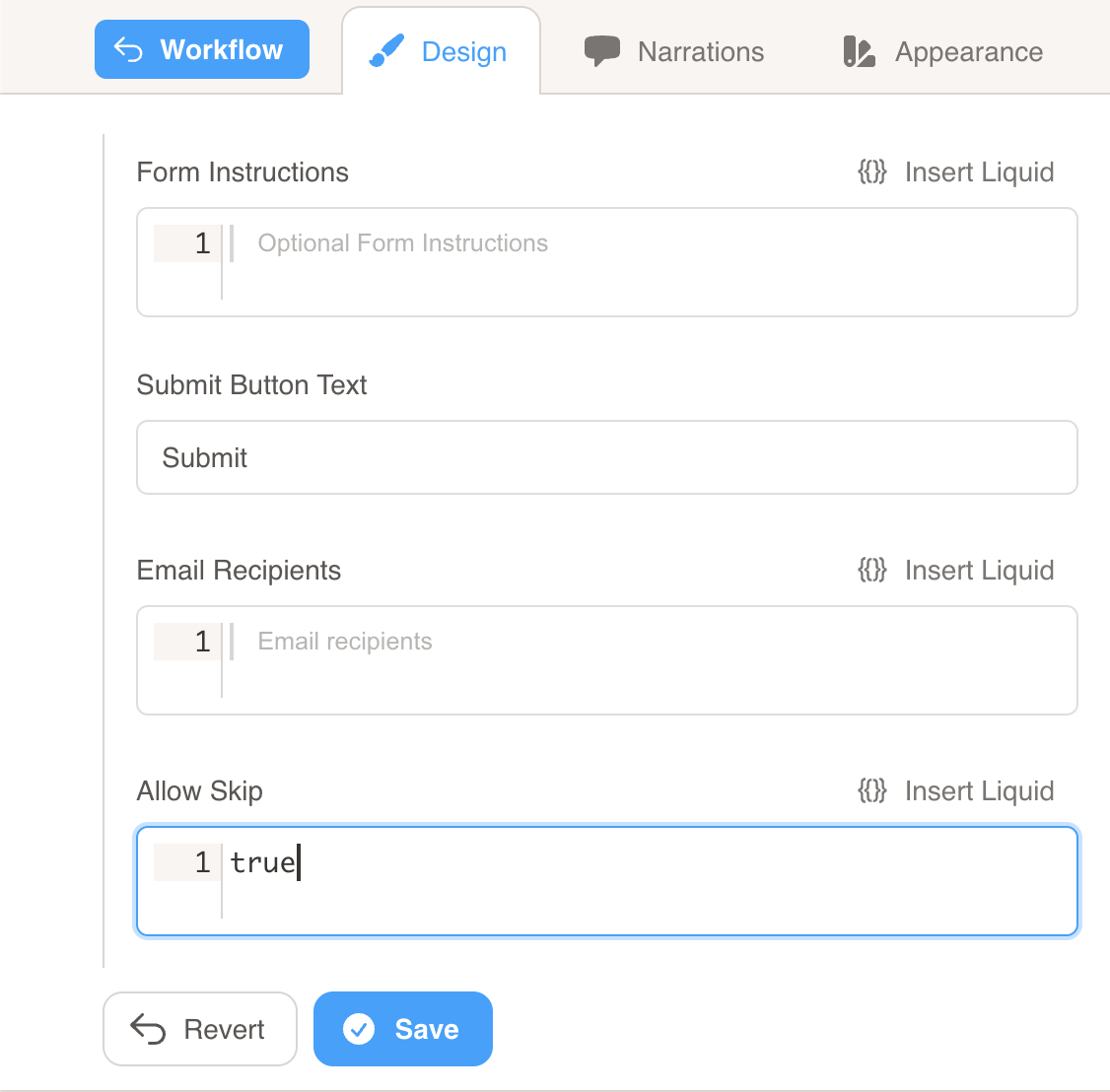
Allow Skip
Section titled “Allow Skip”Enable the Allow Skip option to allow users to skip individual questions in your form. When enabled, users will see a “Skip” button. This field has validation and defaults to empty (disabled) when creating a new form.
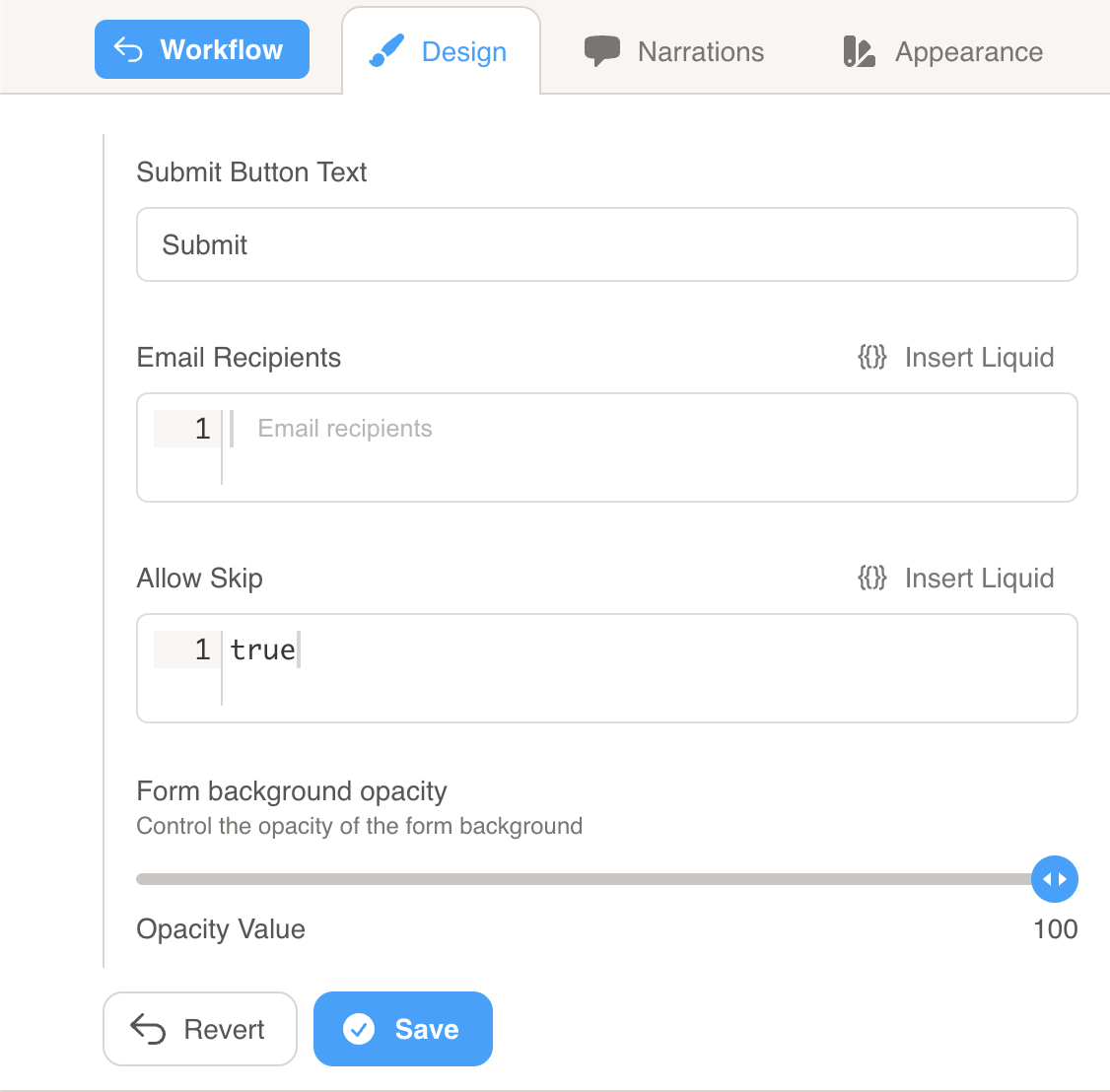
Form Background Opacity
Section titled “Form Background Opacity”Control the visual appearance of your form with the Form Background Opacity slider. Adjust the transparency from 0 (completely transparent) to 1 (completely opaque). The default value is 0.15, and you can see a live preview while editing.
Then, select a question type from the question selector. Here are the available question types:
Display a question with a single-line text input for answering.
Number
Section titled “Number”Display a question with a single-line numerical input for answering.
Long Text
Section titled “Long Text”Display a question with a multi-line text input for answering.
Display a question with a single-line email input for answering.
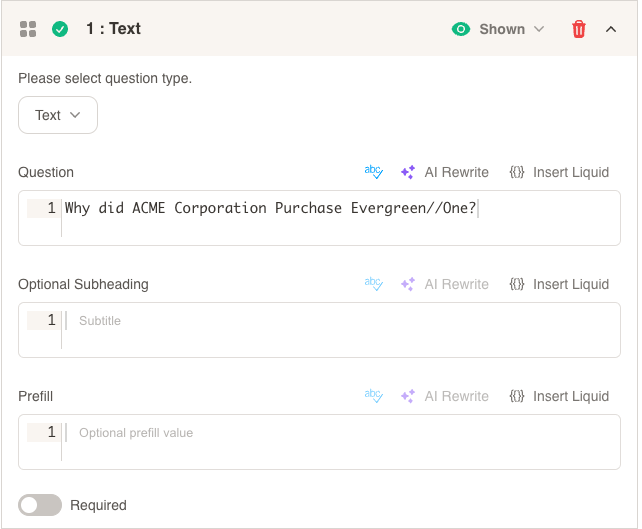
These first 4 types have the same configuration. Enter the question text, and you may add an optional subheading or option prefill value for the input. You may also choose whether the question is required to submit the form or not.
Yes/No
Section titled “Yes/No”Display a yes or no question with a toggle to choose yes or no.
Select One
Section titled “Select One”Display a question with a pre-determined list of choices to choose from. Only 1 answer may be selected. You can control the layout by toggling Show one option per row for better readability.
Select Multiple
Section titled “Select Multiple”Display a question with a pre-determined list of choices to choose from. Multiple answers may be selected.
Select One and Select Multiple have the same configuration. Enter the question text and optional subheading, then add 1 choice per line in the Choices input box.
If you turn on Include Other, the user will be able to enter their own choice if they wish to do so.
You can control how the answer choices are displayed by toggling Show one option per row. When enabled, each choice will be displayed on its own row for better readability. When disabled, choices will be displayed in a more compact layout.
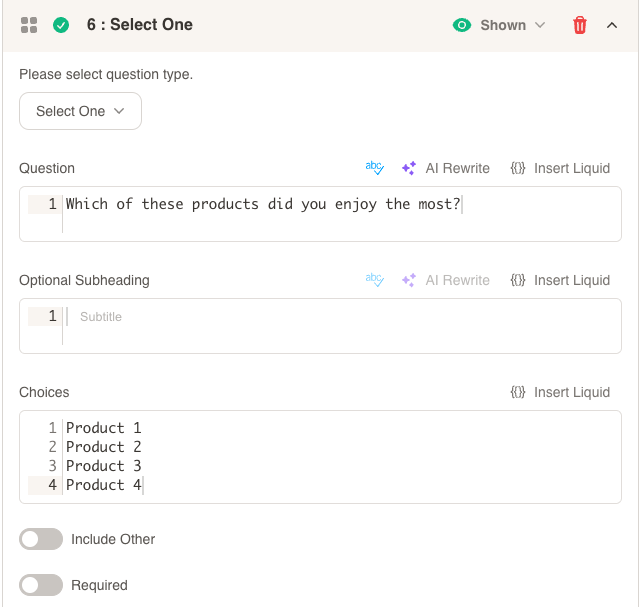
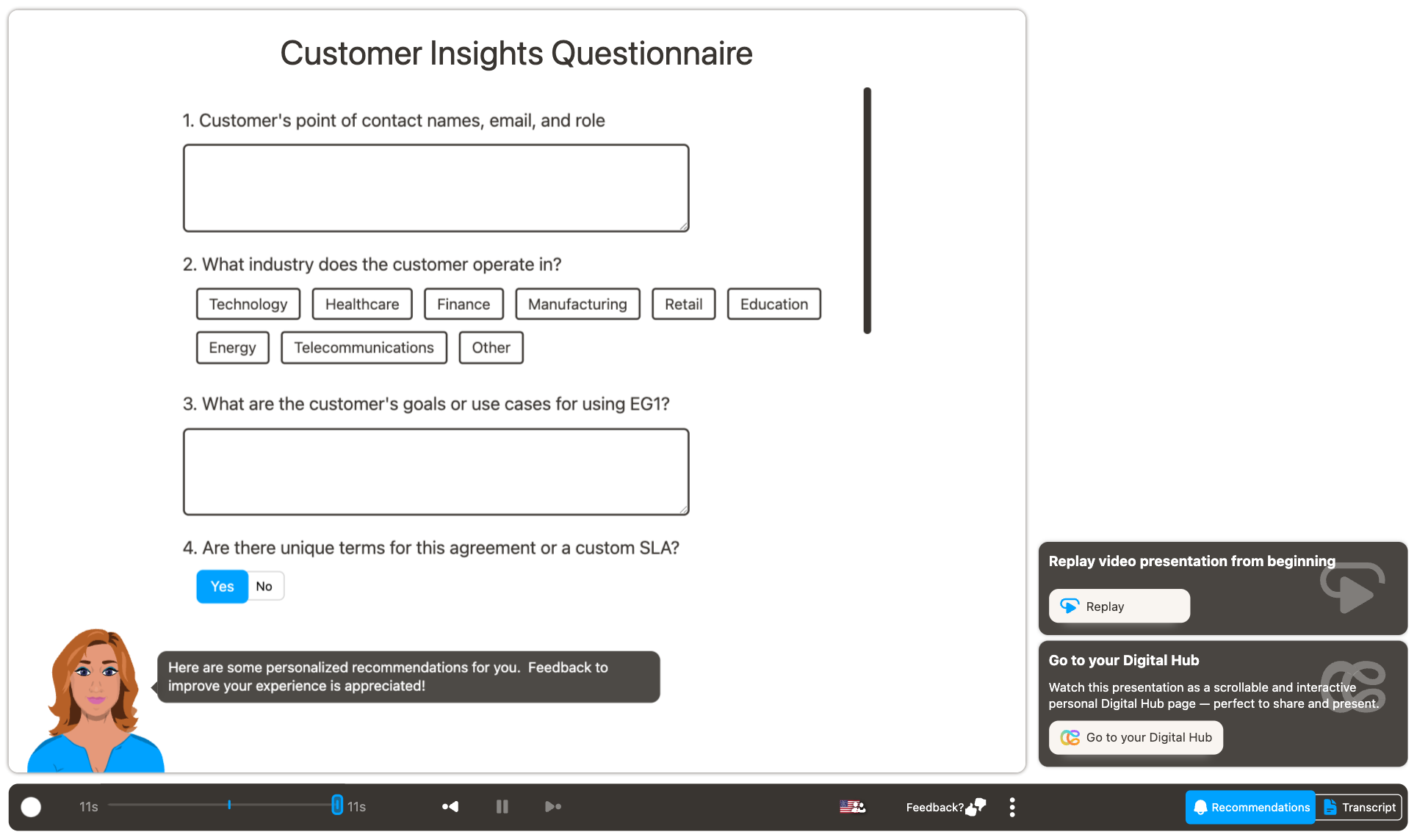
Here is an example of how the questions will be displayed in the presentation:
Additional Question Types
Section titled “Additional Question Types”Thumbs Up/Thumbs Down
Section titled “Thumbs Up/Thumbs Down”Display a question with a toggle to choose thumbs up or thumbs down as the answer.
Net Promoter Score - 11-point Likert Scale
Section titled “Net Promoter Score - 11-point Likert Scale”Display a question with an 11-point scale rating from 0 - Not at all likely to 10 - Extremely Likely.
Net Promoter Score (NPS) is a business metric that can help you to measure customers’ overall perception of your brand.
Customer Effort Score - 7-point Likert Scale
Section titled “Customer Effort Score - 7-point Likert Scale”Display a question with a 7-point Scale rating. You may choose from our list of suggestions, such as Agreement, Frequency, or Level of difficulty.
A 7-point Likert Scale offers seven different options to choose from. The options include two moderate, two extremes, two intermediates, and one neutral option.
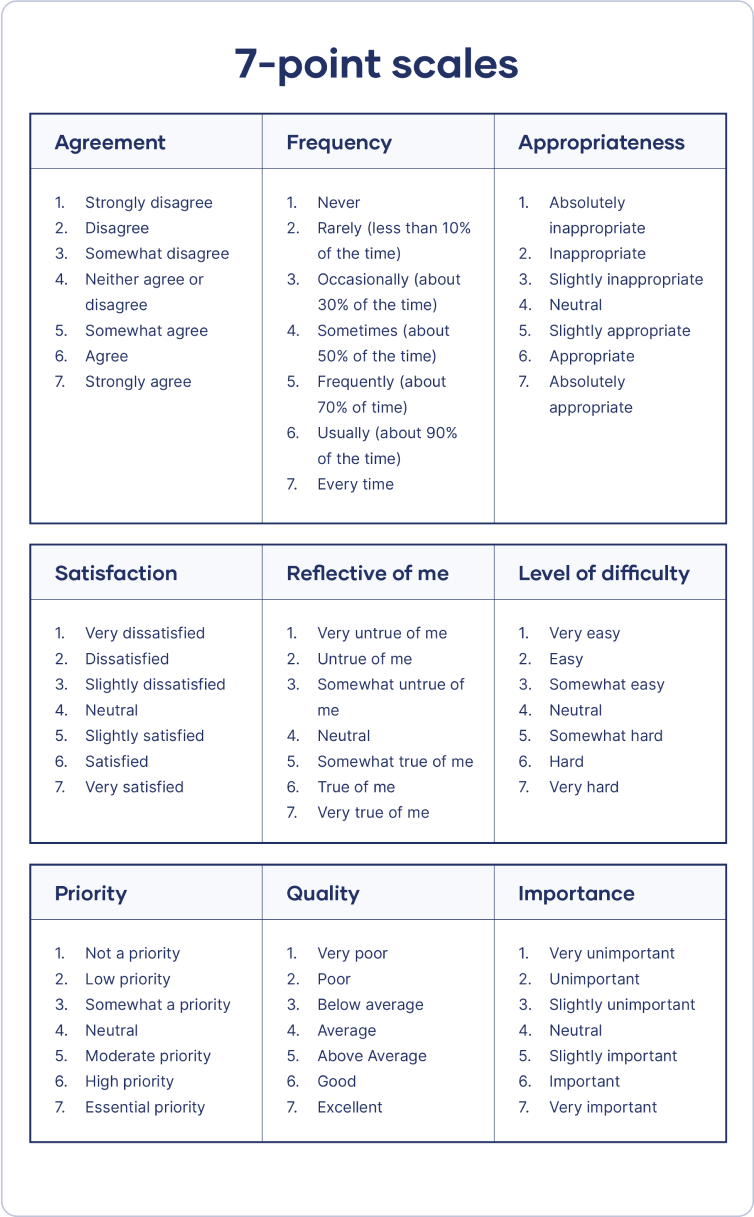 Image courtesy of Scribbr
Customer/Partner Satisfaction - 5-point Likert Scale
Section titled “Customer/Partner Satisfaction - 5-point Likert Scale”Display a question with a 5-point Scale rating. You may choose from our list of suggestions, such as Satisfaction, Awareness, or Quality.
A 5-point Likert Scale offers five different options for the user to choose from. The options include two extremes, two intermediates, and one neutral option.
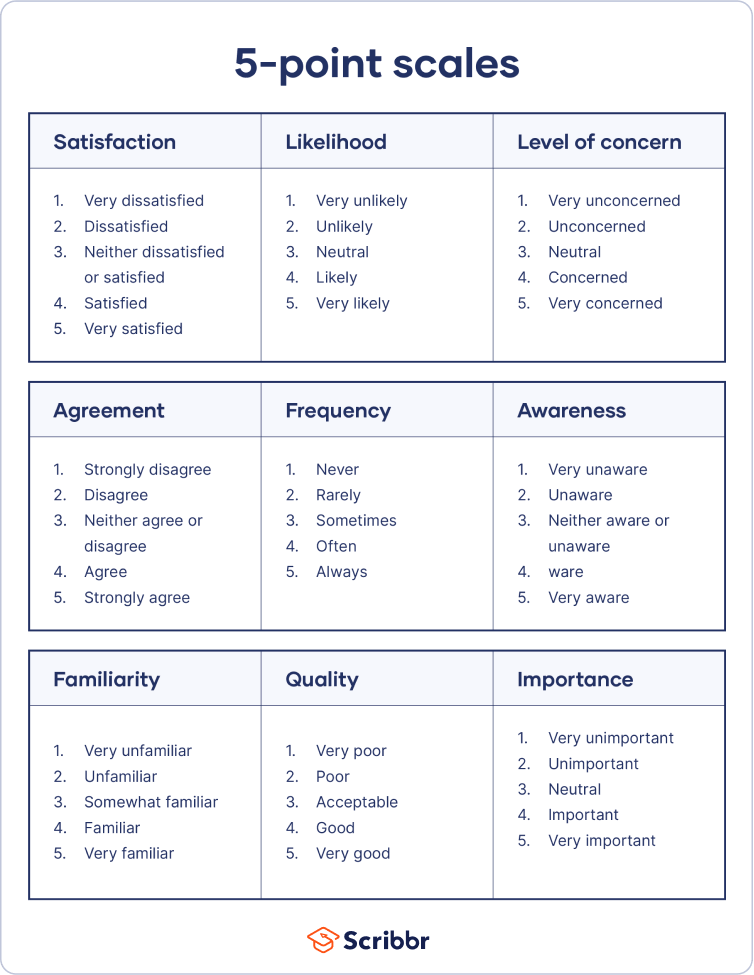 Image courtesy of Scribbr
Product Market Fit - 4-point Likert Scale
Section titled “Product Market Fit - 4-point Likert Scale”Display a question with a pre-determined 4-point scale. The suggested question to ask is:
“How would you feel if you could no longer use (product or service)?”
The choices for the user are:
- Very disappointed
- Somewhat disappointed
- Not disappointed
- N/A - I no longer use it
Delta 4: Product Efficiency Delta 4 Framework - 10-point Likert Scale
Section titled “Delta 4: Product Efficiency Delta 4 Framework - 10-point Likert Scale”Display a question comparing the previous solution/product/feature to the current solution/product/feature or comparing the current solution/product/feature to the new solution/product/feature.
The user will rate both of the products on a scale of 1-10.
The Delta 4 framework says that for a consumer product to have a chance at gaining traction, it must be at least four points superior to current solutions. The score is assessed by users ranking your product against alternatives on a scale of 1 to 10. If the difference (delta) is ≥4 compared with existing solutions, it’s indicative of a highly engaging and “sticky” product.