
Salesforce: Username / Password + Security Token
Method 3: Username / Password + Security Token (legacy)
Section titled “Method 3: Username / Password + Security Token (legacy)”💡 This is one of three ways to connect Salesforce to Cast. See choosing an authentication method for a comparison, or go back to the Salesforce Data Source overview.
💡 Retiring in Summer 2027. This method uses the Salesforce SOAP API
login()call. Use it only for existing connections, and plan a migration to Method 1: OAuth 2.0 JWT Bearer.
Before you begin: enable SOAP API access
Section titled “Before you begin: enable SOAP API access”Two org-wide, one-time changes are required first, or Cast’s connection attempt
fails with INSUFFICIENT_ACCESS even with a correct username, password, and
security token.
1. Enable the SOAP login() endpoint
- Setup → search User Interface in Quick Find, and open User Interface
- Under the Setup section, check Enable SOAP API login()
- Save
2. Grant “Use Any API Auth” to the integration user
The setting above is org-wide, but does not grant access to any specific user.
Each integration user still needs this permission individually, or Salesforce
returns INSUFFICIENT_ACCESS.
- Setup → Permission Sets → New
- Label: e.g.
SOAP API Login; License: leave--None-- - Save, then open System Permissions → Edit
- Check Use Any API Auth, click Save, and confirm the Permission Changes prompt
- Back on the permission set, click Manage Assignments → Add Assignment, select the integration user, and Assign
On the Salesforce Data Source setup screen, enter your Salesforce username and
password along with your security token.
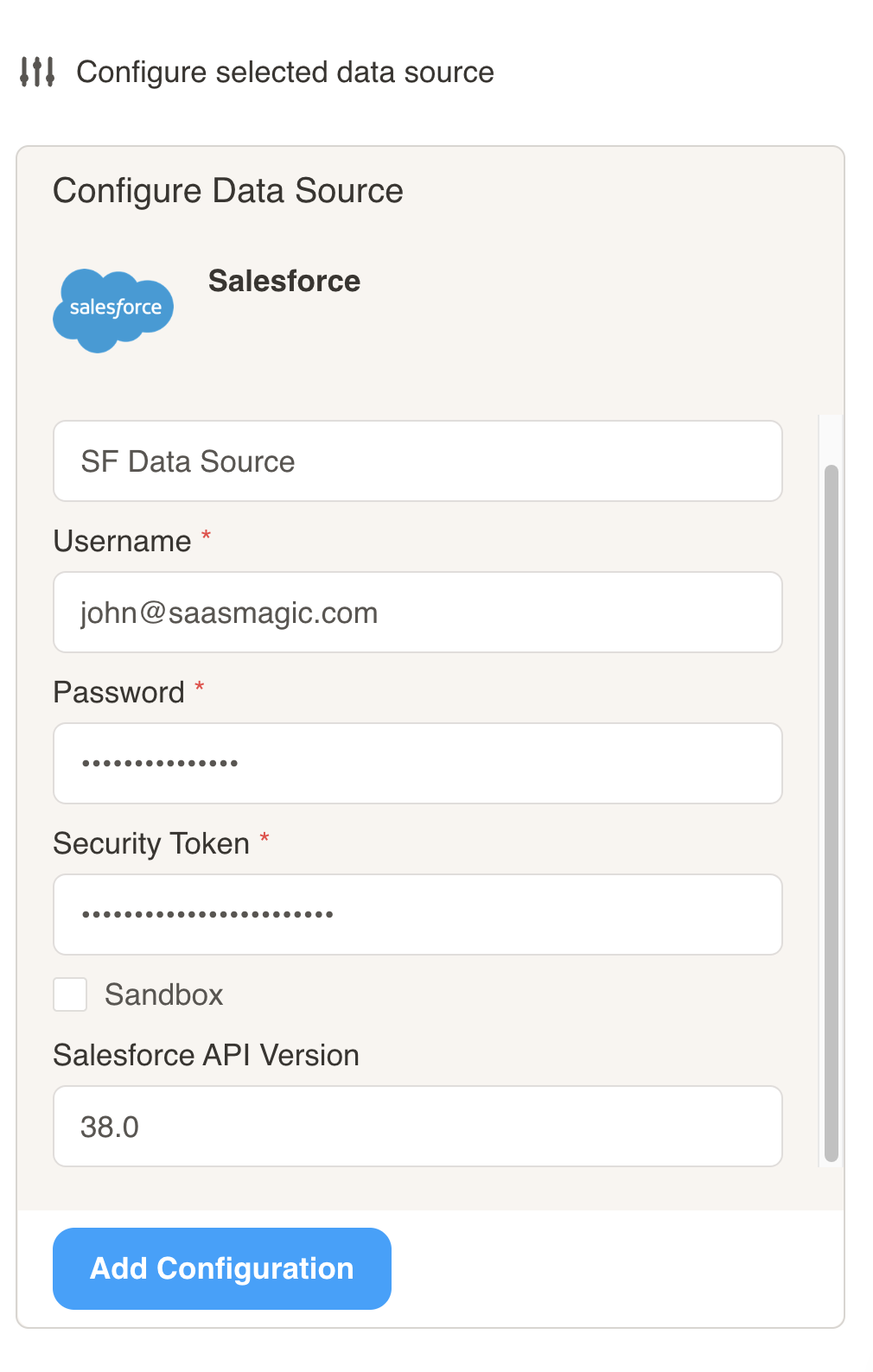
- Name (required): Enter a descriptive name for the data source connection you are creating.
- Authentication Method (required):
Username / Password + Security Token - Username (required): Enter your Salesforce username.
- Password (required): Enter your Salesforce password.
- Security Token (required): Enter your Salesforce security token. Instructions on how to get your security token are below.
- Sandbox (optional): Click this checkbox if you are connecting to your sandbox environment.
- Salesforce API Version (optional): Enter the API version you are using.
- Click on Add Configuration.
Get Salesforce Security Token
Section titled “Get Salesforce Security Token”You will need to enter a Salesforce security token when setting up a Cast Datasource for Cast.app to query your Salesforce objects and reports. If you forgot your security token or never used one before, you can get a new security token by following the steps below:
Once your data source connects, continue to Creating a Salesforce Dataset. If Test Connection fails, see Troubleshooting.