
Agent Integration
Agent Integration
Section titled “Agent Integration”Advanced guide for managing agent knowledge and multi-agent configurations.
New to Knowledge Base? See Getting Started for basic setup and first-time attachment instructions.
How Agent Integration Works
Section titled “How Agent Integration Works”When you attach documents to an agent:
- Documents are linked to the agent in the AI platform
- Agent can reference document content when responding
- Multiple documents can be attached to one agent
- Same document can be attached to multiple agents
- Updates to documents automatically sync to all attached agents
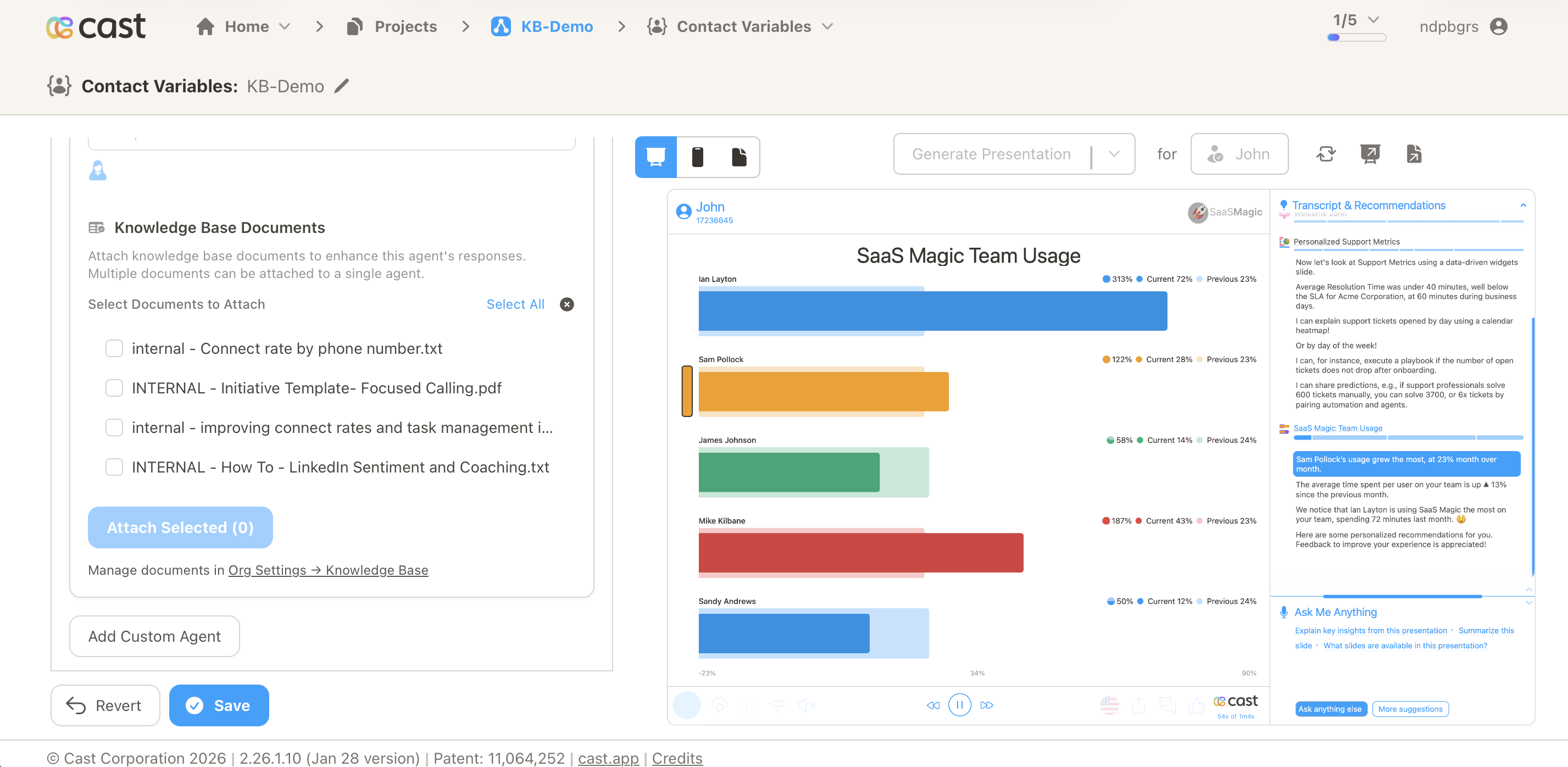
Basic Attachment
Section titled “Basic Attachment”For step-by-step instructions on attaching your first document to an agent, see the Getting Started Guide.
This page covers advanced topics like managing multiple agents, automatic updates, and best practices.
Managing Attached Documents
Section titled “Managing Attached Documents”Viewing Attached Documents
Section titled “Viewing Attached Documents”The attached documents list shows:
- Document title
- Source type
- Document size
- Detach button for each document
Detaching Documents
Section titled “Detaching Documents”To remove a document from an agent:
- Find the document in the attached documents list
- Click the Delete button
- Document is removed from the agent
- Document remains in Knowledge Base for future use
Attached Document Count
Section titled “Attached Document Count”In the Knowledge Base main page, the “Agents” column shows how many agents are currently using each document. This helps you:
- Track document usage
- Understand impact before deletion
- Identify popular/unused documents
Automatic Synchronization
Section titled “Automatic Synchronization”When you refresh or update a document, all attached agents automatically receive the updated version.
When Sync Happens
Section titled “When Sync Happens”Automatic synchronization occurs when you:
- Refresh a URL document
- Refresh a Crawl document
- Retry a failed document that was previously attached
Best Practices
Section titled “Best Practices”Starting Out
Section titled “Starting Out”Begin with focused documents:
- Attach 1-2 documents initially
- Test agent responses
- Gradually add more as needed
Choose relevant content:
- Select documents that match the agent’s purpose
- Product agents need product docs
- Support agents need FAQs and policies
Document Strategy
Section titled “Document Strategy”Keep documents focused:
- Single topic per document works better
- Break large content into multiple focused documents
- Makes it easier to update specific areas
Update regularly:
- Refresh URL documents weekly or monthly
- Remove outdated documents
- Add new documents as content evolves
Testing
Section titled “Testing”After attaching documents:
- Open the Cast player or preview
- Go to Ask Me Anything section
- Ask questions related to document content
- Verify agent provides accurate answers
- Test with various question types
Example questions:
- “What is [your product]?”
- “How much does it cost?”
- “What are the main features?”
Multi-Agent Usage
Section titled “Multi-Agent Usage”Sharing Documents Across Agents
Section titled “Sharing Documents Across Agents”The same document can be attached to multiple agents:
Use cases:
- Company-wide policies for all agents
- Product documentation for product and support agents
- Pricing information for sales and support agents
How to implement:
- Attach document to first agent as normal
- Navigate to different agent settings
- Attach the same document
- Both agents now have access
Benefits:
- Consistent information across agents
- Single source of truth
- Update once, affects all
Agent-Specific Documents
Section titled “Agent-Specific Documents”You can also create agent-specific documents:
Examples:
- Technical docs only for technical support agent
- Sales scripts only for sales agent
- Onboarding guides only for onboarding agent
Troubleshooting
Section titled “Troubleshooting”For detailed troubleshooting, see FAQ & Troubleshooting.
Quick checks for agent-specific issues:
- Verify document status is “Uploaded” before attaching
- Check attached documents list to confirm document is there
- Ask questions specifically related to document content
- Test with simple, direct questions first
Need Help?
Section titled “Need Help?”- Support: support@cast.app
- Getting Started: Getting Started Guide
- Document Management: Managing Documents