
Narrations
Narrations
Section titled “Narrations”The Narrations tab lets you add voice to your slides. Add text narrations (AI-powered TTS), upload audio, reorder by drag-and-drop, and configure voice, conditions, and visual highlights. Narrations can be personalized with contact variables, fields, and snippets.
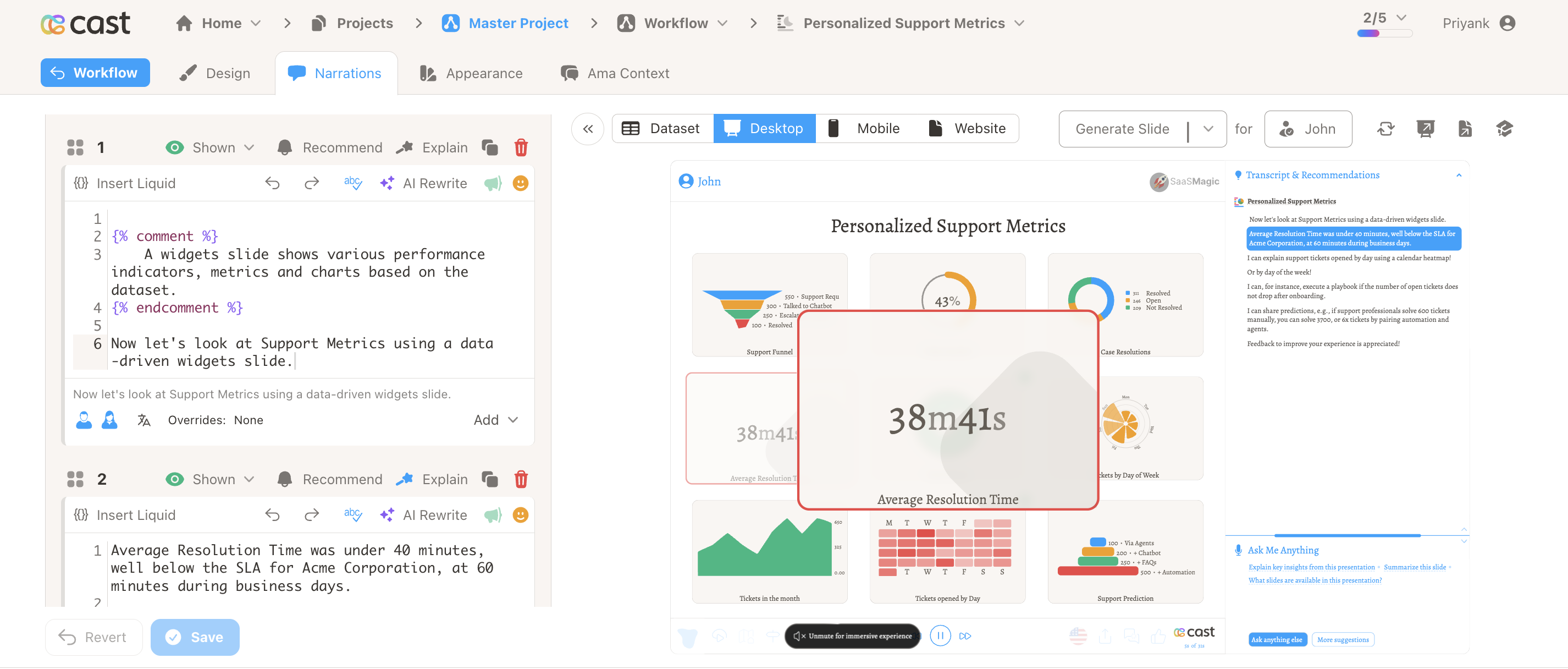
Adding narrations
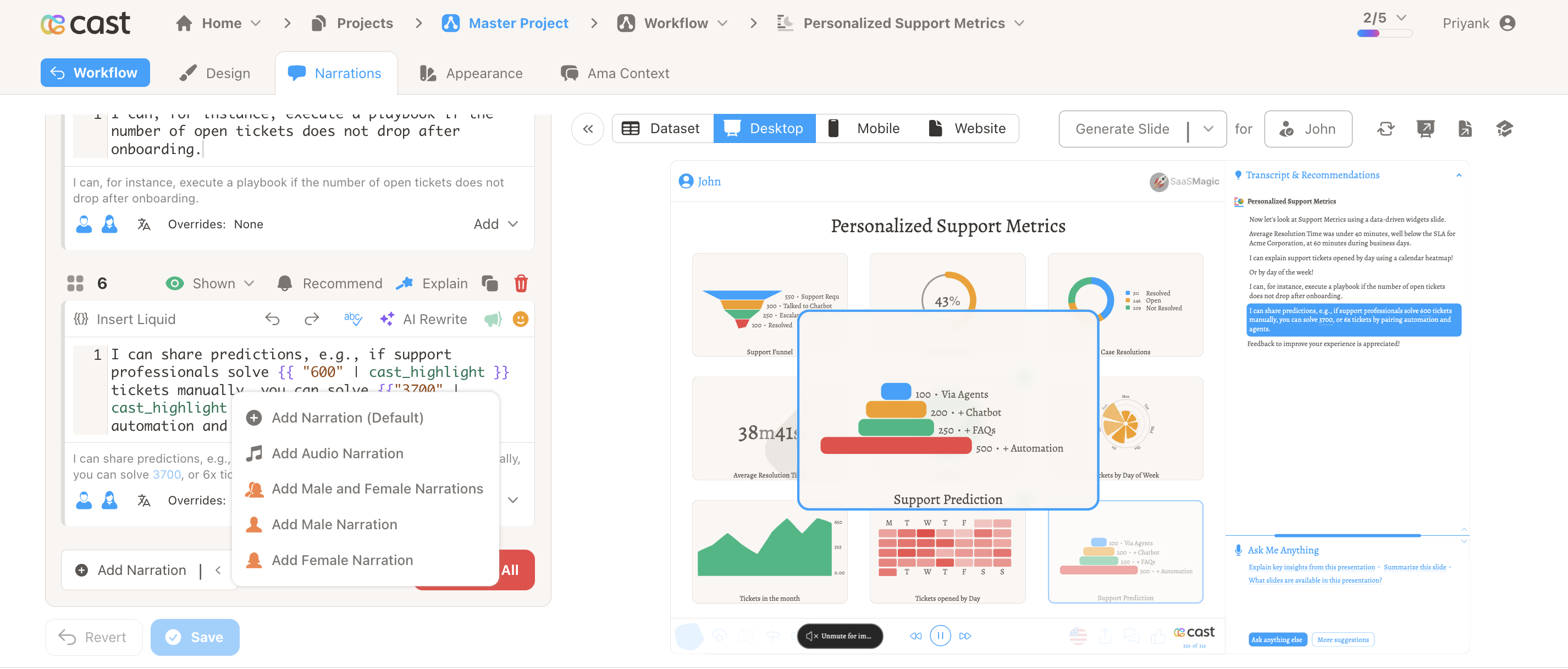
Section titled “Adding narrations”Click Add Narration to add a new narration. Use the dropdown for options:
| Option | Description |
|---|---|
| Add Narration (Default) | Text narration with TTS. No gender restriction. |
| Add Audio Narration | Upload an MP3 file for pre-recorded voice. |
| Add Male and Female Narrations | Two text narrations—one for male avatar, one for female. |
| Add Male Narration | Text narration shown when the male avatar is selected. |
| Add Female Narration | Text narration shown when the female avatar is selected. |
Text narrations (TTS)
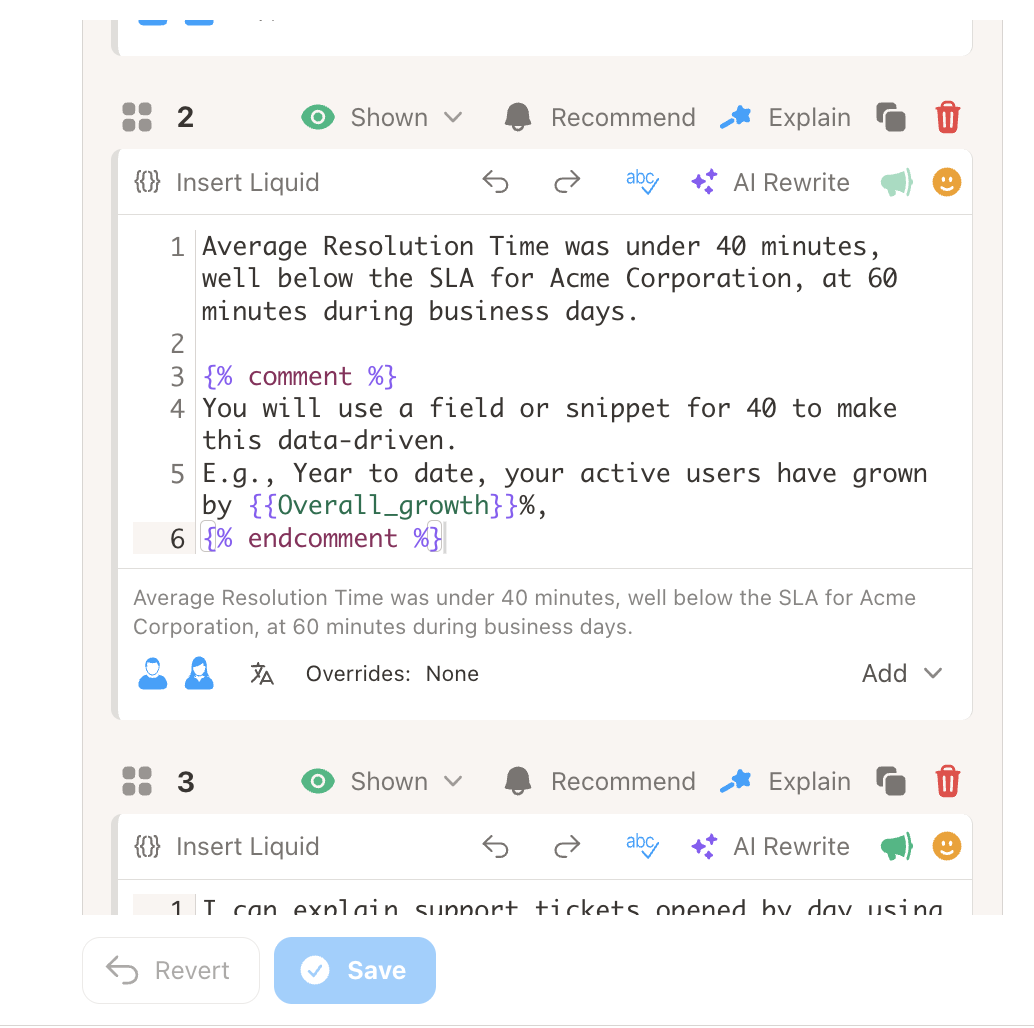
Section titled “Text narrations (TTS)”Text narrations use AI-powered text-to-speech. Type or paste your script and Cast generates the voice automatically.
Use Insert Liquid to add contact variables, fields, and snippets for personalization. You can preview how the narration renders for a selected contact and play a preview of the generated speech before saving. For details, see Add Fields and Snippets to Narrations and Contact Variables.
Audio narrations
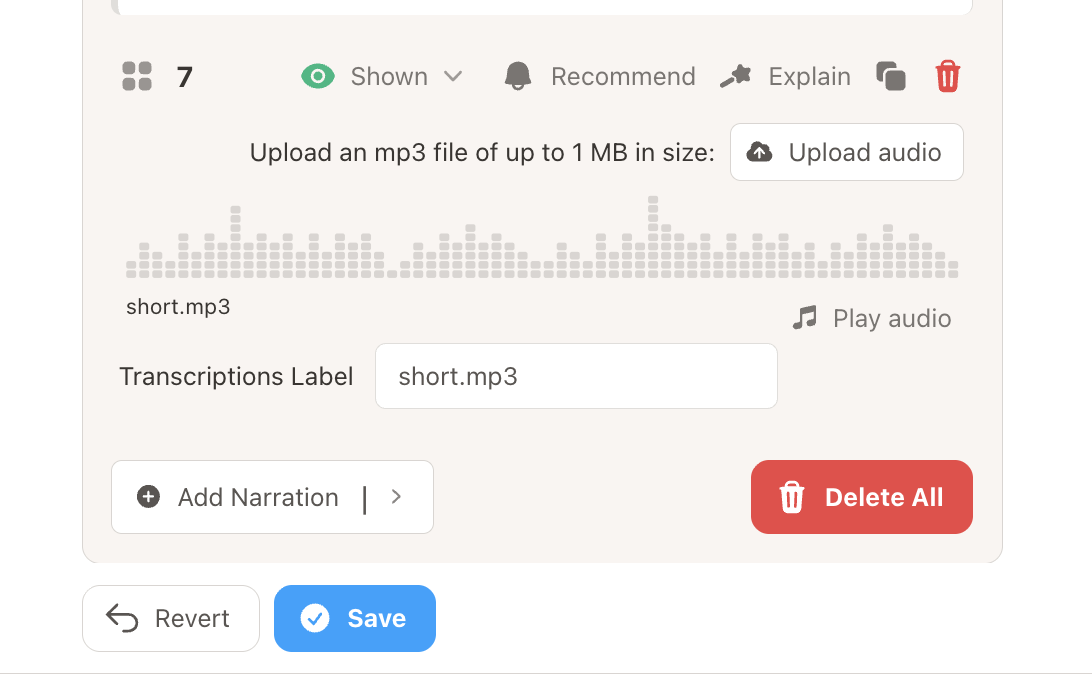
Section titled “Audio narrations”For pre-recorded voice, choose Add Audio Narration and upload an MP3 file. Audio narrations bypass TTS—the uploaded file plays as-is. Useful for consistent branding or custom voices.
Narration toolbar
Section titled “Narration toolbar”Each narration has a toolbar with:
| Icon | Action |
|---|---|
| Drag handle | Reorder narrations by dragging |
| Number | Narration order (1, 2, 3…) |
| Male/Female icon | Indicates gender-specific narration (when applicable) |
| Conditions | Control when this narration is shown (e.g. by contact field) |
| Recommendations | Assign recommendations to this narration |
| Visual Explanation | Sync narration with chart or SVG highlights |
| Duplicate | Copy this narration |
| Delete | Remove this narration |
Visual explanations (highlights)
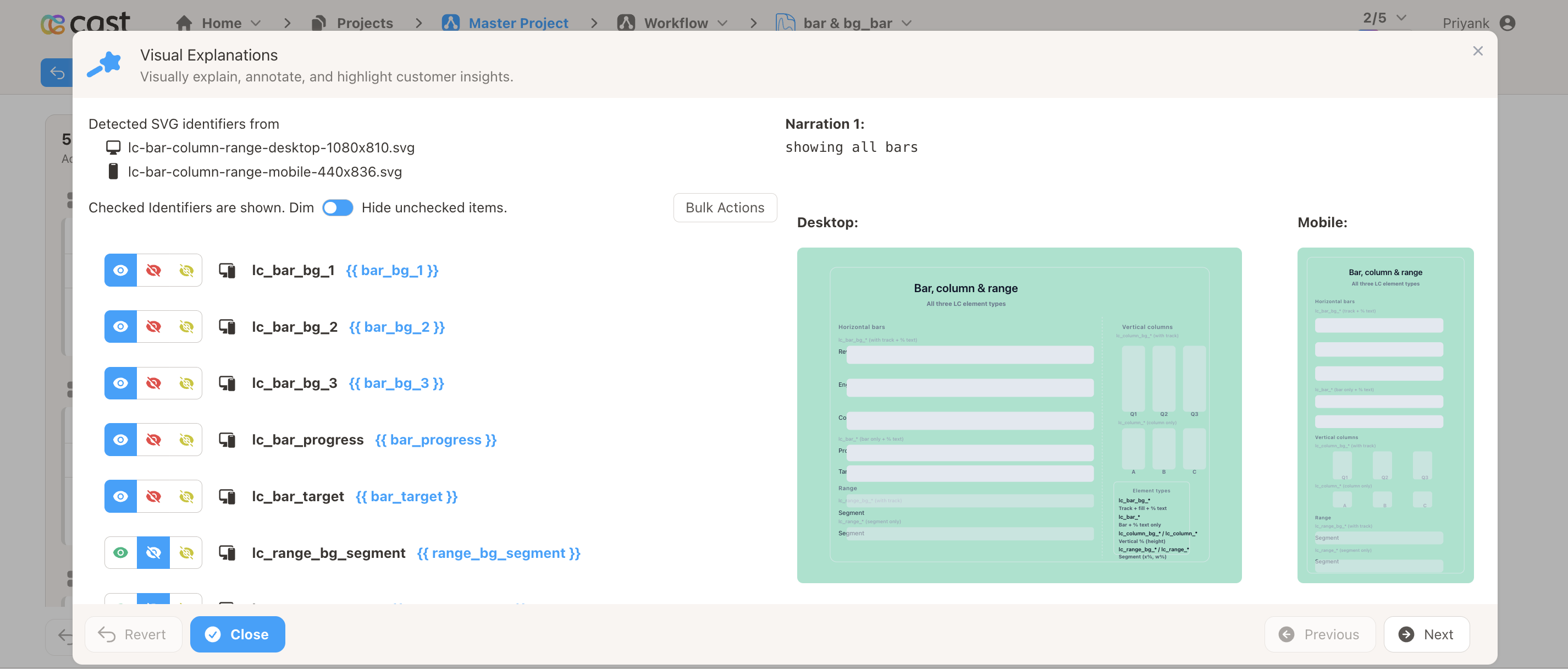
Section titled “Visual explanations (highlights)”For charts and Custom (SVG) slides, you can sync narration text with visual highlights. When a narration plays, the corresponding chart segment or SVG element can be emphasized.
- Charts – Link narration to segments (bars, lines, etc.)
- Custom slides – Link narration to elements in your SVG via highlight IDs
- Canvas slides – Link narration to the named parts of the slide. Dim the rest, or hide them. See Canvas.
Conditional narrations
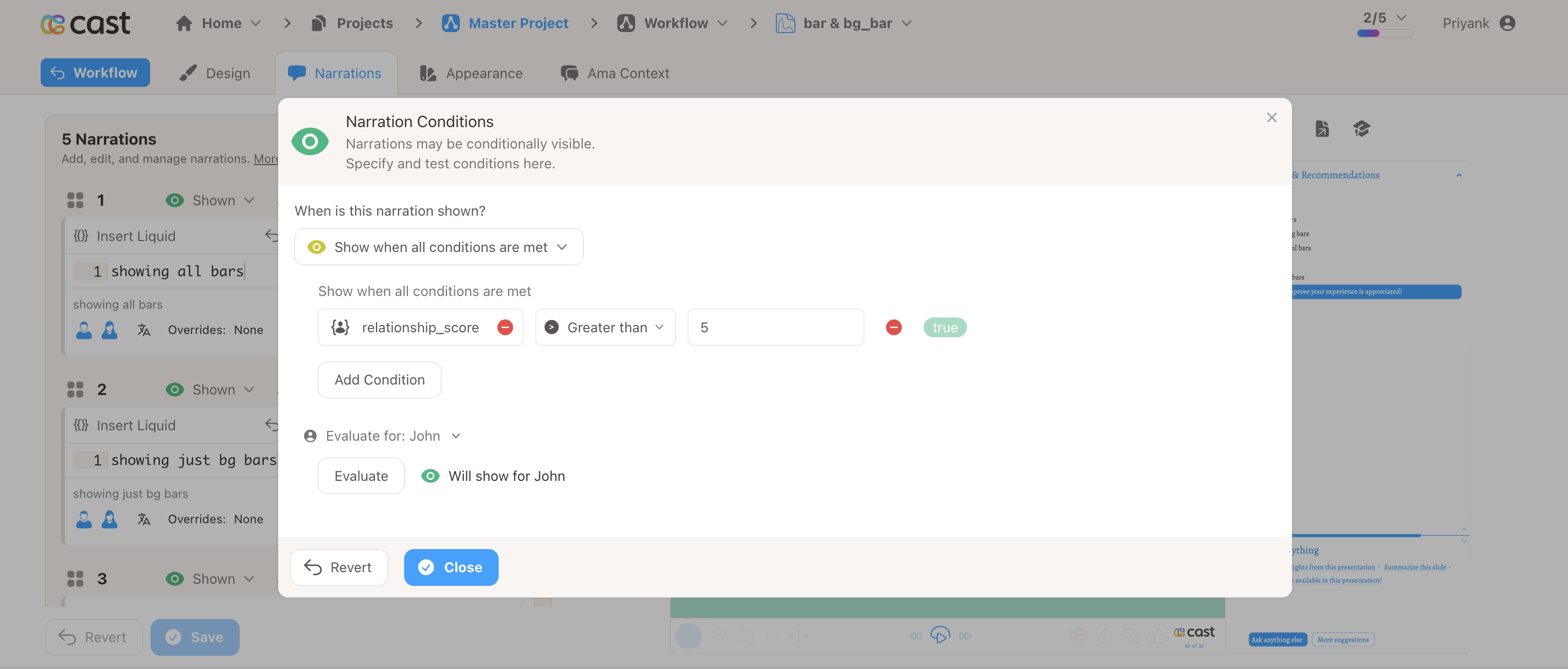
Section titled “Conditional narrations”Use Conditions to control when a narration is shown. For example, show different narrations based on account type, region, or contact variables. Conditions use the same expression builder as slide visibility.
Language overrides
Section titled “Language overrides”For text narrations, you can add translations so the narration plays in the viewer’s language. Configure language overrides in Settings → Default Narrations and add per-narration translations when the project uses multiple languages.
AI Rewrite feature
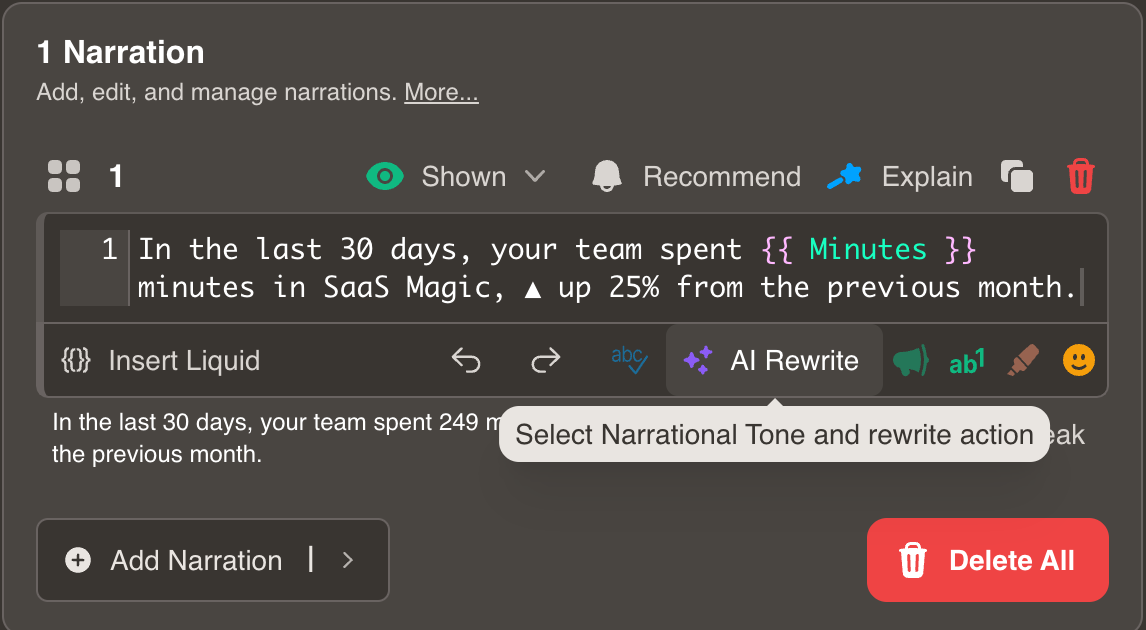
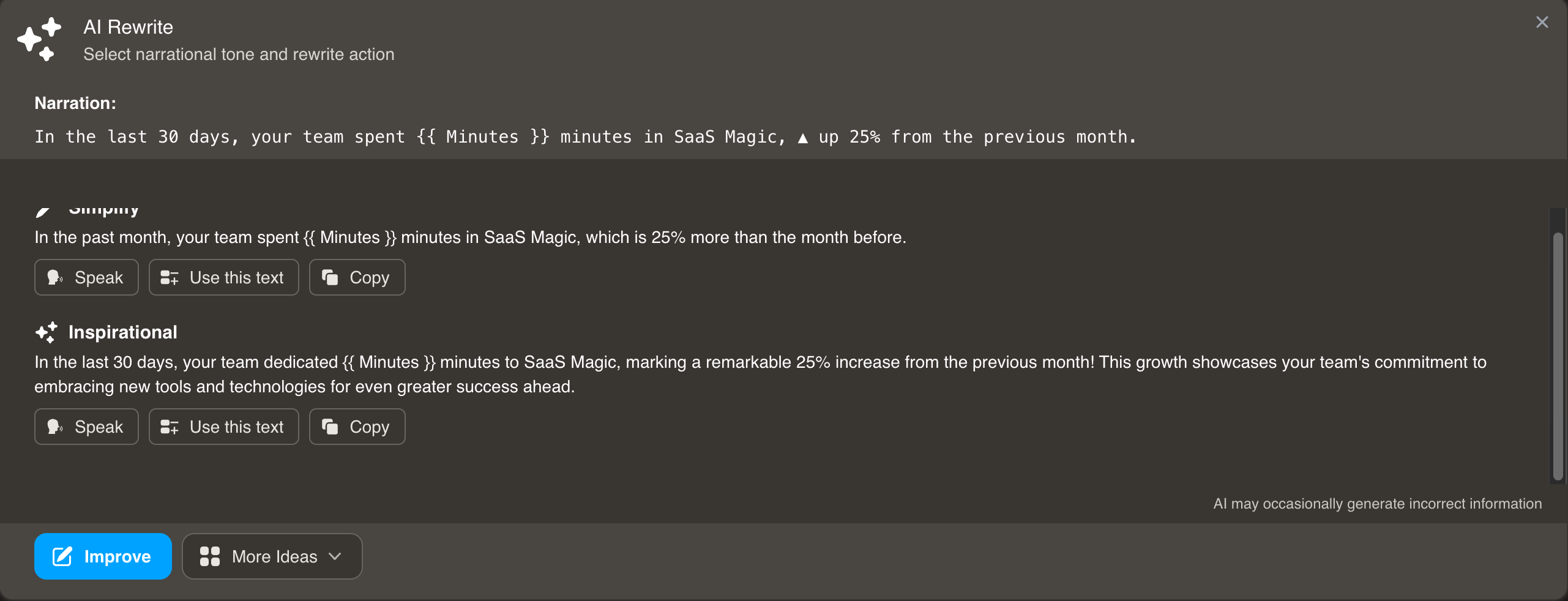
Section titled “AI Rewrite feature”The AI Rewrite feature takes your existing narration and provides options to modify its tone and style. Select from a range of presets to quickly transform your text.
Available tones and styles
| Style | Description |
|---|---|
| 🖊️ Improve | Enhances clarity, flow, and effectiveness |
| ✂️ Shorten | Condenses the text |
| 🖌️ Make it more descriptive | Adds more descriptive language |
| 🔍 Make it more detailed | Adds context and specifics |
| ⊕ Elongate | Expands the text |
| ✏️ Simplify it | Uses simpler language |
| 💼 Sound professional | Formal, expert tone |
| 💬 Sound casual | Relaxed, conversational |
| 📄 Sound formal | Structured, polished tone |
| 🎓 Make it sound academic | Scholarly precision |
| ❗ Make it assertive | Confident, decisive |
| 👍 Sound confident | Certain, self-assured |
| 🔨 Make it constructive | Positive, actionable feedback |
| 🤝 Make it diplomatic | Tactful, balanced |
| ❤️ Make it empathetic | Understanding, compassionate |
| 😊 Make it friendly | Warm, approachable |
| ✨ Make it inspirational | Motivational, uplifting |
How to use AI Rewrite
- Select the narration text you wish to modify.
- Click AI Rewrite to open the rewrite panel.
- Choose your desired tone or style from the dropdown.
- Review the AI-generated text and make adjustments.
- Use More Ideas to explore additional variations.
Note: Always review and verify AI-generated content before finalizing.
Reorder, duplicate, and delete
Section titled “Reorder, duplicate, and delete”- Reorder – Drag narrations by the handle to change playback order.
- Duplicate – Click the duplicate icon to copy a narration (including text, conditions, highlights).
- Delete – Click the trash icon to remove a single narration.
- Delete All – Removes all narrations from the slide (use with caution).
Related
Section titled “Related”- Slide – Overview of slide editor tabs
- Design – Configure slide content
- Appearance – Override slide appearance
- AMA Context – Add AMA context
- Add Fields and Snippets to Narrations – Personalize with Liquid
- Contact Variables – Available variables
- Project Settings – Default narrations and voice settings