
Contact Variables
Contact Variables
Section titled “Contact Variables”Contact Variables are columns from your contact dataset that you can use to personalize narrations, slide titles, and other content. They come from the contacts (or stakeholders) who receive or view your presentations.
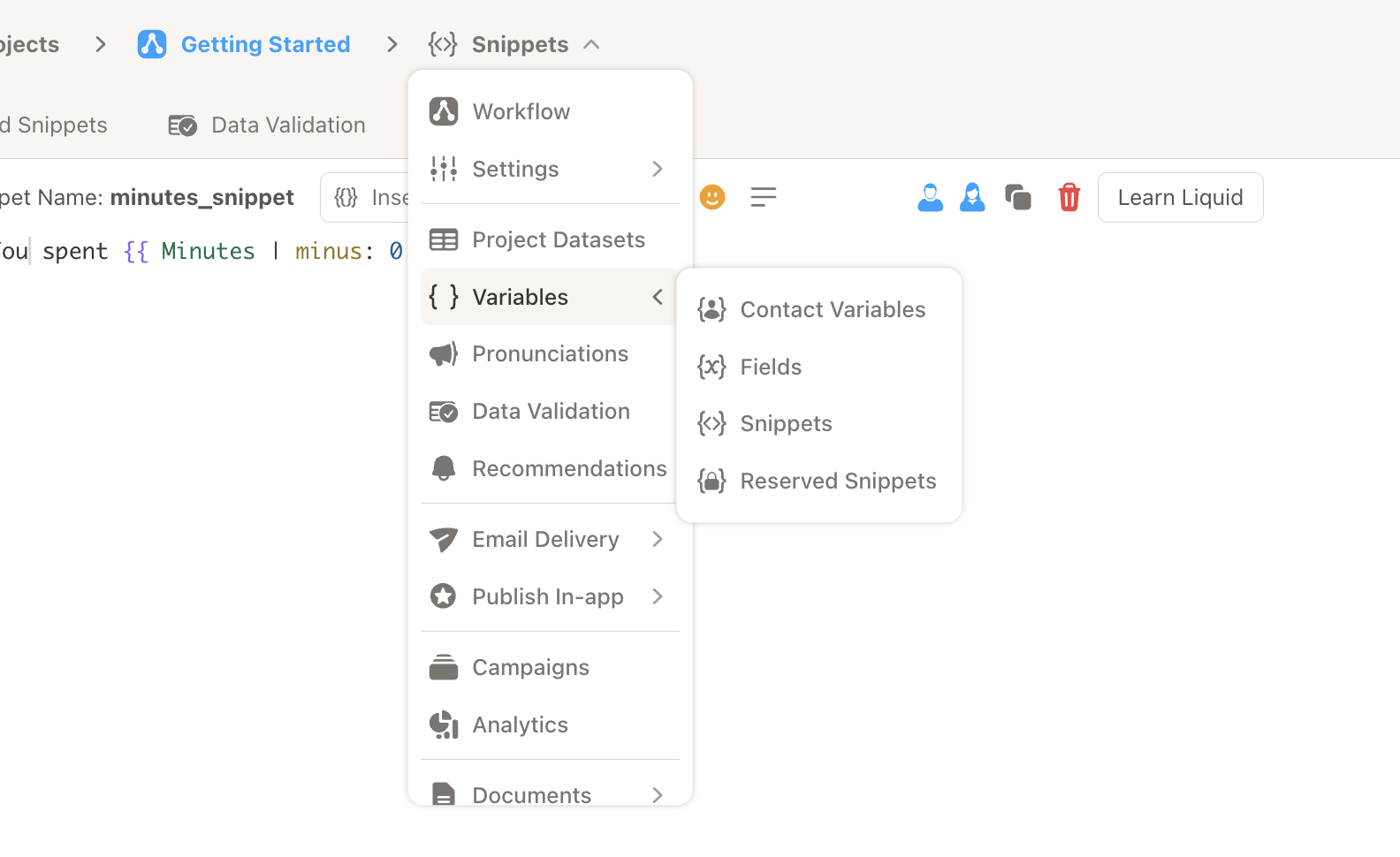
In the left navigation, expand Variables to access Contact Variables, Fields, Snippets, and Reserved Snippets. Click Contact Variables to open Project Settings and configure your contact data mapping.
Where to Configure Contact Variables
Section titled “Where to Configure Contact Variables”Contact Variables are configured in Project Settings under Contact Data Aliases, Types, and Defaults:
- Go to Settings (or click Contact Variables from the Variables menu).
- Open the Contact Dataset section and select your contacts dataset.
- Open Contact Data Aliases, Types, and Defaults.
- Map your dataset columns to the standard contact aliases.
Standard Contact Variable Aliases
Section titled “Standard Contact Variable Aliases”| Alias | Description | Required |
|---|---|---|
contact_id |
Customer Contact ID (unique identifier) | Yes |
contact_name |
Contact First Name | Yes |
contact_email |
Email address | For email delivery |
contact_phone |
Phone number | For text delivery |
contact_account |
Customer/Account ID | Recommended |
contact_account_name |
Customer/Account Name | Recommended |
contact_language |
Language preference | Optional |
from_name |
Sender name (for email) | Optional |
from_email |
Sender email (for email) | Optional |
Auto Detect
Section titled “Auto Detect”Use the Auto Detect button to have Cast suggest column mappings based on your dataset columns. Verify the mappings before saving.
Using Contact Variables in Narrations
Section titled “Using Contact Variables in Narrations”The Insert Liquid button (under narrations) opens a dropdown with four options: Contact Variables, Fields, Snippets, and Reserved Snippets. Select Contact Variables to choose and insert a contact variable.
Steps:
- Place your cursor in the narration where the variable should go.
- Click Insert Liquid.
- Choose Contact Variables from the dropdown.
- Select the contact variable you need (e.g.
contact_name,contact_email).
Usage in Liquid:
{% raw %}
Hello {{ contact_name }},Your company {{ contact_account_name }} has been assigned this presentation.With filters:
{{ contact_name | default: "Valued Customer" }}{% endraw %}
Naming Restrictions
Section titled “Naming Restrictions”The contact_ and from_ prefixes are reserved for Contact Variables. You cannot create Fields or Snippets with names starting with these prefixes.
Default Types and Default Values
Section titled “Default Types and Default Values”- Default Type: Override the data type for a column (e.g. string, number, date). Hover over the default type and click to change.
- Default Values: When a contact has no value (null or empty), specify a fallback. Hover over Default Value and click to assign.
Related
Section titled “Related”- Fields – Dataset-driven values with calculations
- Snippets – Liquid snippets for narrations and content
- Reserved Snippets – Player-specific variables
- Add Fields and Snippets to Narrations – How to insert variables
- Project Settings – Contact dataset and alias configuration