
Salesforce
Salesforce Data Source
Section titled “Salesforce Data Source”The Salesforce Data Source lets Cast query Salesforce objects such as Account, Opportunity, User and Report using SOQL.
💡 Use the Salesforce Report API Data Source to bring data from custom reports.
Contents
Section titled “Contents”- Choosing an authentication method
- Method 1: OAuth 2.0 JWT Bearer (recommended)
- Method 2: OAuth 2.0 Client Credentials
- Method 3: Username / Password + Security Token (legacy)
- Creating a Salesforce Dataset
- Troubleshooting
Choosing an authentication method
Section titled “Choosing an authentication method”When you add a Salesforce data source, the first field is Authentication Method. Pick one before filling in anything else — the remaining fields differ per method.
| Method | Best for | What Cast stores |
|---|---|---|
| OAuth 2.0 JWT Bearer (recommended) | All new connections | Username, Consumer Key, private key file |
| OAuth 2.0 Client Credentials | Orgs that prefer a secret over a certificate | Consumer Key, Consumer Secret, My Domain |
| Username / Password + Security Token | Existing connections only | Username, password, security token |
💡 Important: Salesforce is retiring the SOAP API
login()call — the mechanism behind the username / password / security token method — in Summer 2027. Existing connections keep working until then, but all new connections should use OAuth, and existing ones should be migrated before that date.
Both OAuth methods are fully automatic once set up: nobody has to log in or approve anything in a browser when Cast runs a query.
Each method has its own setup guide:
- Method 1: OAuth 2.0 JWT Bearer (recommended) — Cast signs a token with a private key, and Salesforce verifies it with a matching certificate you upload. Nothing interactive, and no password is shared.
- Method 2: OAuth 2.0 Client Credentials — for teams that would rather manage a rotating secret than a certificate.
- Method 3: Username / Password + Security Token (legacy) — existing connections only; retiring Summer 2027.
Creating a Salesforce Dataset
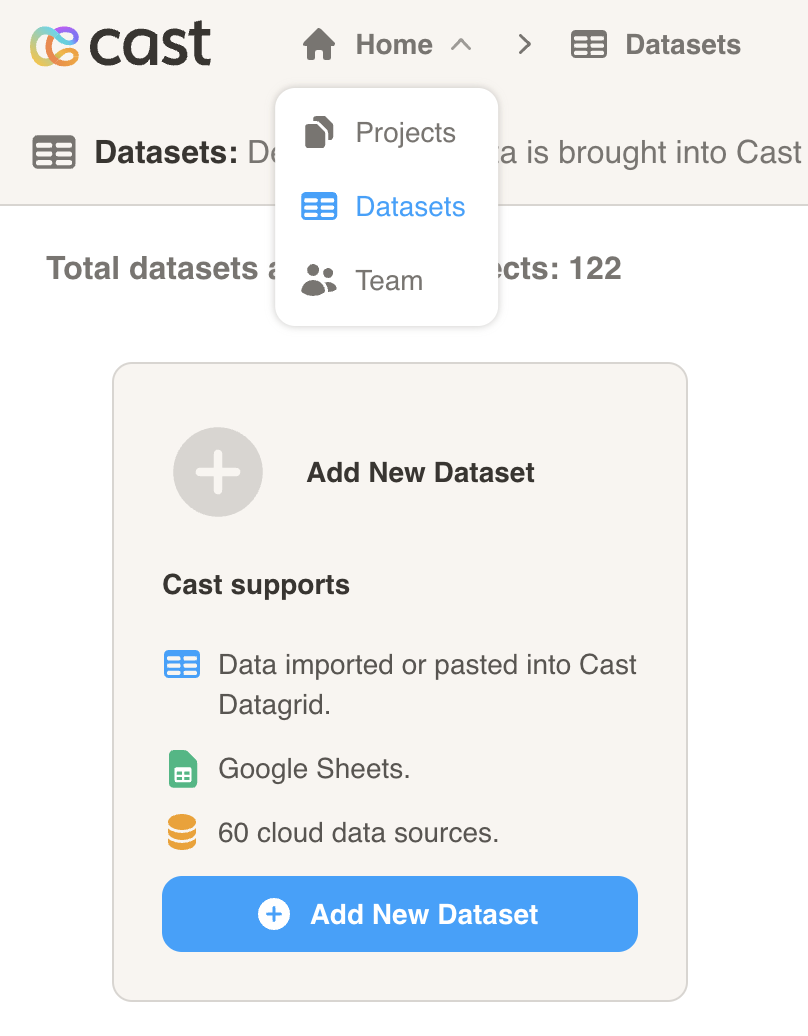
Section titled “Creating a Salesforce Dataset”- Click on Home at the top of the screen and select Datasets to take you to the Datasets screen. Click on the Add New Dataset Button.
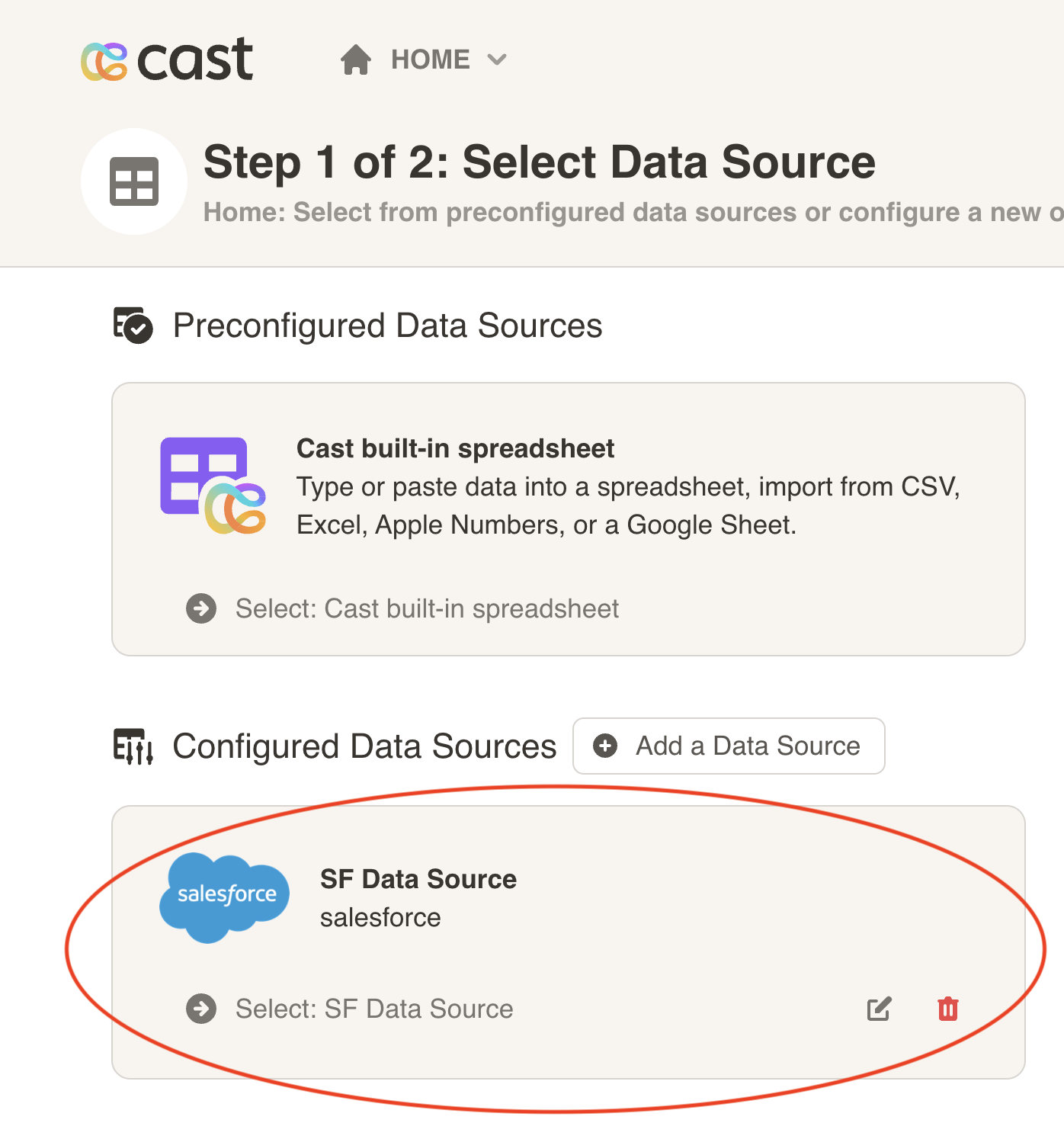
- Click on the Salesforce data source we created at the top of this page.
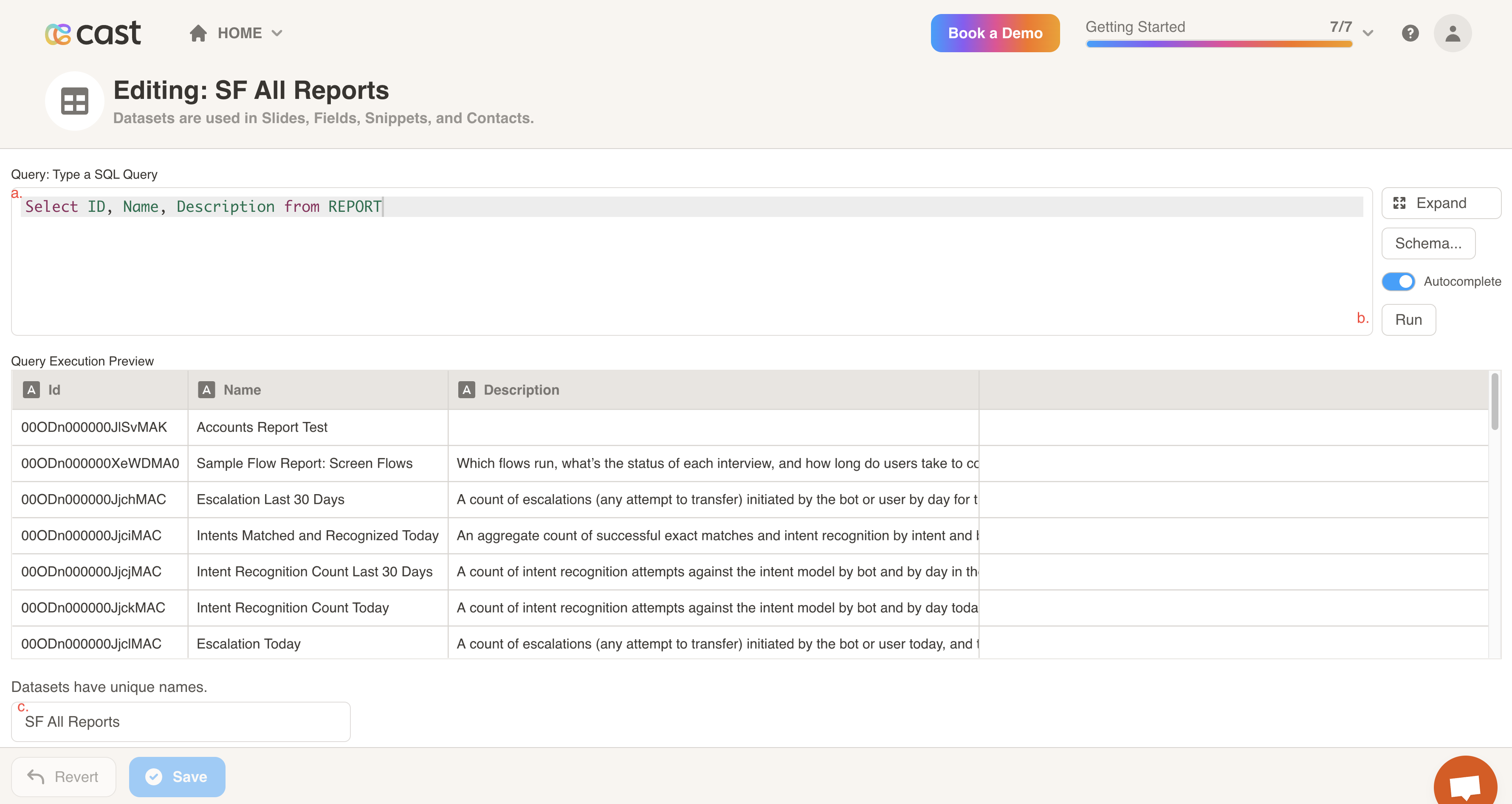
- Write a query to retrieve the data from Saleforce that you want in the dataset.
- Click on the Run button.
- Enter a name for the data set and click the Save button.
Troubleshooting
Section titled “Troubleshooting”Errors reported by Test Connection, and what they mean.
| Message | Cause and fix |
|---|---|
user is not admin approved to access this app |
The permission set is not in the app’s Selected Permission Sets, or is not assigned to the user. See Step 5 of Method 1 (or the equivalent step for your method). |
user hasn't approved this consumer |
Permitted Users is still All users can self-authorize, or the Refresh Token Policy is expiring the approval. |
invalid_grant: invalid assertion |
The certificate in Salesforce does not match the uploaded private key. Regenerate the pair and re-upload both. |
invalid_grant: audience is invalid |
Production and sandbox are mixed up. A Developer Edition org is production — leave Sandbox unchecked. |
Could not deserialize key data / no start line |
The private key was not a complete PEM file. Upload the .key file rather than pasting its text. |
private key is passphrase-protected |
Provide an unencrypted key: openssl rsa -in encrypted.key -out cast.key. |
Client Credentials authentication requires 'My Domain' |
Add your My Domain — this flow cannot use the shared login host. |
unsupported_grant_type |
Enable Client Credentials Flow is not checked on the app. |
not authorized |
IP Relaxation is not relaxed, or the user lacks API Enabled. |
INSUFFICIENT_ACCESS (Method 3 only) |
SOAP API login() is not enabled org-wide, or the user lacks the Use Any API Auth permission. See Before you begin. |
| Fails right after setup, then works later | Propagation delay. Wait 2–10 minutes after any app change. |
Authentication failures naming the user are usually the Username field: check it is the Username from Setup → Users, not the user’s email address.