
lc_widget time range
Dynamic Time Range Display with lc_timerange
Section titled “Dynamic Time Range Display with lc_timerange”Converts duration values in seconds into compact human-readable text (e.g. 7d 0h, 2h 30m).
When to use it
- Subscription periods, SLA windows, and uptime metrics
- Session duration and engagement time displays
- Contract timelines and account tenure

Quick reference
Section titled “Quick reference”| ID prefix | lc_timerange_* |
| SVG element | <text> only |
| Override value | Numeric seconds (e.g. 604800 → 7d 0h) |
| Gotcha | Input must be in seconds; invalid values leave plain text |
Setup in Cast
Section titled “Setup in Cast”- Add a
<text>element whose ID starts withlc_timerange_. - Override the variable with seconds from your dataset or a static value.
Samples
Section titled “Samples”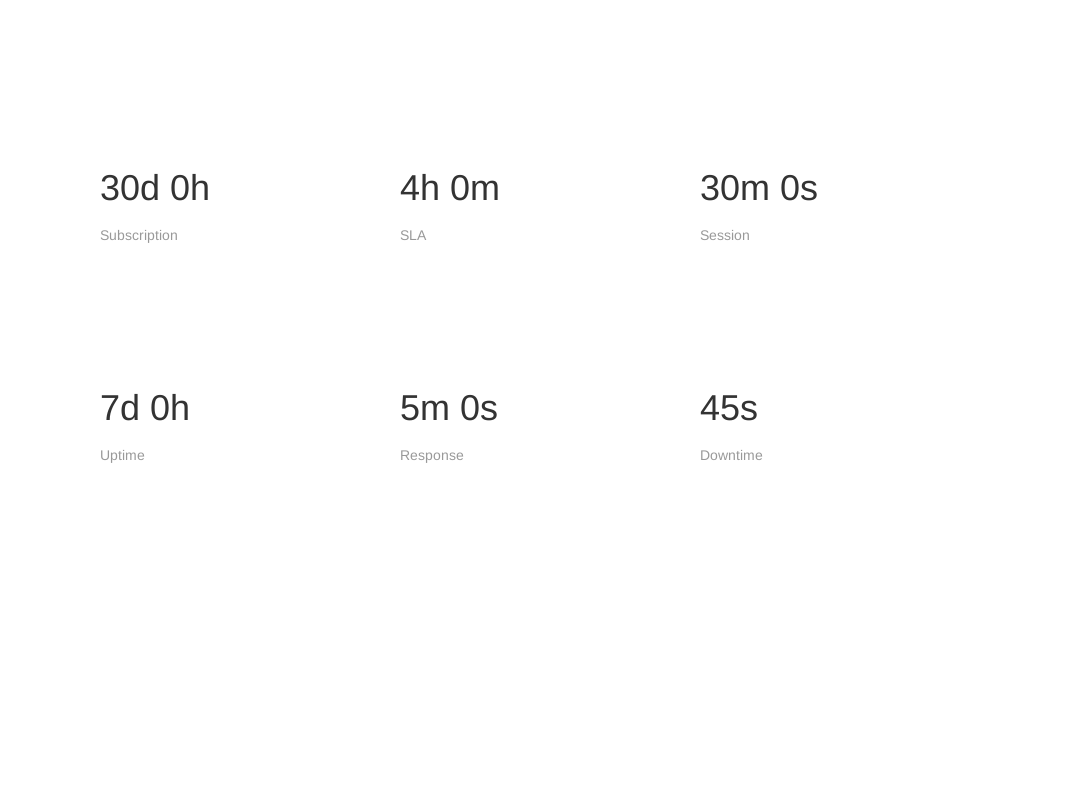
Advanced: display formats, formatting rules, and use-case examples
Key Features
- Automatic Conversion: Converts seconds to human-readable time format
- Compact Display: Shows time in abbreviated format (e.g., “7d 0h”, “2h 30m”)
- Flexible Input: Accepts time duration data in seconds
- Smart Formatting: Automatically chooses appropriate time units based on duration
Use Cases
- Subscription duration display (trial periods, billing cycles)
- Time-based metrics (uptime, session duration, project timelines)
- SLA and service level displays (response time, resolution time)
- User engagement metrics (time spent, session length)
- Performance monitoring (downtime, maintenance windows)
- Contract and agreement timelines
- Age calculations (account age, customer tenure)
Element Identification
The target element must be a <text> with an ID that starts with:
lc_timerange_*for time range display
Input Format
The widget accepts any value in seconds and automatically converts it to human-readable format.
Direct Numeric Value
Section titled “Direct Numeric Value”Simply pass any duration in seconds as a numeric value:
604800Result: Displays as “7d 0h” (604800 seconds = 7 days)
Important Notes:
- Input values must be in seconds - the widget will convert to appropriate time units
- If data is not in the correct format, the element will display as a plain
<text>
Display Format Examples
The widget automatically selects the most appropriate time units based on the input value:
| Input (Seconds) | Display Format | Description |
|---|---|---|
| 604800 | 7d 0h | 7 days, 0 hours |
| 86400 | 1d 0h | 1 day, 0 hours |
| 90000 | 1d 1h | 1 day, 1 hour |
| 7200 | 2h 0m | 2 hours, 0 minutes |
| 3661 | 1h 1m | 1 hour, 1 minute |
| 300 | 5m 0s | 5 minutes, 0 seconds |
| 45 | 45s | 45 seconds |
Download Sample Data - Time Range
Smart Formatting Rules
- Days + Hours: Shows days and hours when duration is >= 1 day
- Hours + Minutes: Shows hours and minutes when duration is >= 1 hour but < 1 day
- Minutes + Seconds: Shows minutes and seconds when duration is >= 1 minute but < 1 hour
- Seconds Only: Shows only seconds when duration is < 1 minute
Default Behavior:
- Text styling will be taken from the appearance settings and Color Palette
Common Use Cases and Examples
Subscription Management
2592000Result: “30d 0h” (30-day subscription period)
Service Level Agreements
14400Result: “4h 0m” (4-hour response time)
Session Tracking
1800Result: “30m 0s” (30-minute session)
Compatibility: Works with <text> elements only