
Managing Documents
Managing Documents
Section titled “Managing Documents”Learn how to search, view, download, refresh, and delete your knowledge documents.
Document List View
Section titled “Document List View”The Knowledge Base page displays all your organization’s documents in a table format.
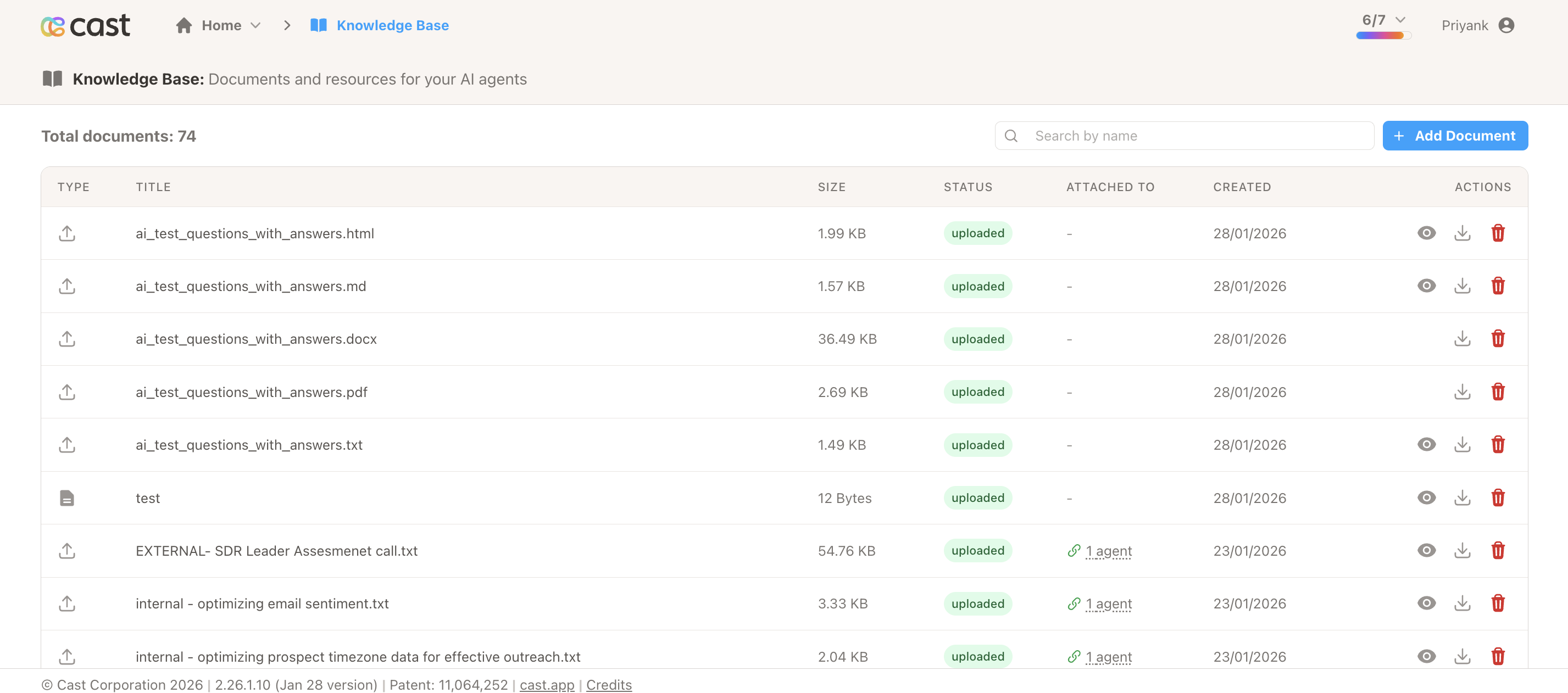
Table Columns
Section titled “Table Columns”Title
Document name, either extracted from the source or user-defined.
Source
Where the content came from (URL, File Upload, Inline Text, or Crawl).
Size
Document size in KB or MB.
Status
Current processing status with color-coded badges.
Agents
Number of agents currently using this document.
Created
When the document was created (e.g., “2 minutes ago”).
Actions
Available operations for the document (Preview, Download, Refresh, Delete).
Search and Filter
Section titled “Search and Filter”Use the search bar at the top of the page to filter documents.
What You Can Search
Section titled “What You Can Search”- Document title
Document Actions
Section titled “Document Actions”Each document has action icons in the Actions column.
Preview Content
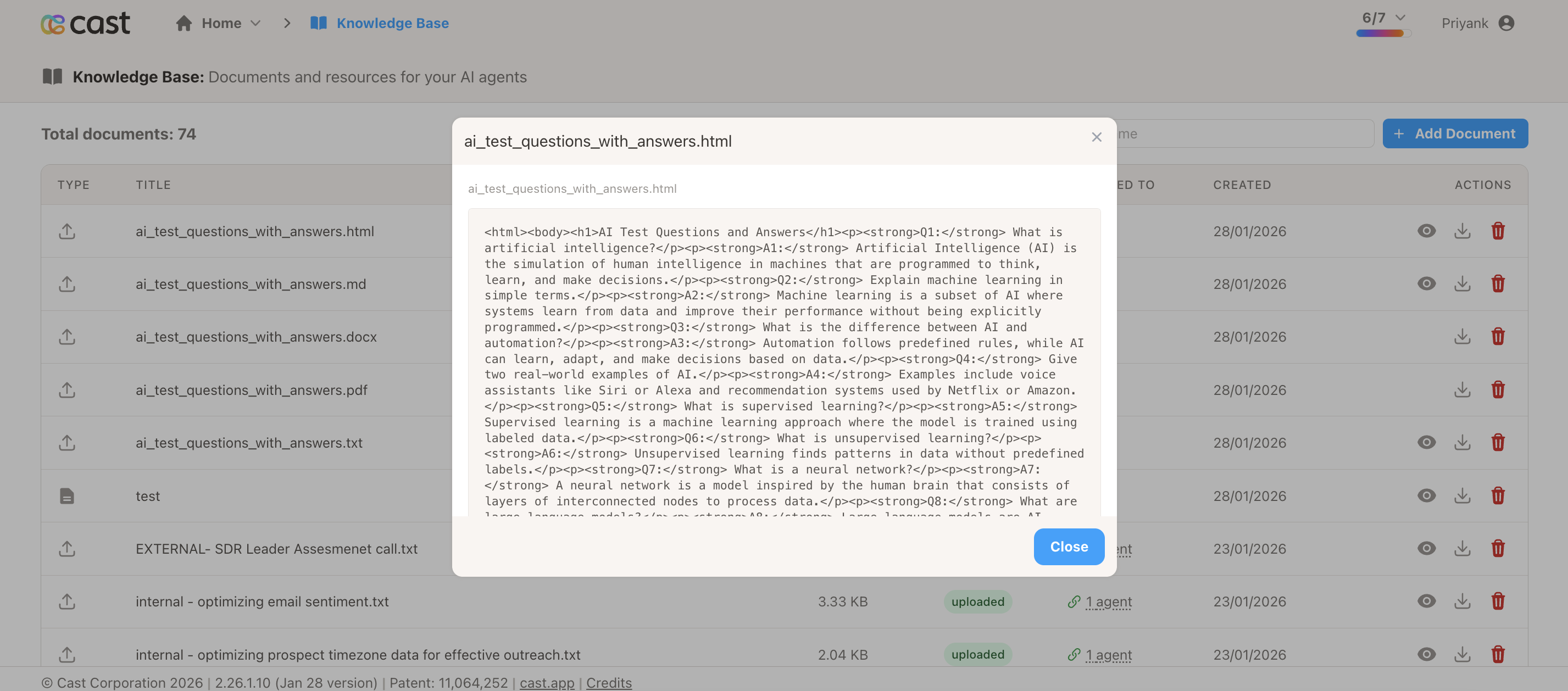
Section titled “Preview Content”View document content directly in your browser.
Icon: Eye icon
How to use:
- Click the eye icon next to the document
- A modal opens showing the content
- Scroll through to review
- Click outside or the X to close
Availability: Text-based documents only (TXT, MD, HTML, inline text)
Use cases:
- Verify content before attaching to agents
- Review what information agents will see
- Check content accuracy
Download Document
Section titled “Download Document”Download the original document file to your computer.
Icon: Download arrow icon
How to use:
- Click the download icon
- File downloads automatically
- Open with appropriate application
Availability: All document types
Downloaded file:
- Same format as uploaded or scraped
- Original filename preserved
- Full content included
Refresh Document
Section titled “Refresh Document”Re-scrape URL-based documents to update content with the latest version.
Icon: Circular arrow icon
How to use:
- Click the refresh icon
- Document status returns to “Pending”
- Processing begins automatically
- Wait for “Uploaded” status
Availability: URL and Crawl documents only
What happens:
- System re-scrapes content from the source URL
- New version is created on AI platform
- All attached agents are automatically updated
- Old version is removed
- No manual re-attachment needed
Processing time: Same as initial creation
Use cases:
- Documentation has been updated
- Want to capture latest information
- Fix issues with initial scrape
Retry Failed Upload
Section titled “Retry Failed Upload”Retry processing for documents that failed.
Icon: Retry icon (circular arrow)
How to use:
- Find documents with “Error” status
- Click the retry icon
- Processing starts again
- Check error message if it fails again
Availability: Documents with “Error” status only
Common reasons to retry:
- Temporary network issues
- Service rate limits
- Transient API errors
Delete Document
Section titled “Delete Document”Permanently remove a document from your Knowledge Base.
Icon: Trash icon
How to use:
- Click the trash icon
- Confirmation dialog appears
- Click confirm to delete
Warning: If the document is attached to any agents, you must detach it first before deletion is allowed.
What gets deleted:
- Document metadata from database
- Content from cloud storage
- Document from AI platform
- All attachments to agents
This action cannot be undone.
Document Details
Section titled “Document Details”Click on a document row to view additional details:
- Full source URL or filename
- Processing timestamps (created, processed, uploaded)
- Content hash for deduplication
- Error messages (if status is “Error”)
- Crawl settings (for website crawls)
Status Management
Section titled “Status Management”Monitoring Active Processing
Section titled “Monitoring Active Processing”Documents currently processing show animated status badges. The page refreshes automatically every 5 seconds while any documents are processing.
Handling Errors
Section titled “Handling Errors”If a document shows “Error” status:
- Click on the document to view the error message
- Check the specific error reason
- Click retry if it was a temporary issue
- Delete and recreate if the source has problems
Common Error Messages
Section titled “Common Error Messages”“Failed to scrape URL”
- URL is not publicly accessible
- Website blocks automated scrapers
- Network timeout occurred
“File too large”
- File exceeds 10 MB limit
- Solution: Compress or split the file
“Processing timeout”
- Content took too long to process
- Solution: For crawls, reduce max_pages
“Invalid file format”
- File type not supported
- Solution: Convert to supported format
Bulk Operations
Section titled “Bulk Operations”Multiple File Upload
Section titled “Multiple File Upload”You can upload multiple files at once:
- Click the File tab
- Select multiple files using Shift or Cmd/Ctrl + click
- All files upload and process independently
Future Features
Section titled “Future Features”Coming soon:
- Bulk delete
- Bulk attachment
- Export document list
Organization Isolation
Section titled “Organization Isolation”Documents are organization-specific:
- You only see documents from your organization
- Cannot share documents between organizations
- Users see documents based on organization membership
Best Practices
Section titled “Best Practices”Document Organization
Section titled “Document Organization”- Use clear, descriptive titles
- Keep documents focused on single topics
- Create separate documents for different subjects
- Regular cleanup of outdated documents
Content Updates
Section titled “Content Updates”- Refresh URL documents regularly (weekly or monthly)
- Set reminders for important document updates
- Delete outdated documents rather than leaving them inactive
Agent Management
Section titled “Agent Management”- Review which agents are using each document
- Detach from agents before deleting
- Test agent responses after attaching new documents
Need Help?
Section titled “Need Help?”- Support: support@cast.app
- Quick Reference: Cheat Sheet
- Common Issues: FAQ & Troubleshooting