
lc_html_content
Rich Text Content with lc_html_content_*
Section titled “Rich Text Content with lc_html_content_*”The lc_html_content_* prefix lets you drop in richly formatted text — bold words, colored highlights, multiple font sizes in one block — in a way a single SVG text field can’t do on its own.
When to use it
- Body copy that mixes bold, color, or different font sizes in one block
- Content that needs its own custom wording per language, rather than being auto-translated
- Any spot where a plain text variable feels too limited
Quick reference
Section titled “Quick reference”| ID prefix | lc_html_content_* |
| SVG element | <rect>, sized to where the content should appear |
| Override value | An HTML snippet, or a set of HTML snippets — one per language |
Good to know before you start:
- Content that doesn’t fit the box fades out at the bottom rather than becoming scrollable, so size your box generously.
- Links aren’t clickable — nothing on the slide can navigate away.
- Set the text size inside your HTML, not on the placeholder shape — the placeholder’s size is ignored.
- This content is never auto-translated — if the viewer switches to a language you didn’t provide, it stays in English.
Setup in Cast
Section titled “Setup in Cast”-
Add a
<rect>sized to where you want the content to appear, and give it an ID that includeslc_html_content_. -
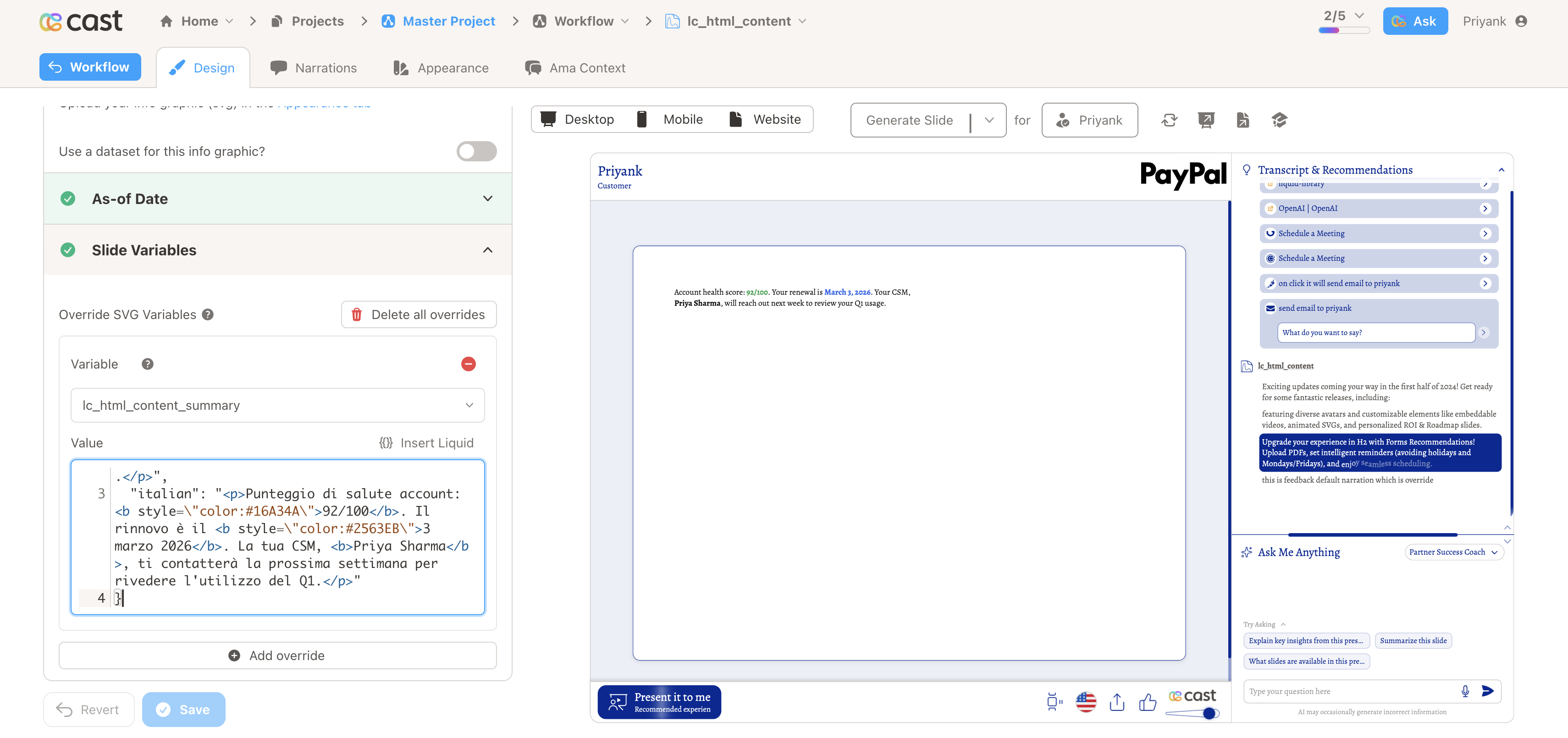
Open Override SVG Variables and set that ID’s value to your HTML, for example:
<p>Account health score: <b style="color:#16A34A">92/100</b>. Your renewal is <b style="color:#2563EB">March 3, 2026</b>. Your CSM, <b>Priya Sharma</b>, will reach out next week to review your Q1 usage.</p> -
To provide different wording per language, use a small set of language/HTML pairs instead of a single snippet:
{"english": "<p>Account health score: <b style=\"color:#16A34A\">92/100</b>. Your renewal is <b style=\"color:#2563EB\">March 3, 2026</b>. Your CSM, <b>Priya Sharma</b>, will reach out next week to review your Q1 usage.</p>","italian": "<p>Punteggio di salute account: <b style=\"color:#16A34A\">92/100</b>. Il rinnovo è il <b style=\"color:#2563EB\">3 marzo 2026</b>. La tua CSM, <b>Priya Sharma</b>, ti contatterà la prossima settimana per rivedere l'utilizzo del Q1.</p>"}The viewer’s own language is used automatically. If you don’t provide that language, English is shown instead — the rest of the slide may auto-translate, but this content never does, so any language you want to support needs its own entry here.
Samples
Section titled “Samples”
Advanced: formatting, styling, and things to watch for
Formatting your content
Section titled “Formatting your content”- Any HTML formatting works — bold, italic, color, and per-line styling all carry through.
- If you leave out HTML tags entirely and just type plain text, it’s shown exactly as typed (useful for languages that are auto-translated, where stray characters shouldn’t be read as formatting).
- Leaving the value blank shows nothing.
Styling
Section titled “Styling”- Text color and font inherit from the placeholder shape’s own fill color, unless your HTML sets its own. Give the placeholder a normal, readable fill (e.g. a dark color on a light slide) — a light or white fill makes any text that doesn’t set its own color hard to see.
- The placeholder’s font size is not used — set the size directly in your HTML (e.g.
style="font-size:16px") so it isn’t affected by the placeholder’s fit-to-box sizing.
Things to keep in mind
Section titled “Things to keep in mind”- This is meant for content that’s already been reviewed/approved — treat it like any other authored copy, not as a place to paste raw user input.
- Links are automatically de-activated so nothing on the slide can be tapped to navigate elsewhere.
- Content that overflows its box fades out at the bottom rather than scrolling — size your box generously if you have a lot of text.
- Switching the viewer’s language never translates this content automatically, even when the rest of the slide does — each language you want to support needs its own approved entry in the JSON map.
- There’s currently no dedicated editor for this in Cast — the HTML (or language/HTML pairs) is entered directly as the override value, the same way you would for any other override.