
Salesforce Report API
Salesforce Report API Data Source
Section titled “Salesforce Report API Data Source”Contents
Section titled “Contents”- Salesforce: Get Salesforce Security Token
- Salesforce: Identify Salesforce Report to use as Datasource
- Cast.app: Create Salesforce Datasource
- Cast.app: Create Salesforce Dataset to use Salesforce Datasource
- Cast.app: Use Dataset in Funnel Slide
Get Salesforce Security Token
Section titled “Get Salesforce Security Token”You will need to enter a Salesforce security token when setting up a Cast Datasource for Cast.app to query your Salesforce objects and reports. If you forgot your security token or never used one before, you can get a new security token by following the steps below:
Identify Salesforce Report to use as Dataset
Section titled “Identify Salesforce Report to use as Dataset”You will need to know the Salesforce Report ID of the report you want to import to a dataset.
Method #1 Get the report URL
Section titled “Method #1 Get the report URL”- Copy the
Report ID from urlor theentire URLcontaining the report ID of the report when viewing it in Salesforce. BTW, the Report ID is between/Report/and/in the URL.

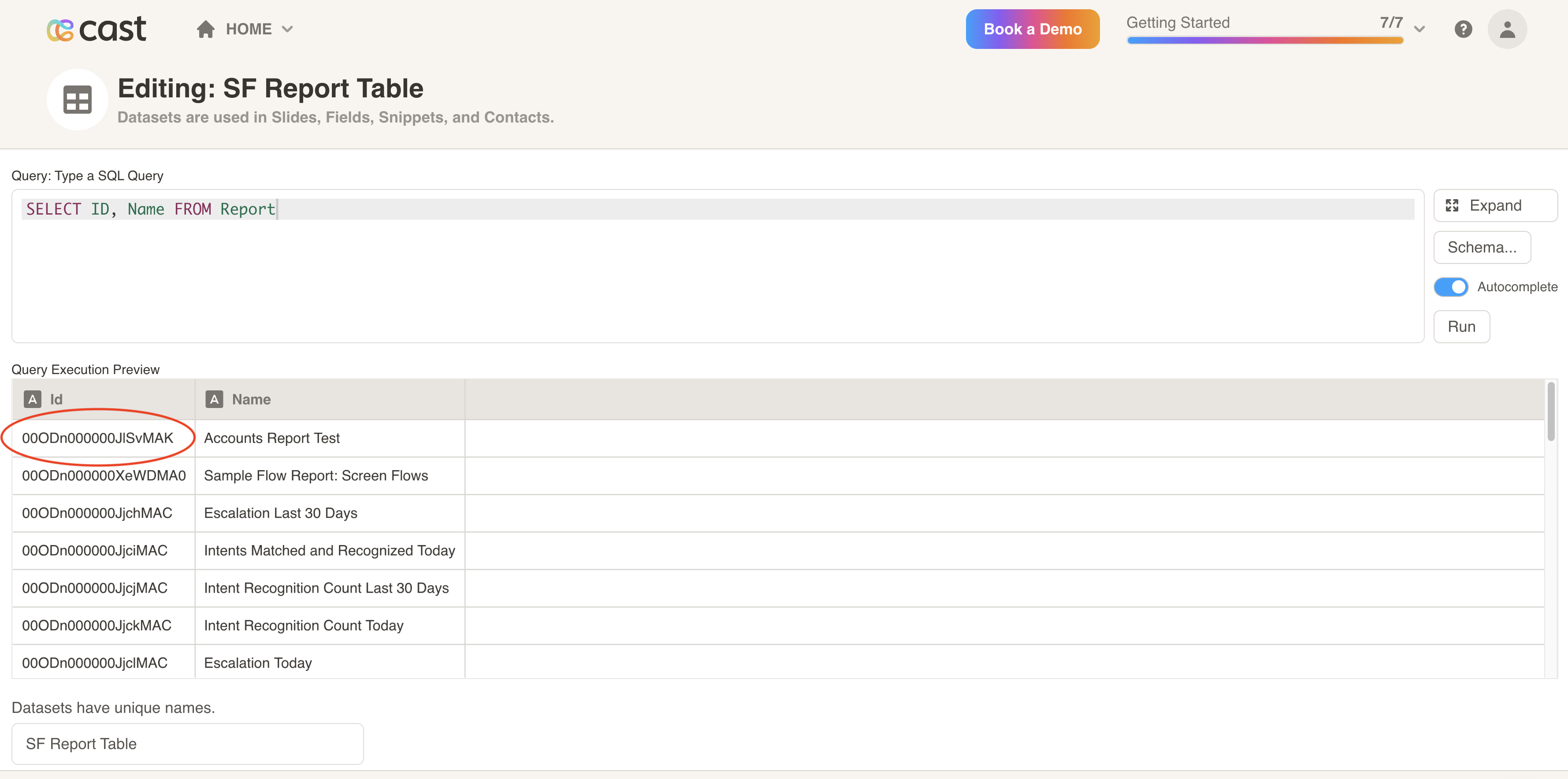
Get Report ID Programatically (advanced)
Section titled “Get Report ID Programatically (advanced)”-
Create a new Salesforce Dataset and copy and paste the query below.
Select ID, Name, Description from REPORT -
Run the query and copy the report ID you want to import in Cast.
Create Salesforce Datasource
Section titled “Create Salesforce Datasource”To use the Salesforce Report API Data Source, add a new data source and select Salesforce Report API.
💡 The Salesforce Report API Data Source allows you bring data from custom reports. Use the Salesforce Datasource to get data from tables like Account, Opportunity, Report, User, etc.
On the Salesforce Reports API Data Source setup screen, enter your Salesforce username and password as well as your security token.
- Datasource Name (required): Enter a descriptive name for the data source connection you are creating.
- Username (required): Enter your Salesforce username.
- Password (required): Enter your Salesforce password.
- Security Token (required): Enter your Salesforce security token. Instructions on how to get your security token are below.
- Sandbox (optional): Click this checkbox if you are to connecting to your sandbox environment.
- Salesforce API Version (optional): Enter the API version you are using.
- Click on Add Configuration.
Create Salesforce Dataset to use Salesforce Datasource
Section titled “Create Salesforce Dataset to use Salesforce Datasource”Use Dataset in Funnel Slide
Section titled “Use Dataset in Funnel Slide”Finally, let’s use this dataset in the funnel slide. Drag the funnel slide into the project workflow, and swap the dataset in the Design tab.