
lc_pdf
Embedded scrollable PDF with lc_pdf_*
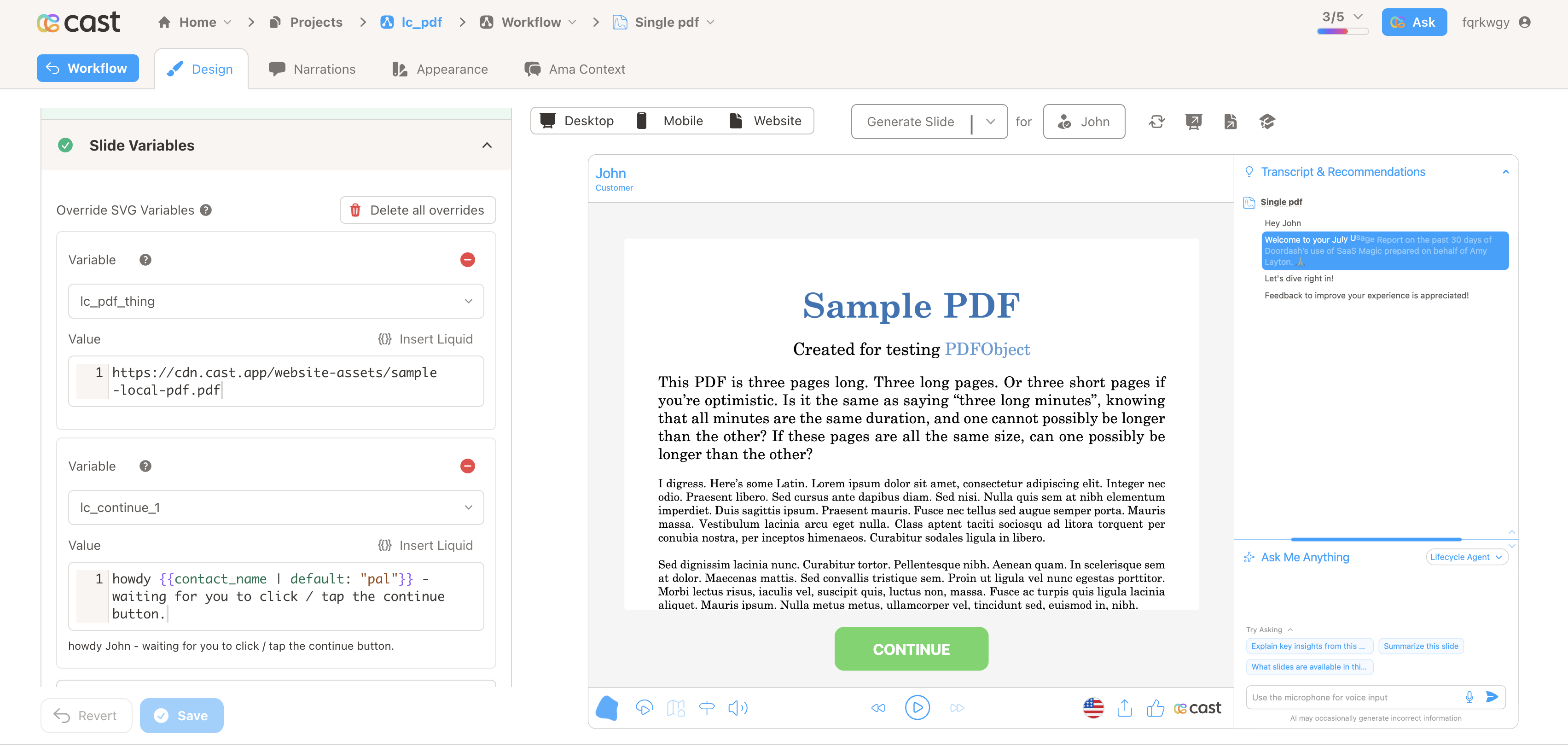
Section titled “Embedded scrollable PDF with lc_pdf_*”Drop a live, scrollable PDF straight onto a slide. lc_pdf_* renders every page of a hosted PDF inside your artwork — no download, no viewer chrome, no vendor badge.
When to use it
- Let viewers read a one-pager, contract, or report without leaving the story
- Pair with a Continue gate so playback waits until the PDF has been read
- Show two documents side by side on the same slide
Quick reference
Section titled “Quick reference”| ID prefix | lc_pdf_* (e.g. lc_pdf_report) |
| SVG element | <rect> only |
| Override value | PDF URL — upload the PDF to your Cast CDN (cdn.cast.app) and use that link |
| Required companion | lc_continue_* — a <g> group (rect + real <text>) or a plain <rect> |
| Gotcha | Non-HTTPS / non-CORS / missing URLs show a dim “Unable to load PDF” |
Minimal override value:
https://cdn.cast.app/website-assets/sample-local-pdf.pdfSetup in Cast
Section titled “Setup in Cast”- Upload the PDF to Cast — host the PDF on your Cast CDN (
cdn.cast.app) and copy its URL. Cast-CDN links are public HTTPS and CORS-ready, so they work out of the box. (A PDF hosted anywhere else must also be public, HTTPS, and CORS-accessible — the safest path is to upload it to Cast.) - Add the PDF element — a
<rect>whose ID starts withlc_pdf_(e.g.lc_pdf_report). The PDF fills the whole rect, so size it as large as you want the reading area. - Point it at the PDF — in Override SVG Variables, set the
lc_pdf_*value to the Cast CDN URL from step 1 (or a dataset field that resolves to one). - Add the Continue gate —
lc_pdf_*andlc_continue_*work together: without a Continue gate the slide auto-advances and the viewer can’t finish reading. Add anlc_continue_*element (a<g>button group, or a plain<rect>) so the slide waits until the viewer taps Continue. See Required companion.
Samples
Section titled “Samples”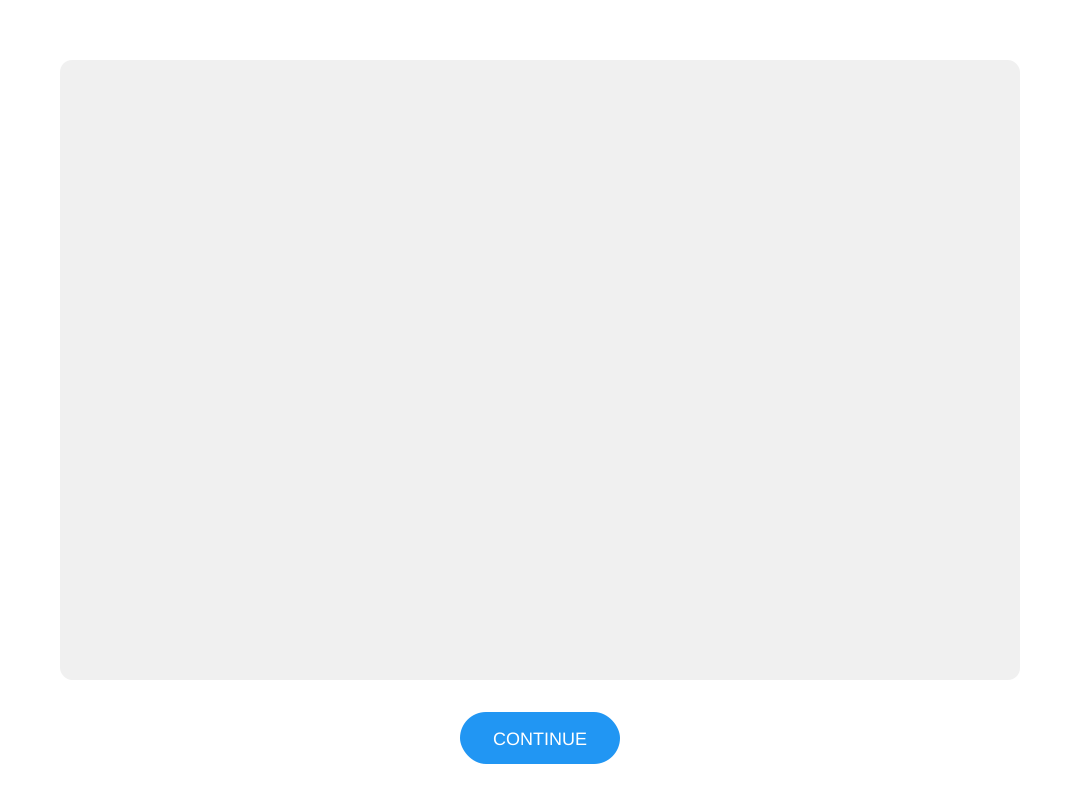
Related widgets
Section titled “Related widgets”- lc_video — embed video the same way
- lc_scrolltext — scrollable long-form text
- lc_action — click-to-reveal overlays
Advanced: naming, hosting, the Continue gate, highlights, and troubleshooting
Naming convention
Section titled “Naming convention”lc_pdf_<key> — the embedded PDF viewer (a <rect>)lc_continue_<key> — required Continue gate that advances the slide (a <g> button group or <rect>)The <key> is any label you choose (report, thing, contract). PDF and Continue keys do not need to match — the Continue gate pauses the whole slide, not one specific PDF.
Multiple PDFs per slide: give each rect its own ID (lc_pdf_thing, lc_pdf_thing2). Each renders and scrolls independently; the URLs can be the same or different.
Input format — the PDF URL
Section titled “Input format — the PDF URL”The override value is the URL of the PDF to embed:
https://cdn.cast.app/website-assets/sample-local-pdf.pdfWith a dataset field:
{% raw %}{{ pdf_url }}{% endraw %}Hosting requirements
- Recommended: upload the PDF to your Cast CDN (
cdn.cast.app) and use that link. Cast-CDN URLs are public, HTTPS, and CORS-ready, so they render without any extra setup — this is the easiest and most reliable option. - If you host the PDF elsewhere, it must still be a public URL served over HTTPS and be CORS-accessible from the player origin — the PDF is fetched client-side and rendered page by page. Private, non-HTTPS, or CORS-blocked links will not render, so when in doubt, upload the file to Cast.
- A missing, non-HTTPS, or CORS-blocked URL does not leave a blank box — the region shows a dim “Unable to load PDF” message, and a later reveal will retry a transient failure.
Rendering behavior
- The PDF fills the full authored rect — the player never shortens it.
- Pages are stacked in a continuous, vertically scrolling column, fit to the rect width and crisp on high-DPI screens.
- Rounded corners follow the rect’s
rx/ry(falls back to a small default), so a rounded rect gives a rounded PDF. - There is no toolbar, page-nav, zoom menu, or vendor badge — just the document.
Required companion: lc_continue_* — Continue gate
Section titled “Required companion: lc_continue_* — Continue gate”lc_pdf_* and lc_continue_* work together. A PDF slide with no Continue gate auto-advances like any other slide, so the viewer never gets time to read. The lc_continue_* element turns off auto-advance and holds the slide until the viewer taps Continue — always add one to a PDF slide.
What element to use for lc_continue_
Section titled “What element to use for lc_continue_”The player does not draw the button for you — you author it in the SVG, and give that element an ID starting with lc_continue_ (e.g. lc_continue_1). Use one of:
- A button group
<g>(recommended) — a<g id="lc_continue_1">containing a background<rect>and a real<text>label (“CONTINUE”). This gives a proper labelled button. Put the ID on the group, not the inner shapes. - A plain
<rect>— a single<rect id="lc_continue_1">. The player makes the rect clickable, but it has no visible label of its own.
<!-- Recommended: labelled button group --><g id="lc_continue_1"> <rect x="417" y="710" width="246" height="70" rx="15" fill="#66D566" /> <text x="540" y="755" text-anchor="middle" fill="#FFFFFF">CONTINUE</text></g>Keep the label as real
<text>(not outlined to paths) so it auto-translates. Cast uses a translated “Continue” as the accessible name.
How to set it up
Section titled “How to set it up”- Author the element — add the
<g>(or<rect>) described above with anlc_continue_ID. - (Optional) Set the spoken narration — in Override SVG Variables, set the
lc_continue_*value to the sentence spoken at the gate (e.g. “Tap continue when you have finished reading the PDF.”). This value is narration only — it is not drawn on the button. Leave it blank to speak the default “Continue once you are ready.” - Reveal it on the last narration step — the button stays hidden until the final highlight step (or when the slide reaches the gate). Include its ID in the last step’s highlight list — see Highlight / narration integration.
Behavior
- Presence = pause: the
lc_continue_*element is what stops the slide from auto-advancing. - Click / tap to advance: advancing works even during narration, as a manual skip-ahead.
- Keyboard: the gate is focusable and operable with Enter or Space.
- Explore mode: shared/explore links let viewers scroll freely, so there is no gate — the Continue button is hidden automatically and only appears in present (played) mode.
ID: lc_continue_1 (on the <g> group or the <rect>)Value: Tap continue when you have finished reading the PDF.Highlight / narration integration
Section titled “Highlight / narration integration”lc_pdf_* follows the standard highlight system — it is fully visible when highlighted, dimmed otherwise. The viewer boots the first time the region is revealed. Add the PDF (and, on the final step, the Continue gate) to your narration highlight steps, for example:
Single PDF
["lc_pdf_report"]["lc_pdf_report", "lc_continue_1"]Two PDFs
["lc_pdf_thing"]["lc_pdf_thing", "lc_pdf_thing2"]["lc_pdf_thing", "lc_pdf_thing2", "lc_continue_1"]The lc_continue_* element stays hidden until the final highlight step (or when the slide pauses at the gate), so include it in the last step’s highlight list.
Simple example
Section titled “Simple example”In your SVG, a PDF region plus a Continue button might look like this (sizes and position are up to your design):
<rect id="lc_pdf_report" x="60" y="60" width="960" height="620" rx="12" /><g id="lc_continue_1"> <rect x="460" y="710" width="160" height="52" rx="26" /> <text x="540" y="742" text-anchor="middle">CONTINUE</text></g>Then set the lc_pdf_report override to your PDF URL and (optionally) the lc_continue_1 value to the narration you want spoken at the gate.
If something looks wrong
Section titled “If something looks wrong”| What you notice | What to try |
|---|---|
| “Unable to load PDF” | Confirm the URL is public, HTTPS, and CORS-accessible from the player origin. Non-public or CORS-blocked PDFs will not render. |
| Blank / plain rectangle | Make sure the element is a <rect> and its ID starts with lc_pdf_. |
| PDF never appears during playback | Add the lc_pdf_* ID to a narration highlight step — the viewer boots when the region is first revealed. |
| Slide advances before reading | Add an lc_continue_* element to the slide so it pauses at a gate. |
| Continue button missing in a shared link | In explore mode the gate is hidden by design; it only appears in present (played) mode. |