
Text & Media Content
Display dynamic text, images, videos, and formatted dates in your Custom slides.
When to Use These
Section titled “When to Use These”Perfect for:
- Long descriptions and testimonials
- Product images and logos
- Video demonstrations
- Customer profile pictures
- Event dates and milestones
- Dynamic media content
- Personalized visual elements
Text Display
Section titled “Text Display”Scrolling Text
Section titled “Scrolling Text”
lc_scrolltext_*
Section titled “lc_scrolltext_*”Automatically scroll text when content exceeds the container dimensions. Perfect for displaying long descriptions, testimonials, or variable-length content.
Element Setup:
- Element type:
<rect> - ID format:
lc_scrolltext_*(e.g.,lc_scrolltext_description,lc_scrolltext_testimonial)
Input Format:
"This is a long text that will automatically scroll if it exceeds the container dimensions"Behavior:
- Scrolling applies only when text exceeds container size
- If text fits, displays normally without scrolling
- Smooth animation for better readability
Usage Example:
{% raw %}
<!-- In your SVG --><rect id="lc_scrolltext_description" width="400" height="100" />
<!-- In your dataset -->{{ description }} = "This is a lengthy customer testimonial that talks about how amazing the product is and includes many details that might exceed the available space in the container."
{% endraw %}
Common Use Cases:
- Customer testimonials
- Product descriptions
- Terms and conditions
- Project summaries
- User feedback
Faded Text
Section titled “Faded Text”
lc_fadetext_*
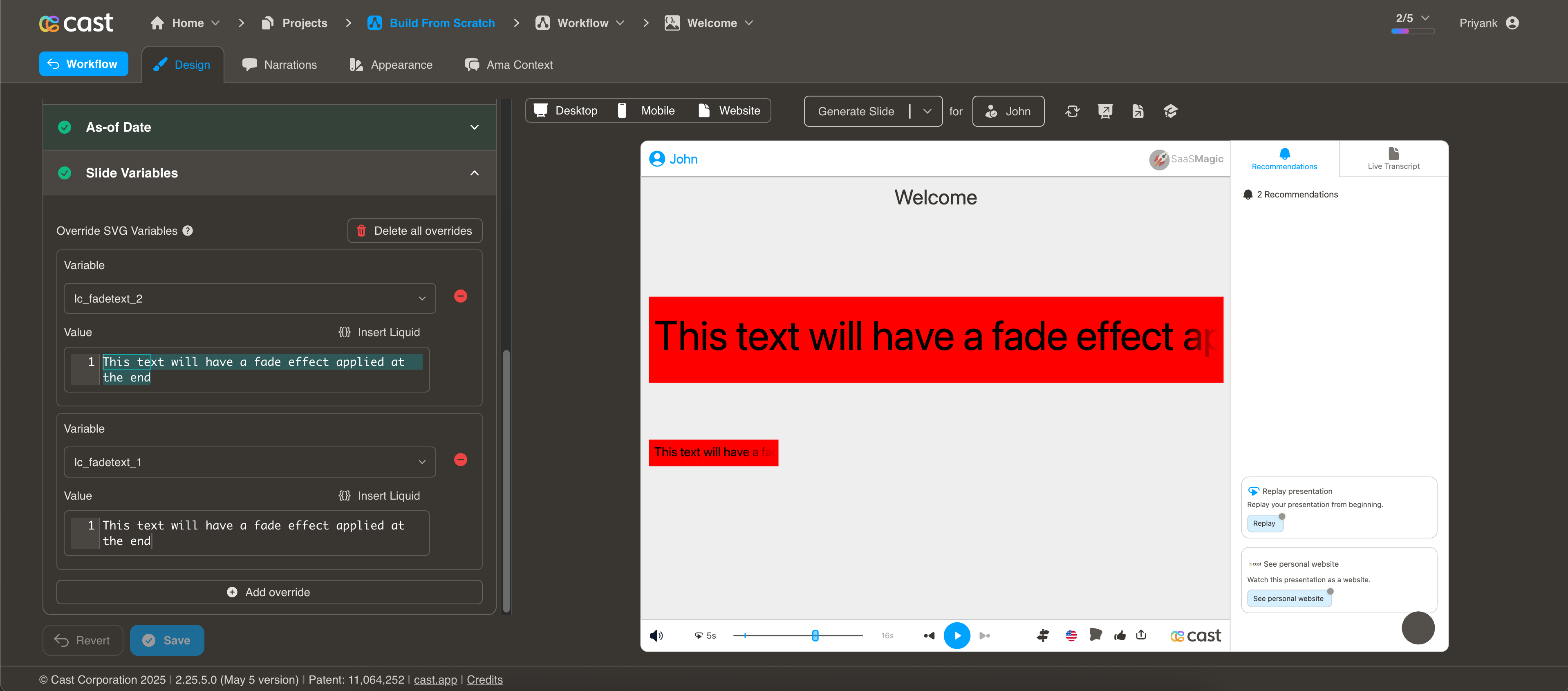
Section titled “lc_fadetext_*”Apply a fade effect at the end of text to indicate content continues beyond visible area. Provides a visual cue for overflow without animation.
Element Setup:
- Element type:
<rect> - ID format:
lc_fadetext_*(e.g.,lc_fadetext_summary,lc_fadetext_notes)
Input Format:
"This text will have a fade effect applied at the end to indicate more content"Behavior:
- Fade gradient automatically applied at text end
- Provides subtle overflow indication
- Static display (no animation)
Usage Example:
{% raw %}
<!-- In your SVG --><rect id="lc_fadetext_summary" width="400" height="80" />
<!-- In your dataset -->{{ summary }} = "Executive summary explaining the key points of the quarterly business review and highlighting the major achievements"
{% endraw %}
Common Use Cases:
- Executive summaries
- Preview text
- Notes and annotations
- Abbreviated content
- Space-constrained descriptions
Choosing Between Scroll and Fade
Section titled “Choosing Between Scroll and Fade”Use lc_scrolltext_* |
Use lc_fadetext_* |
|---|---|
| User needs to read full content | Content is supplementary |
| Long testimonials | Preview/teaser text |
| Complete information required | Space is very limited |
| Dynamic narration | Static presentation |
Images and Videos
Section titled “Images and Videos”Dynamic Images
Section titled “Dynamic Images”
lc_image_*
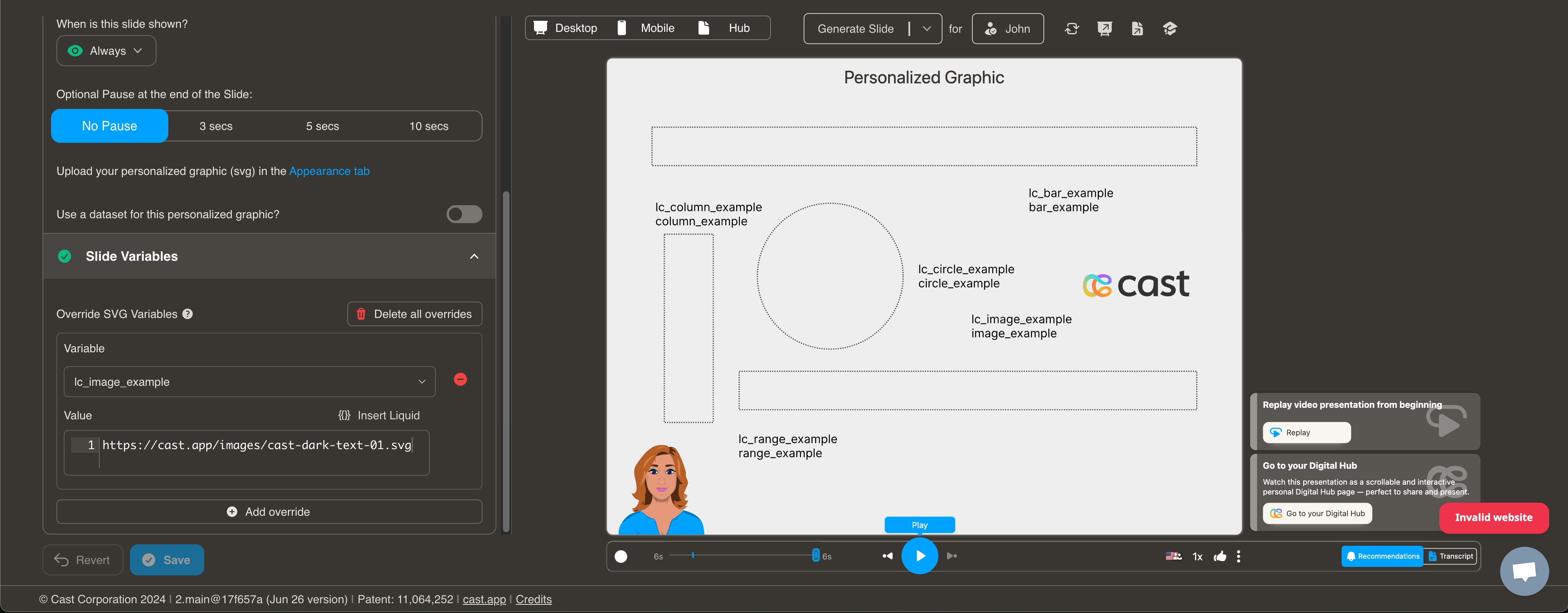
Section titled “lc_image_*”Display uploaded images dynamically from your data source. Perfect for logos, product images, customer photos, or any personalized visual content.
Element Setup:
- Element type:
<rect> - ID format:
lc_image_*(e.g.,lc_image_logo,lc_image_profile)
Alignment Options:
Control horizontal alignment within the rect using ID patterns:
lc_image_*→ Center aligned (default)lc_image_left_*→ Left alignedlc_image_right_*→ Right aligned
Note: Images are always vertically centered within the rect, regardless of horizontal alignment.
Input Format:
CDN URL:
"https://cast.app/images/cast-dark-text-01.svg"Dataset Variable:
{% raw %}
{{ company-logo }}{% endraw %}
Where company-logo contains the image URL
Error Handling:
If no image is provided or file type is unsupported, displays:
"No Image"Usage Example:
{% raw %}
<!-- In your SVG --><!-- Center aligned (default) --><rect id="lc_image_company-logo" width="200" height="200" />
<!-- Left aligned --><rect id="lc_image_left_csm-photo" width="150" height="150" />
<!-- Right aligned --><rect id="lc_image_right_company-logo" width="200" height="200" />
<!-- In your dataset -->{{ company-logo }} = "https://cast.app/images/cast-dark-text-01.svg"
{{ csm-photo }} = "https://cast.app/images/cast-dark-text-01.svg"
{% endraw %}
Image Behavior:
- Aspect Ratio: Images maintain their aspect ratio and are never upscaled
- Scaling: Large images scale down to fit within the rect; small images display at their natural size
- Rounded Corners: If the original
<rect>hasrx/ryattributes, rounded corners are preserved via clipPath - Vertical Alignment: Images are always vertically centered within the rect
Common Use Cases:
- Customer/company logos
- Product images
- Team member photos
- Profile pictures
- Brand assets
- Dynamic graphics
Dynamic Videos
Section titled “Dynamic Videos”
lc_video_*
Section titled “lc_video_*”Embed video content with automatic playback and looping. Perfect for product demos, animations, or dynamic visual content.
Element Setup:
- Element type:
<rect> - ID format:
lc_video_*(e.g.,lc_video_demo,lc_video_intro)
Input Format:
"https://cdn.example.com/videos/product-demo.mp4"Video Behavior:
- Automatically plays when slide is displayed
- Loops continuously
- Muted by default
- Responsive to container size
Usage Example:
{% raw %}
<!-- In your SVG --><rect id="lc_video_product-demo" width="640" height="360" />
<!-- In your dataset -->{{ product-demo }} = "https://cdn.cast.app/videos/demo.mp4"
{% endraw %}
Common Use Cases:
- Product demonstrations
- Feature showcases
- Animated logos
- Process visualizations
- Background animations
- Tutorial clips
Best Practices:
- Keep it short - Videos should be under 30 seconds
- Optimize files - Compress videos for fast loading
- Loop seamlessly - Ensure smooth loop transitions
- No audio required - Videos play muted
- Aspect ratio - Match video ratio to rect dimensions
- File format - Use MP4 (H.264) for best compatibility
Supported Formats:
- MP4 (H.264) - Recommended
- WebM
- OGG (limited support)
Dynamic Lottie Animations
Section titled “Dynamic Lottie Animations”
lc_lottie_*
Section titled “lc_lottie_*”Display Lottie animations dynamically from your data source. Perfect for animated logos, loading indicators, illustrations, or any engaging animated content.
Element Setup:
- Element type:
<rect> - ID format:
lc_lottie_*(e.g.,lc_lottie_logo,lc_lottie_loader)
Input Format:
CDN URL:
"https://cdn.example.com/animations/logo-animation.json"Dataset Variable:
{% raw %}
{{ animation-url }}{% endraw %}
Where animation-url contains the Lottie JSON file URL
Error Handling:
If the animation fails to load, the element will remain visible but the animation will not play. Errors are logged to the console.
Usage Example:
{% raw %}
<!-- In your SVG --><rect id="lc_lottie_logo" width="200" height="200" />
<rect id="lc_lottie_loader" width="150" height="150" />
<!-- In your dataset -->{{ logo-animation }} = "https://cdn.cast.app/animations/company-logo.json"{{ loader-animation }} = "https://cdn.cast.app/animations/loading-spinner.json"
{% endraw %}
Animation Behavior:
- Autoplay: Animations start automatically when loaded
- Looping: Animations loop continuously by default
- Aspect Ratio: Animations maintain their aspect ratio and scale to fit within the rect using “meet” behavior
- Rounded Corners: If the original
<rect>hasrx/ryattributes, rounded corners are preserved via clipPath - Caching: Animation data is cached to avoid re-fetching the same files
- HTTPS Upgrade: HTTP URLs are automatically upgraded to HTTPS on secure pages
Common Use Cases:
- Animated logos
- Loading indicators
- Illustrations
- Icon animations
- Background animations
- Interactive elements
- Marketing animations
Formatted Date Display
Section titled “Formatted Date Display”
lc_date_*
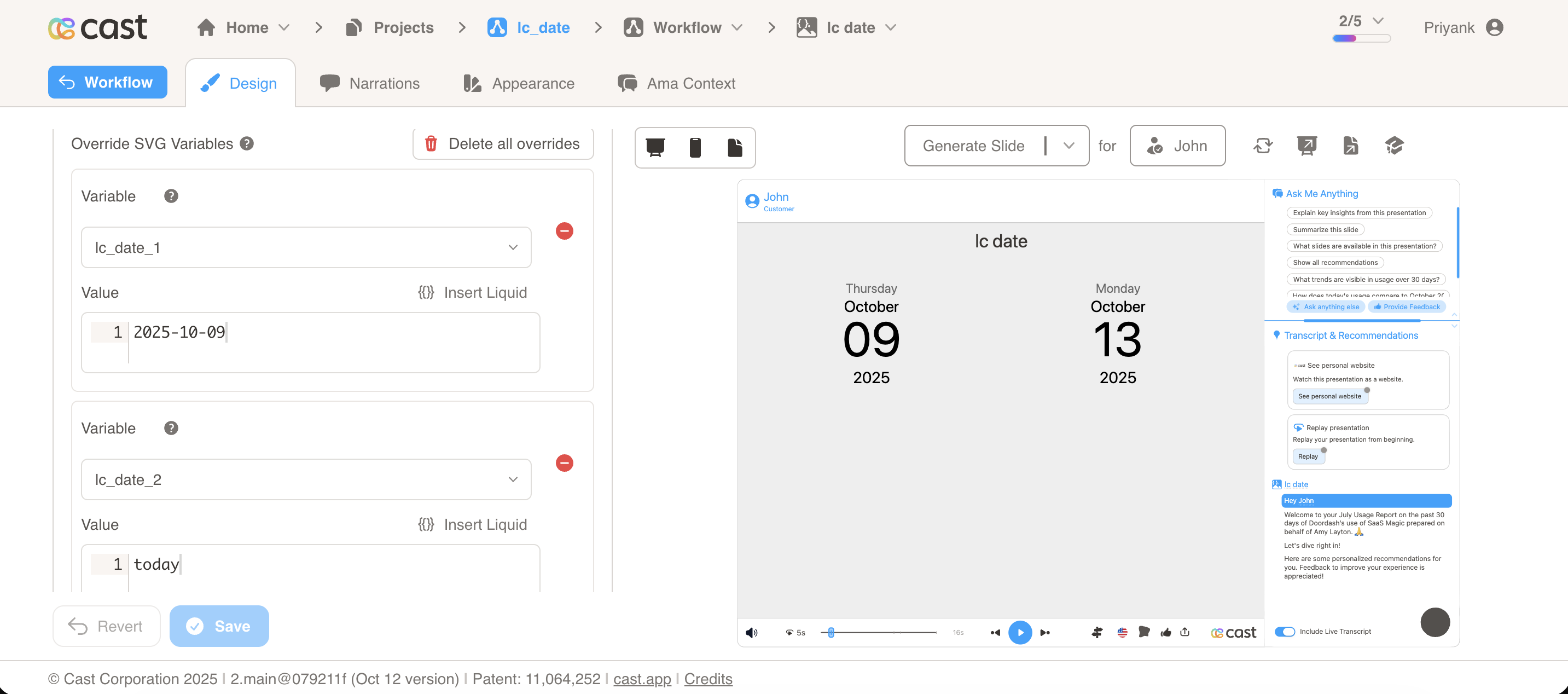
Section titled “lc_date_*”Display dates in an attractive, formatted calendar style. Perfect for events, milestones, deadlines, or any date-based information.
Element Setup:
- Element type:
<rect> - ID format:
lc_date_*(e.g.,lc_date_event,lc_date_deadline) - Minimum recommended size: 200x150px
Input Format:
ISO Date Format:
"YYYY-M[M]-D[D]"Examples:
"2025-10-13" → October 13, 2025"1967-7-11" → July 11, 1967"2000-1-1" → January 1, 2000Current Date Keywords:
"today" → Displays current date"Today" → Displays current date"TODAY" → Displays current date"" → Empty string also displays current dateDisplay Format: The date renders as a vertical stack:
WEEKDAYMONTHDAYYEARExample output:
FridayOctober132025Invalid Formats: If an invalid date is provided, the original rectangle remains unchanged (no date displayed).
Usage Example:
{% raw %}
<!-- In your SVG --><rect id="lc_date_meeting" width="200" height="150" fill="#2196F3" /><rect id="lc_date_launch" width="200" height="150" fill="#4CAF50" />
<!-- In your dataset -->{{ meeting }} = "2025-11-15"{{ launch }} = "today"
{% endraw %}
Result:
- First date shows November 15, 2025
- Second date shows current date
Common Use Cases:
- Event dates and conferences
- Meeting schedules
- Product launch dates
- Contract renewal dates
- Project deadlines
- Milestone dates
- Anniversary dates
- Expiration dates
Styling:
- Text color inherits from rect’s fill color
- Text auto-scales to fit rect dimensions
- Font remains readable at minimum size
Best Practices:
- Size appropriately - Use at least 200x150px
- Readable colors - Ensure sufficient contrast
- Consistent sizing - Use same dimensions for multiple dates
- Valid formats - Always use ISO format (YYYY-M-D)
- Test display - Preview with actual dates
Complete Examples
Section titled “Complete Examples”Customer Profile with Media
Section titled “Customer Profile with Media”{% raw %}
<!-- In your SVG --><rect id="lc_image_profile" x="50" y="50" width="150" height="150" /><text id="lc_customer-name" x="220" y="80">Customer Name</text><rect id="lc_scrolltext_bio" x="220" y="100" width="400" height="100" />
<!-- In your dataset -->{{ profile }} = "https://cdn.cast.app/images/jane-smith.jpg"{{ customer-name }} = "Jane Smith"{{ bio }} = "Jane is a Product Manager with 10 years of experience in SaaS companies. She specializes in user experience and has led multiple successful product launches."
{% endraw %}
Event Announcement
Section titled “Event Announcement”{% raw %}
<!-- In your SVG --><rect id="lc_date_event" width="200" height="150" fill="#1E88E5" /><text id="lc_event-name" x="250" y="60">Event Name</text><rect id="lc_fadetext_description" x="250" y="90" width="600" height="60" /><rect id="lc_video_promo" x="50" y="200" width="800" height="450" />
<!-- In your dataset -->{{ event }} = "2025-12-15"{{ event-name }} = "Annual Customer Summit 2025"{{ description }} = "Join us for our biggest event of the year featuring keynotes, workshops, and networking"{{ promo }} = "https://cdn.cast.app/videos/summit-promo.mp4"
{% endraw %}
Troubleshooting
Section titled “Troubleshooting”| Issue | Solution |
|---|---|
| Text not scrolling | Ensure element is <rect> and text exceeds container |
| Image not loading | Verify URL is accessible and format is supported |
| Video not playing | Check format (MP4 recommended) and URL |
| Date not displaying | Verify ISO format: YYYY-M-D |
| “No Image” showing | Check image URL or provide fallback |
| Text too small | Increase rect dimensions |
| Video too large | Compress video or reduce dimensions |
| Date text unreadable | Increase rect size or adjust fill color |
Compatibility Notes
Section titled “Compatibility Notes”- Scroll/Fade Text: Works with
<rect>elements only - Images: Works with
<rect>elements only - Videos: Works with
<rect>elements only - Dates: Works with
<rect>elements only
Related Features
Section titled “Related Features”- Ken Burns Animation - Animate images and videos
- Dynamic Colors - Change date background colors
- Setup Guide - Learn SVG export basics